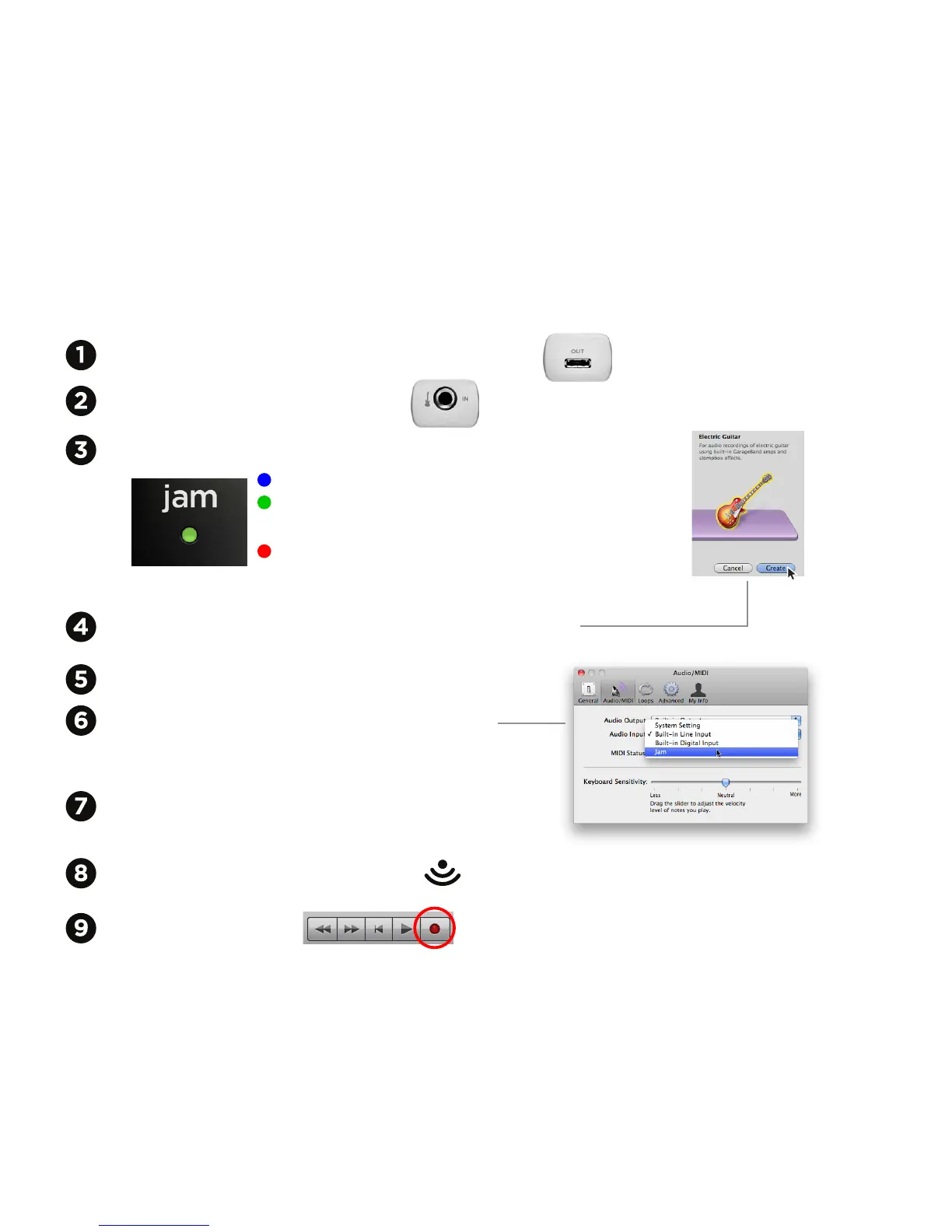
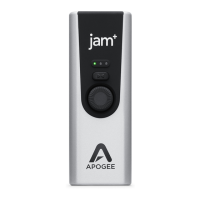
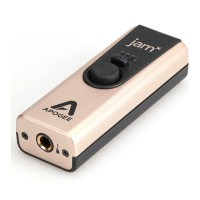
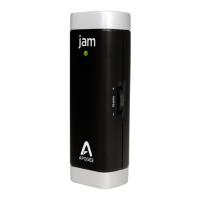
Plug JAM into your Mac using the provided USB cable
Plug your guitar into JAM’s 1/4” input
Start up GarageBand, Choose New Project > Electric Guitar
(JAM’s status light should turn to green)
Name the Project and save it on your hard drive
Go to GarageBand > Preferences > Audio/Midi >
Choose JAM for Audio Input
Choose Built-In Output for Audio Output
Plug your headphones into your Mac’s headphone
output or just listen through your Mac’s built-in speakers
To hear your track in GarageBand, click to turn monitoring on
Click the Record button and you are recording with JAM!
Using JAM with a Mac
Check the status light on JAM, it should be Blue
Blue - JAM is connected but not ready
Green - JAM is connected, ready and
working with your software
Red - Your gain is too high, adjust
the gain using the Gain Control Knob
on the side of JAM


 To Next Page