13
Operation – Android Devices
Viewing or Uploading Files in Your Collections
Screens may vary slightly depending on the Android device
you are using.
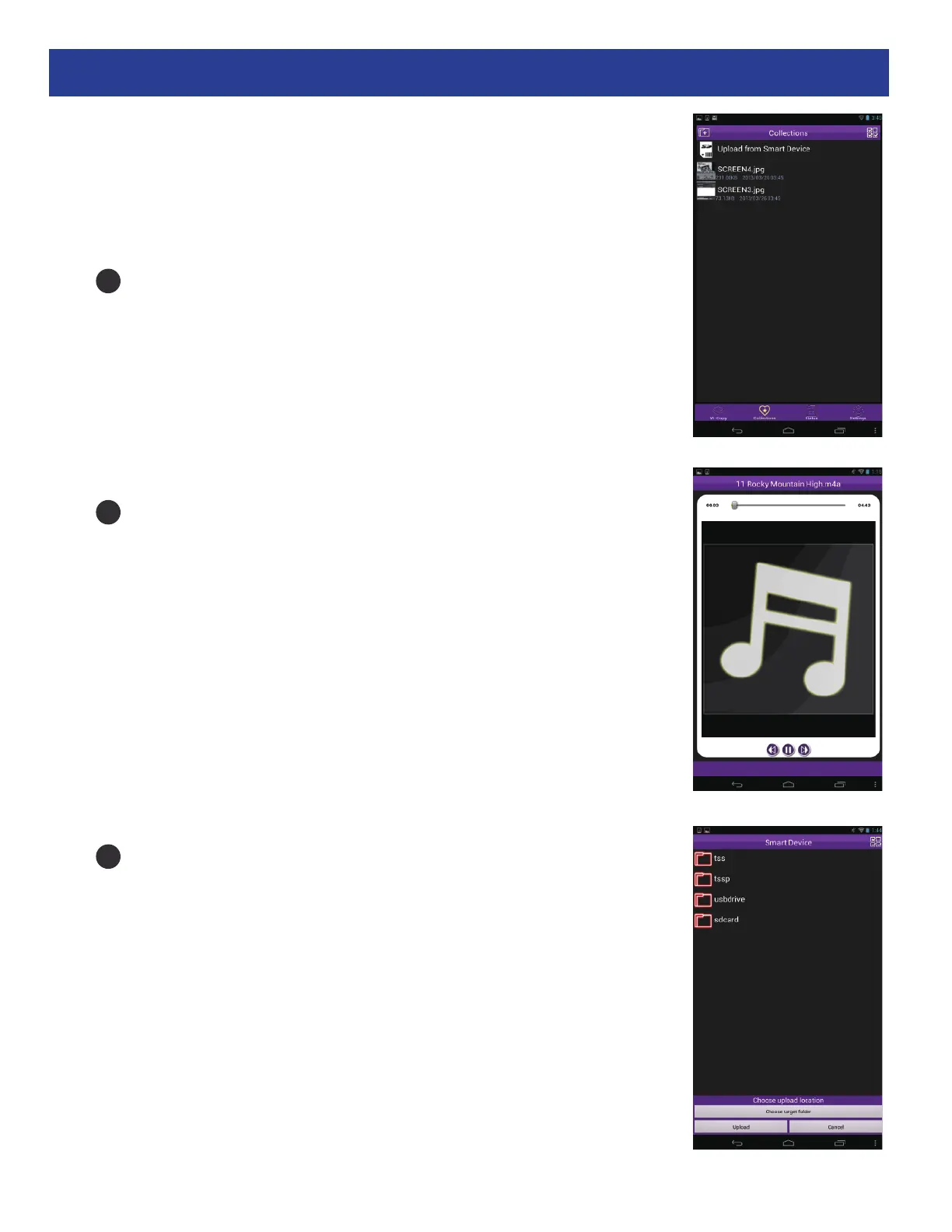
Turn on the unit and open the Wi-Copy App as previously
described. Tap the Collections icon at the bottom of the
screen and the Collections screen will appear.
If any valid files have been saved to your collection, simply tap
on one to play/view it in the Wi-Copy App.
To Upload a file from your device to an SD Card/Flash Drive,
tap Upload From Smartphone. Select file(s), tap Choose
target folder then tap Upload and the unit will upload the files.
Note: Tap the Status icon at the bottom of the screen to
show the status of any transferring files.
1
2
3


 To Next Page