Apple Cinema HD Display (23-inch DVI) Trouble-
FireWire Devices Symptom Charts
FireWire Devices
FireWire device not working
1. Reseat all external cable connections.
2. Verify that the display’s FireWire cable is connected to a good FireWire port.
3. Plug the display into a computer with a known-good DVI display port, then start up the
computer. On the back of the display, connect a known-good FireWire device into one
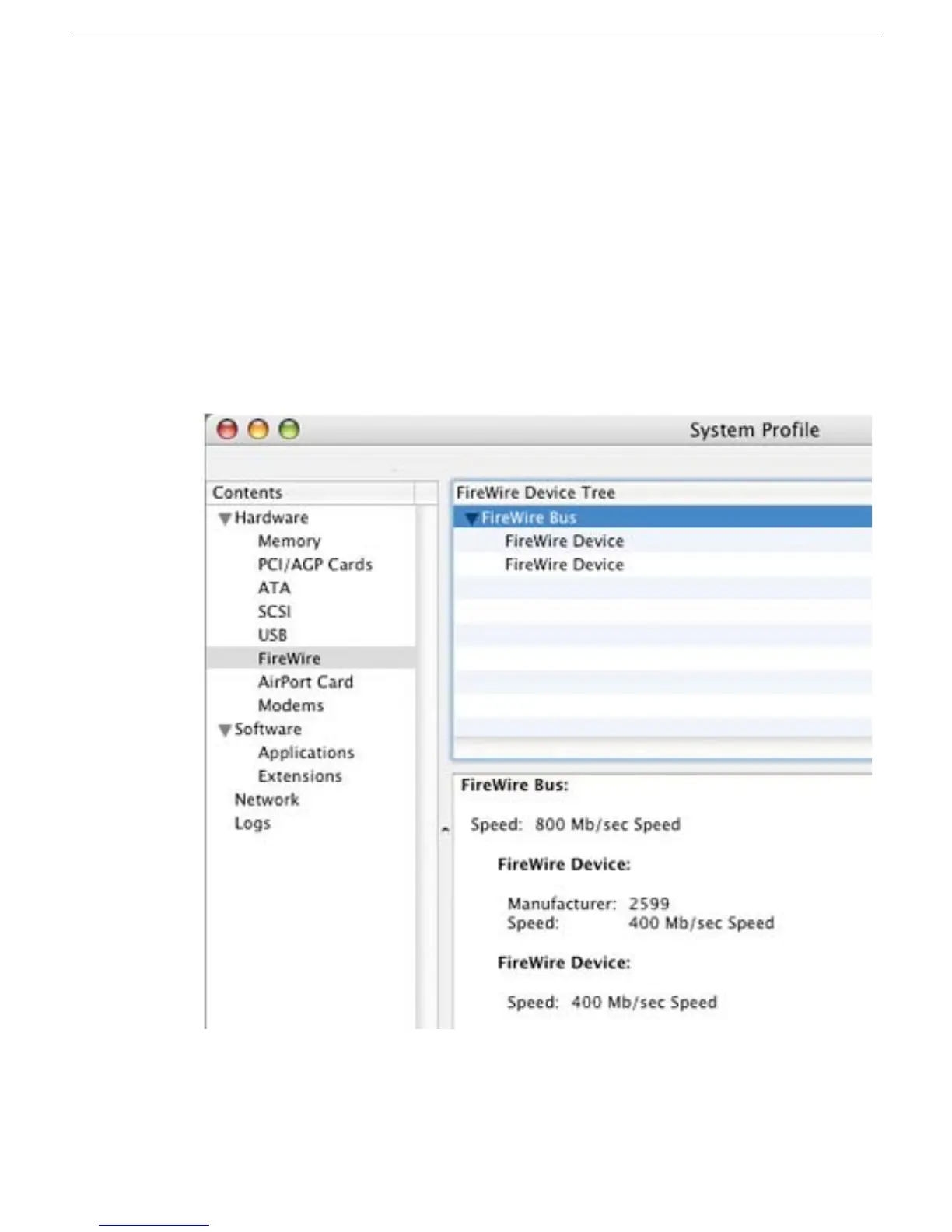
of the FireWire ports, then open System Profiler to see if it is recognized under
FireWire Bus. Refresh the System Profile window as you check both FireWire ports.
If the system is recognizing the device, the System Profile window appears as
shown:
4. If the FireWire device is recognized by System Profiler, the customer’s FireWire device
may be the issue.
5. If the device is not recognized, check the J14, J15, and J16 FireWire connectors on
the lower left corner of the main board. Inspect the FireWire cables for damage.



 To Next Page