•
-
-
. -
-
-.
-
-
L:
. -
L:
L75'!
•
Sof/ware
Is
a set ollnstructiorn thaI
te~s
the computer
10
do
cerlaln
things,
ike
stort a
dis!<
drive. lurn
the
compuler
Into 0
word
pro-
cessor. or slore
and
retrieve
doto
Hardware,
on
Ihe
other
hand.
InclUdes
Ihe
Ihlngs you
con
hondle-Ihe
computer.lnlerlace
cords.
and
so forth,
Ralher than tell you
how
to connect
each
peripheral device, this
manual gives you guidelines concerning the handling
and
installation
of
interface cards
and
preferred
slots
for different
devices. You
should
consult the manual for
each
of
your devices for
preferred slot assignments
and
explicit installation instructions.
You should also check the manuals that came
with
the
software
programs you purchased
for
mentions
of
necessary slot
assignments. Some programs require a particular device to
be
in
a
particular slot.
Plugging in
the
power
cord
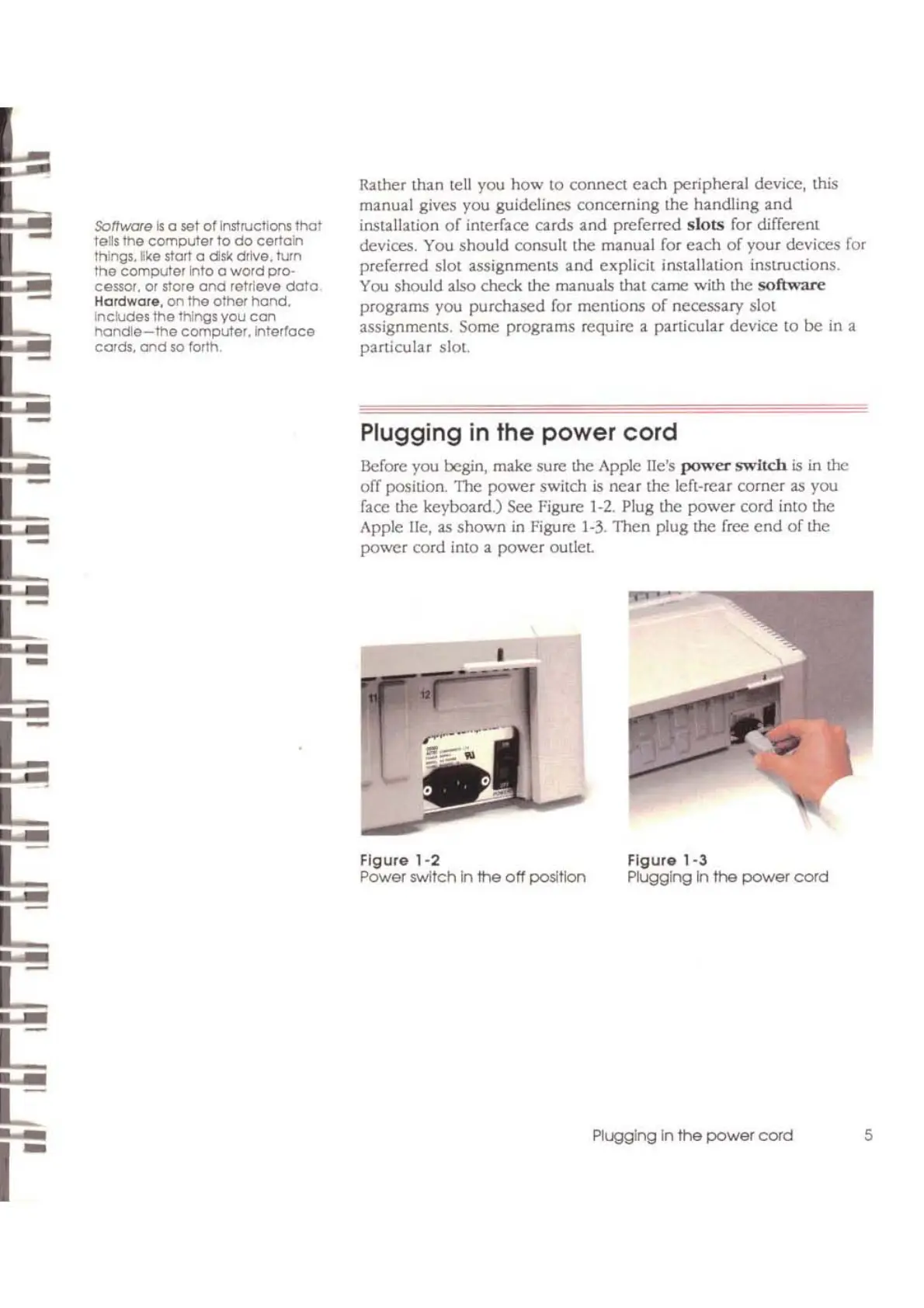
Before you begin, make sure the Apple lle's
power
:!t~ltch
is
in
the
off
position. The power switch
is
nClif
the lefl-rear corner
as
you
face the keyboard.) See Figure
1-2.
Plug the power cord into the
Apple lie, as shown
in
Figure
1-3.
Then plug the free
end
of
the
power cord into a power outleL
I
-
L
....
L
...
r=
Figure
1-2
Power switch
In
the
off
position
Figure
1-3
~ugglng
In
the
power cord
Plugging
In
the
power
cord
5



 To Next Page