QuickBooks for Mac 2014 User’s Guide 146
Tracking expenses related to a bill
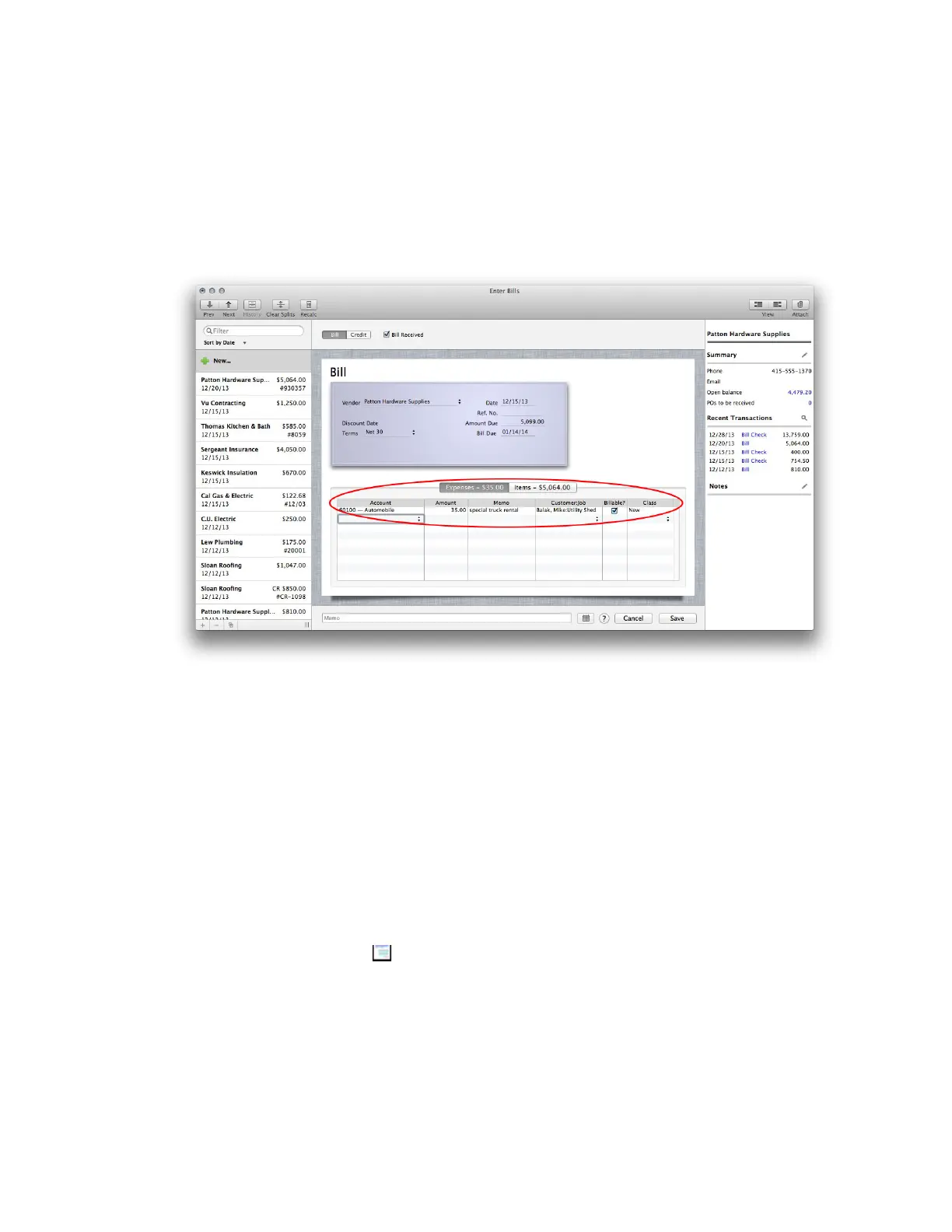
On the Enter Bills window, use the Expenses pane at the bottom of the window to enter non-item expenses, like
electricity expenses for a bill from the utility company or postage expenses that are part of inventory items you've
received.
Tip: If you assign the amount of the bill to various expense accounts, customers, jobs, or classes, your reports will
show you how much you spend within each of these areas.
• Account. Choose the account that you use to track that type of expense. Usually, this will be an expense
account.
• Amount. QuickBooks enters the amount you entered for Amount Due or Credit Due. To assign only part of the
amount to the expense, you can edit this number. Note: For inventory item purchases, you may want to
associate expenses such as tax or freight charges with your Cost of Goods Sold (COGS) account instead of an
expense account.
• Memo. Enter a memo about the expense.
• Customer: Job. To pass on the amount as an expense to be reimbursed by a customer, enter the customer in
the Customer:Job column.
• Billable Time. An icon appears ( ) indicating this is billable time. If it's not, click the icon so that an X appears
over it.
• Class. To assign the amount to one of your QuickBooks classes, enter it in the Class column. Note: This column
only appears when you have selected the “Use Class Tracking” preference (choose QuickBooks > Preferences >
Transactions).
!



 To Next Page