QuickBooks for Mac 2014 User’s Guide 147
Listing items included in a bill
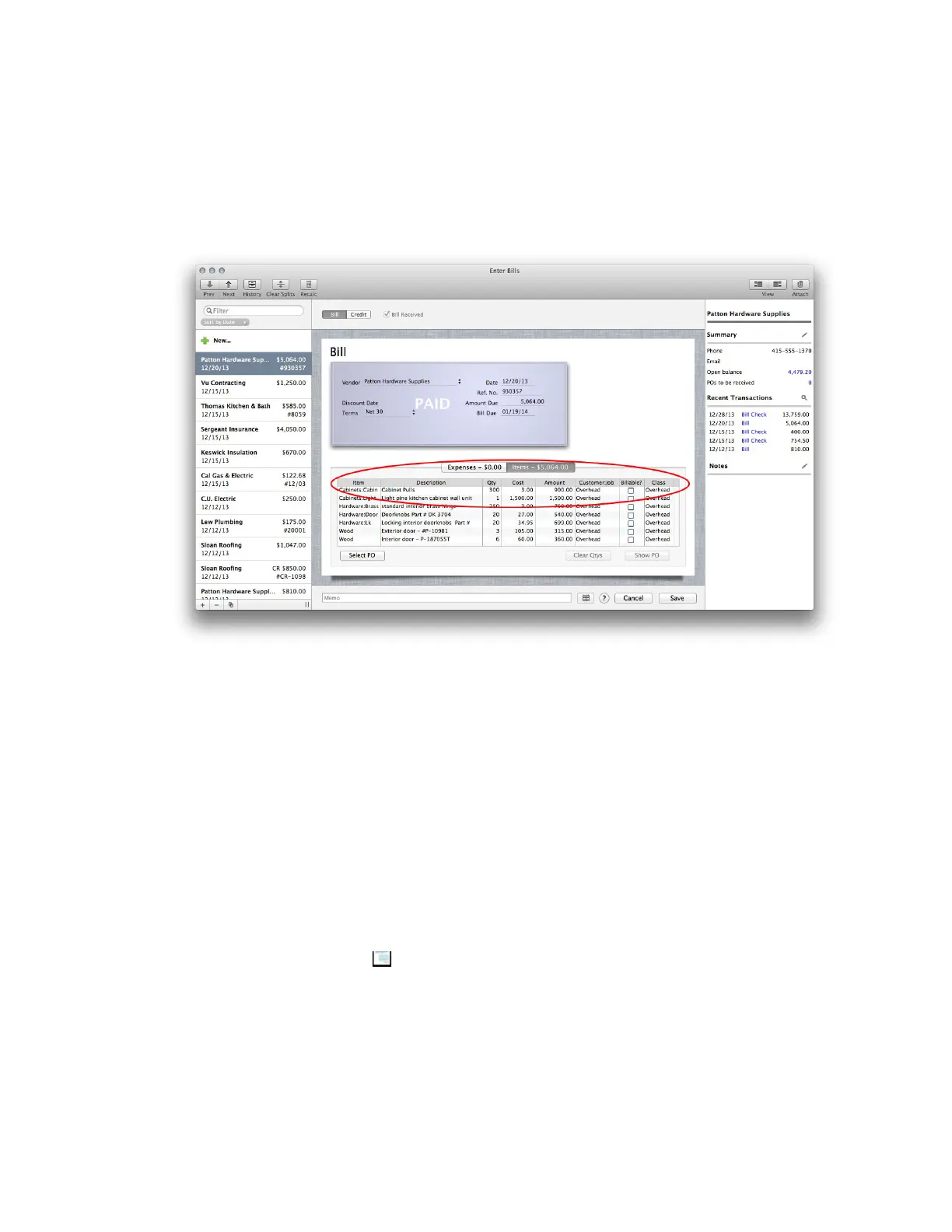
On the Enter Bills window, use the Items pane at the bottom of the window to enter details about items you're
being billed for.
Did you have an open purchase order (PO) for the items? If so, when you enter a vendor at the top of the
window, QuickBooks asks you whether the items have been received. If you marked them as received, then
QuickBooks adds those to Items pane. If you didn't receive all the items on the purchase order, you can edit the
quantity (or cost) of any item, or delete an item completely.
Enter the details of the items you are being billed for:
• Item. The item you are being billed for.
• Description. Enter a description for that item.
• Qty. Enter how many of the item you received.
• Cost. How much was each item?
• Amount. QuickBooks multiplies Qty and Cost to calculate the amount of all the items.
• Customer. If you've bought these items for a customer or job, select the name from the list.
• Billable Time. An icon appears ( ) indicating this is billable time. If it's not, click the icon so that an X appears
over it.
• Class. To assign the amount to one of your QuickBooks classes, enter it in the Class column. Note: This column
only appears when you have selected the “Use Class Tracking” preference (choose QuickBooks > Preferences >
Transactions).
• PO No. Since you don't have a PO, you can ignore this.



 To Next Page