QuickBooks for Mac 2014 User’s Guide 180
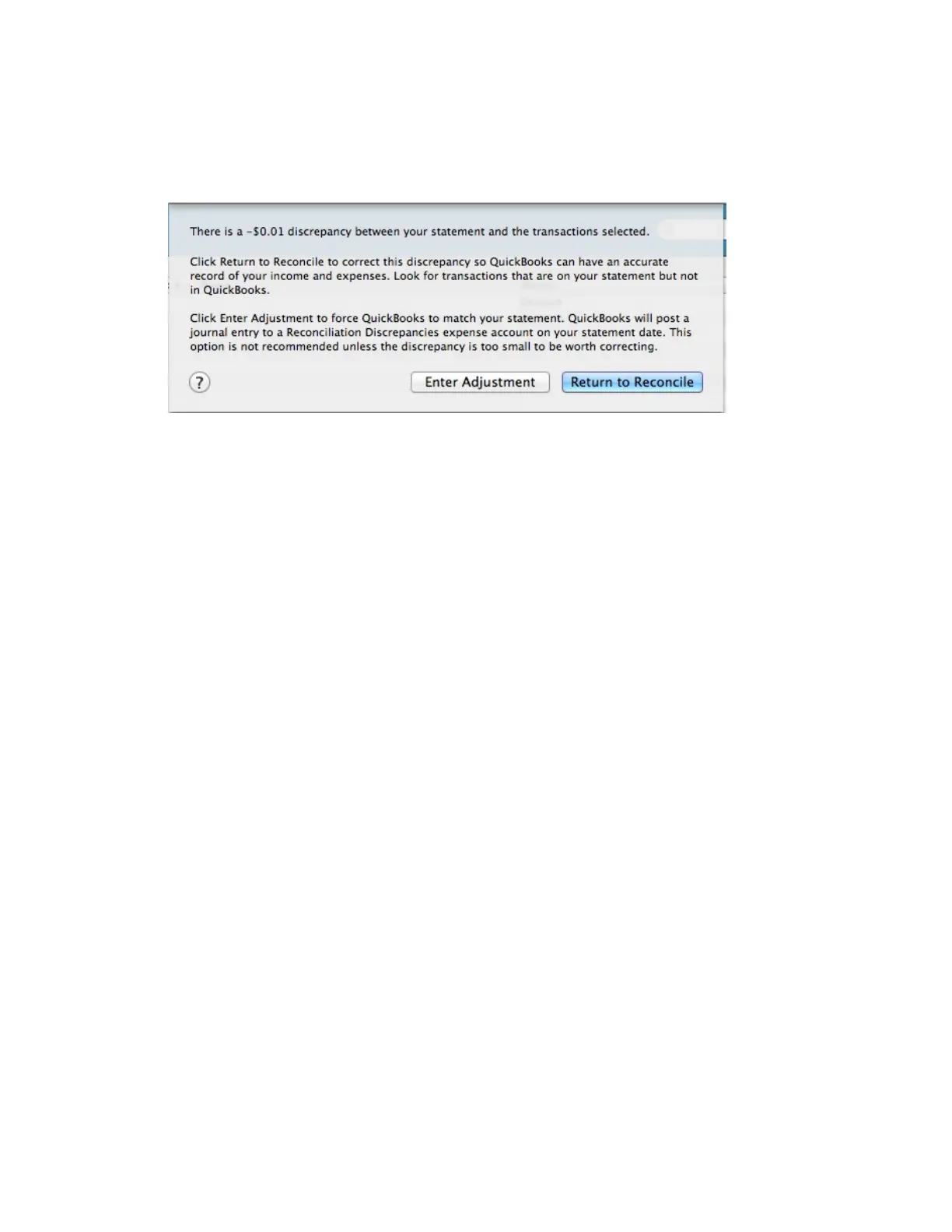
QuickBooks adds a balance adjustment transaction to your account register.
The balance of the account changes by the amount of the transaction. If you find and correct the source of the
error later, be sure to also delete the adjustment transaction.
Handling bank errors
You’ll notice throughout this section that I’m assuming the error is on your part. Sorry to say this, but in most cases
it is. But sometimes it’s not you! It’s them! Banks make mistakes, too.
If this is the case, let QuickBooks make an adjustment transaction as I described in the previous section, then
contact your bank. The bank will make an adjustment that appears on your next statement. Because a QuickBooks
adjustment appears as a cleared item in the check register, your account will be off by the same amount at the
end of the next reconciliation. Delete the QuickBooks balance adjustment transaction when you reconcile the next
statement. Or just let QuickBooks enter another adjustment that effectively reverses the first adjustment. This
guarantees a clean paper trail that reflects what actually happened.
Viewing and printing previous reconciliation reports
QuickBooks for Mac 2014 saves the reports every time you reconcile one of your accounts. Any time you need to
check a reconciliation, you can create a report to see it.
Tip: When you view a previous reconciliation report, we recommend that you use a PDF Reader to get the most out
of this experience.
For previous reconciliations you've done in QuickBooks for Mac 2014, you can use our Previous Reconciliation
report function to look at these reports and print them out. But if you're looking for a reconciliation you did in any
other version of QuickBooks, we can't show you that report. We're sorry about that!
To see a previous reconciliation report:
1 Go to Reports > Banking > Previous Reconciliation.
2 Choose the account you want to see the reconciliation for.
3 Choose the type of report you want to see:



 To Next Page