QuickBooks for Mac 2014 User’s Guide 203
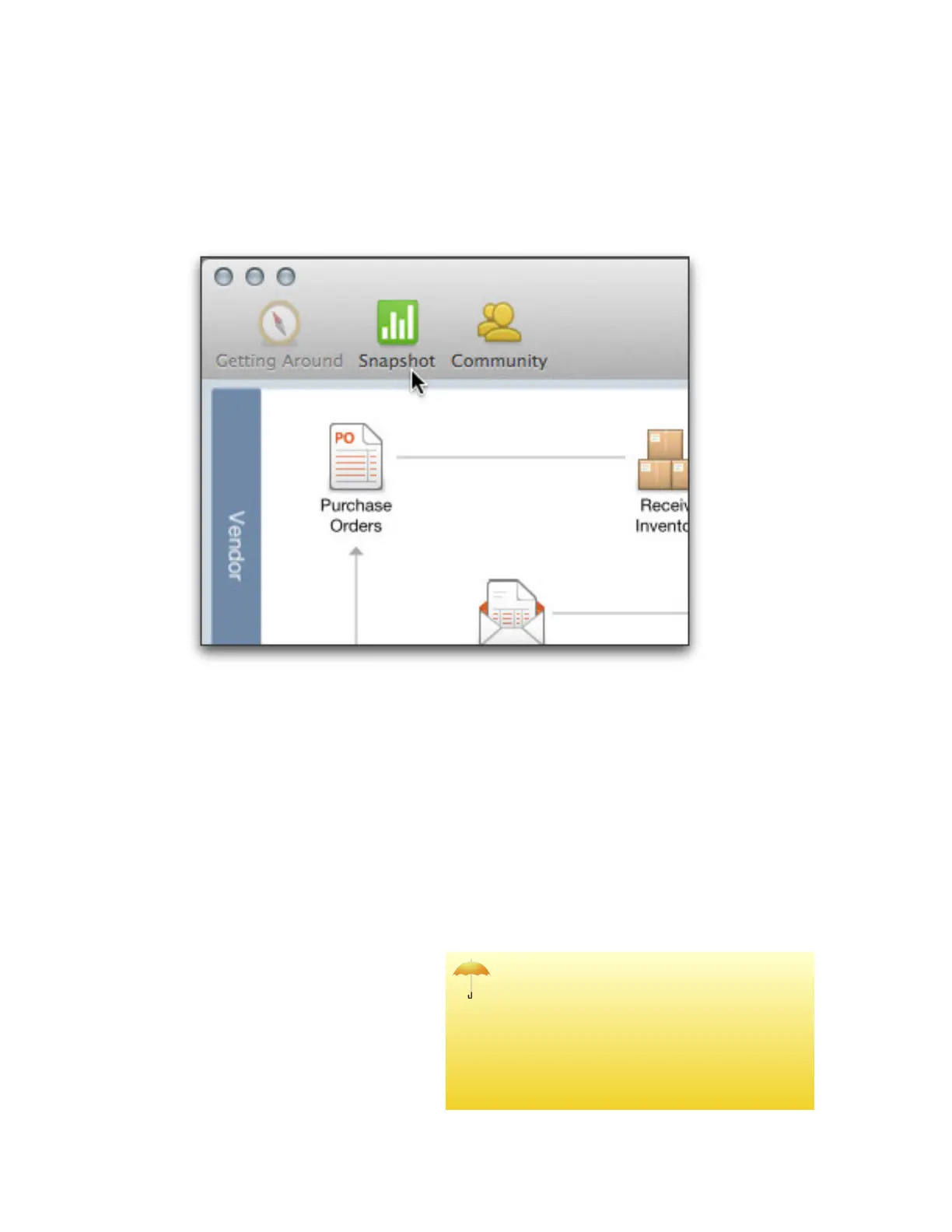
To access the Company Snapshot:
Click the Snapshot icon on the Home page.
Information found on the Company Snapshot
You can find out a lot very quickly on the Company Snapshot, including:
• Income Tracker. Shows active estimates, unbilled time and costs, open invoices (with overdue invoices called
out), and what you’ve paid in the last 30 days.
• Account Balances. Displays all cash, credit card, accounts receivable, accounts payable, and liability accounts.
Double-click a line item account to open the register window for that account. Click Chart of Accounts to open
the Chart of Accounts window. Click the Info icon to select the accounts you want to see.
• Income Breakdown. Shows a pie chart of your income, broken down by account.
• Expense Breakdown. Shows a pie chart
of your expenses, broken down by
account.
• Income and Expense Trends. Shows
money going in and out of your business
for a time period. It gives you a quick
snapshot of how your business is doing
and lets you compare income and
expenses. To change the time period, use
the pull down menu below the graph.
Why can't I see all of this information?



 To Next Page