QuickBooks for Mac 2014 User’s Guide 204
Place your cursor over a bar in the graph to see the exact amount.
• Customers Who Owe Money. Shows balances owed by customers. Past due items are in red. Double-click a line
item to open the Customer Center and see transactions for that customer. Click Receive Payments to open the
Receive Payments window. The total amount owed is displayed at the bottom. Click on the total to see a
Customer Balance Summary report.
• Vendors to Pay. Shows balances you owe to vendors. Past due items are noted in red. Double-click a line item to
open the Enter Bills window for that bill. Click Pay Bills to open the Enter Bills window for all bills. The total
amount you owe is displayed at the bottom. Click on the total to see a Vendor Balance Summary report.
• Reminders. Lists reminders, grouped by category, based on your Reminder preferences. Past due reminders are
in red. Click the arrow next to a category name to see the reminders in that category. Click an item to open the
transaction or note for that reminder. Click
Preferences beneath the list to change your
Reminder settings.
Tips and tricks
Here are some more tips and tricks so you can make
the best use of the Company Snapshot:
• Sort any column by clicking the column title.
• Rearrange the columns by clicking and dragging the
top of a column to move it to another location.
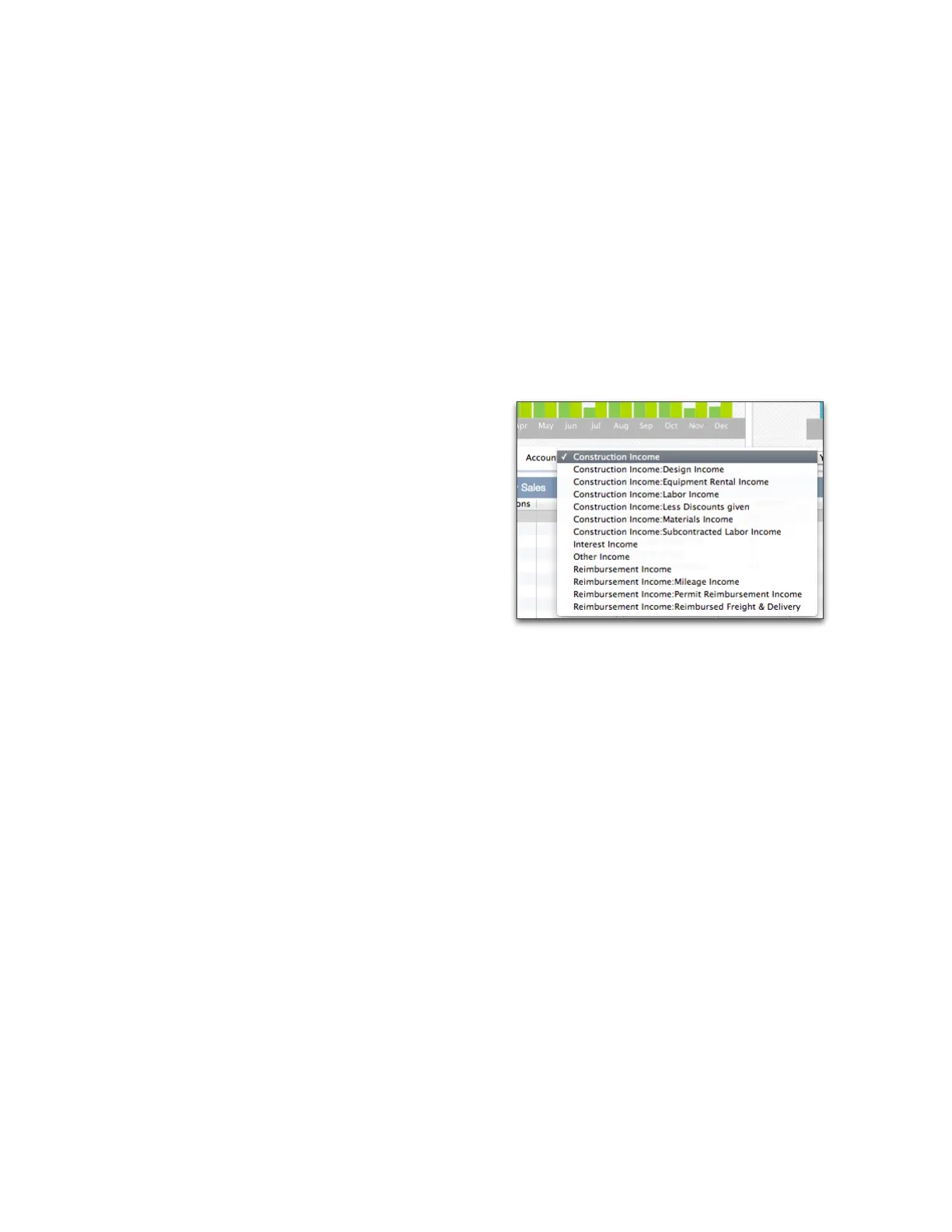
• Customize what you see. Use the links and pull down lists below a pane on the Company Snapshot to change
the information the pane displays.
Reports and graphs
So much of QuickBooks is about entering data. When you want to know what's going on in your business, you need
to take a look at how all that data adds up. That's where reports come in.
To create a report:
1 Open the Report Center (Reports > Report Center).
2 On the left, double-click the type of report you want to create.
You can stop here and use the standard report QuickBooks provides. If you'd like to customize your reports, see
below.
Report Center
The Report Center is a central location for all your reports. QuickBooks provides reports to give you information and
comparisons about jobs, costs, revenues and time. You can learn how profitable your jobs were, find out how well



 To Next Page