QuickBooks for Mac 2014 User’s Guide 17
Entering customer transactions
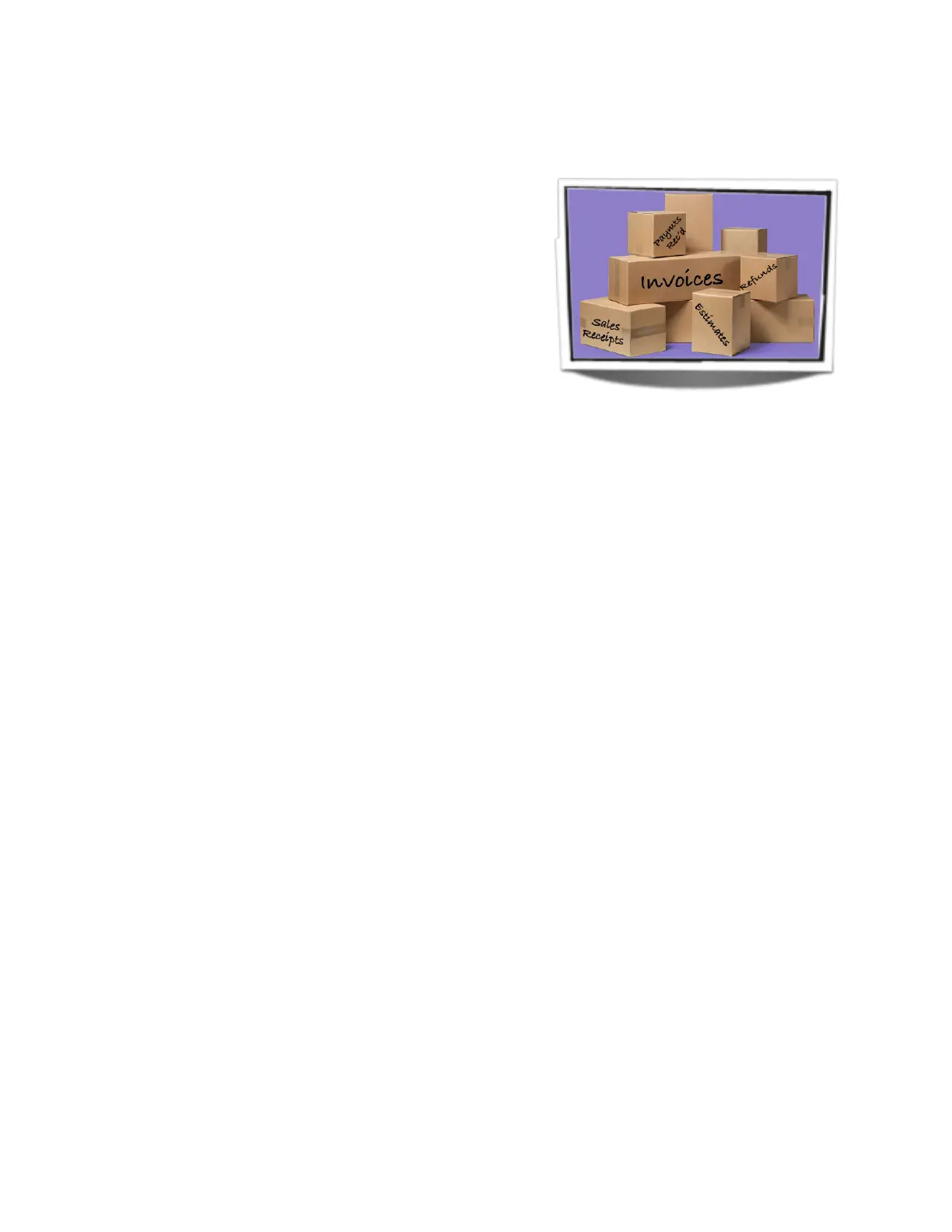
Customer transactions you need to enter are:
• Estimates
• Invoices
• Sales receipts
• Refunds and credit memos
• Payments received
Gather the information you’ll need
Depending on the type of business you have, you may not need to gather all of this information. So if something in
this list doesn’t apply to you, just ignore it. One important thing to remember: you only need to enter the
transactions from the start date you entered when you created your company file until today. You
don’t have to go back to the beginning of your business and enter years of information. (Whew.)
Whether you’ve been keeping paper or electronic records, or a mixture, here’s what to gather up:
• Any estimates you’ve sent to customers or potential customers. (You don’t have to enter ones for jobs or sales
you didn’t get, but you can if you want to.)
• Invoices you sent to customers, regardless of whether you’ve received payment yet.
• Any credit memos you’ve issued.
• Records of payments you’ve received from customers.
• Records of refunds you’ve given.
• Records of deposits of customer payments you’ve made to your bank.
• Record of sales tax payments you’ve made.
• If you sell things, details of what you sold, preferably grouped to correspond with deposits of your sales income
and records of deposits from sales receipts you gave.
Entering transactions
Now you’re ready to go. As with vendors, if you haven’t set up your Items or Customers lists yet, you’ll be asked to
add these as you go along. Go ahead and do that. You can go back to these lists later to enter more detail.
You can use the Customer area of the Home page to enter most of the transactions I talk about here. (I’ll tell you
where to enter the others.) Remember, you only need to enter the transactions between your company
file’s start date and today.
OK, now start entering your sales transactions in this order. Be sure to enter the correct transaction date for each
one.
• Estimates. If you use estimates, you’ll need to first turn on this feature. Choose QuickBooks > Preferences and
select Sales and Invoicing to turn on estimates. Then go back to the Home page and click Estimates. The
estimates you create will be the basis for other sales transactions such as invoices. You don’t have to enter
estimates for jobs or sales you didn’t get, unless you just want a record of them.



 To Next Page