QuickBooks for Mac 2014 User’s Guide 32
How to use lists
You can perform these tasks in your lists:
• Add an entry to the list. Click the + menu at the bottom of the list.
• Edit an entry. Select an entry on the list and then click Edit.
• Search for an entry. Use the search field in the top right corner or the list to find the item you need. Or you can
search throughout QuickBooks.
• Change the view. By default, QuickBooks lists names in a hierarchy. For example, subitems are listed under the
item they are a subitem of. Click the arrow beside a name to view the names in the hierarchy below them. You
can also choose Flat View from the Action menu ( ) that lists each name plus the name below it in the
hierarchy. You can change the view by selecting Hierarchical View or Flat View from the Action menu.
• Print, Save, or Email the list. Control-click in the list and select commands to print, save, or email what is
currently displayed on the list. For example on the Item list, control-click the name of an item and then select
Print Item List, Save Item List as Text, and Email Items List as PDF.
• View only active or inactive names. Use the filters at the bottom of the list to view only active or inactive
names.
• Display a QuickReport. Create a report for a selected name that lists year-to-date income and expense
transactions for the class you've selected. Select a name and then click QuickReport from the Action menu ( ).
• Revert a list back to its default sort order. With the list open, choose Edit > Re-sort List.
Tips and tricks
Try these tips and tricks to make using the lists even easier.
• Sort information by clicking the column titles.
• Rearrange the columns by clicking and dragging the top of a column to move it to another location.
• Select multiple entries in one of these ways:
o Shift-click to select a range of names. Select
the first name you want, hold down the Shift
key, and then select the last name in the
range.
o Command-click to select a group of
nonadjacent names. Select a name, hold down
the Command key ( ), and then select each
additional name.
o Command-A to select all names. No need to click; just press Command-A to select the entire list.
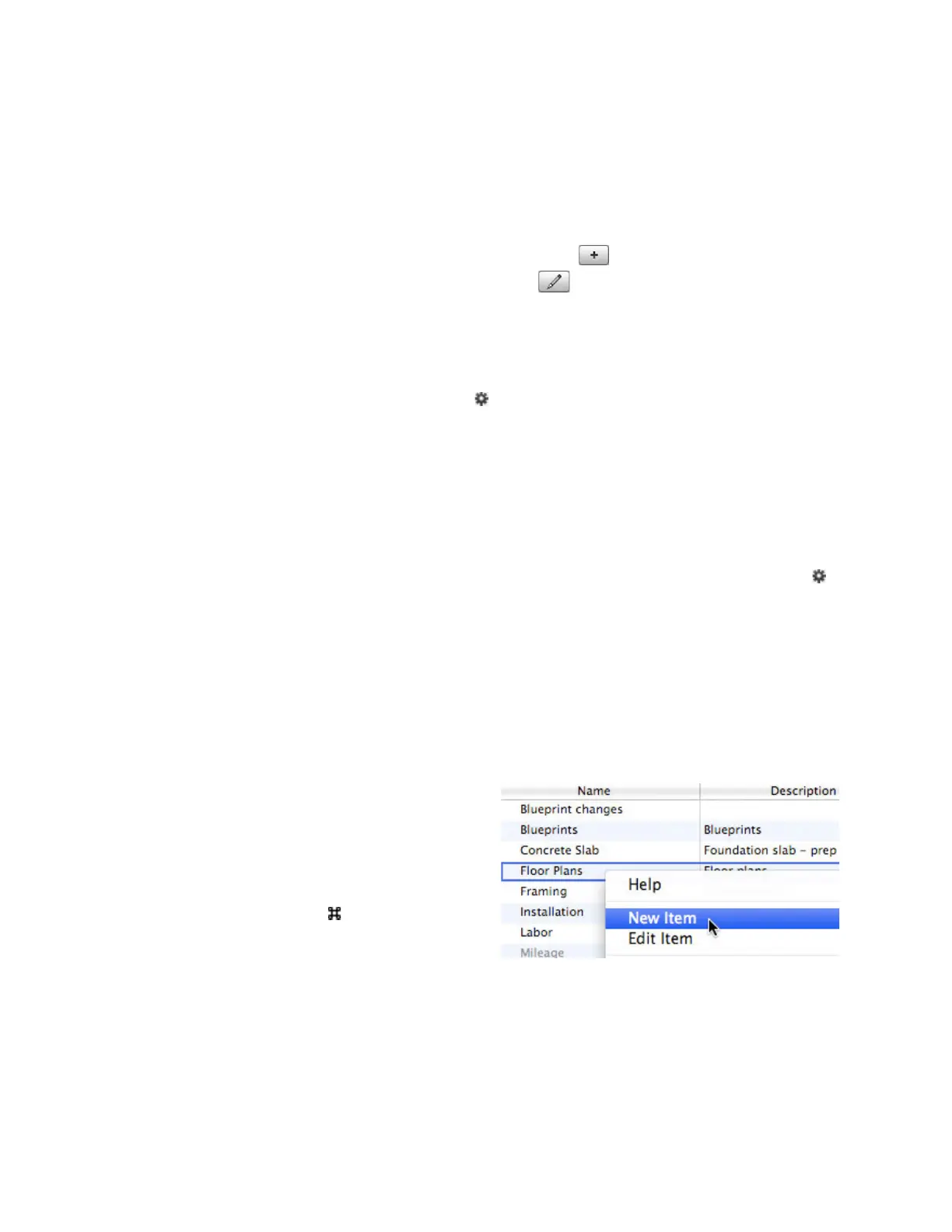
• Control-click anywhere in the list to access a shortcut menu to common tasks.
!



 To Next Page