Mac Pro (Mid 2010) General Troubleshooting — Minimum Conguration Testing 34
2010-08-31
2. Attach a known good power cord from a known good AC source to the Mac Pro.
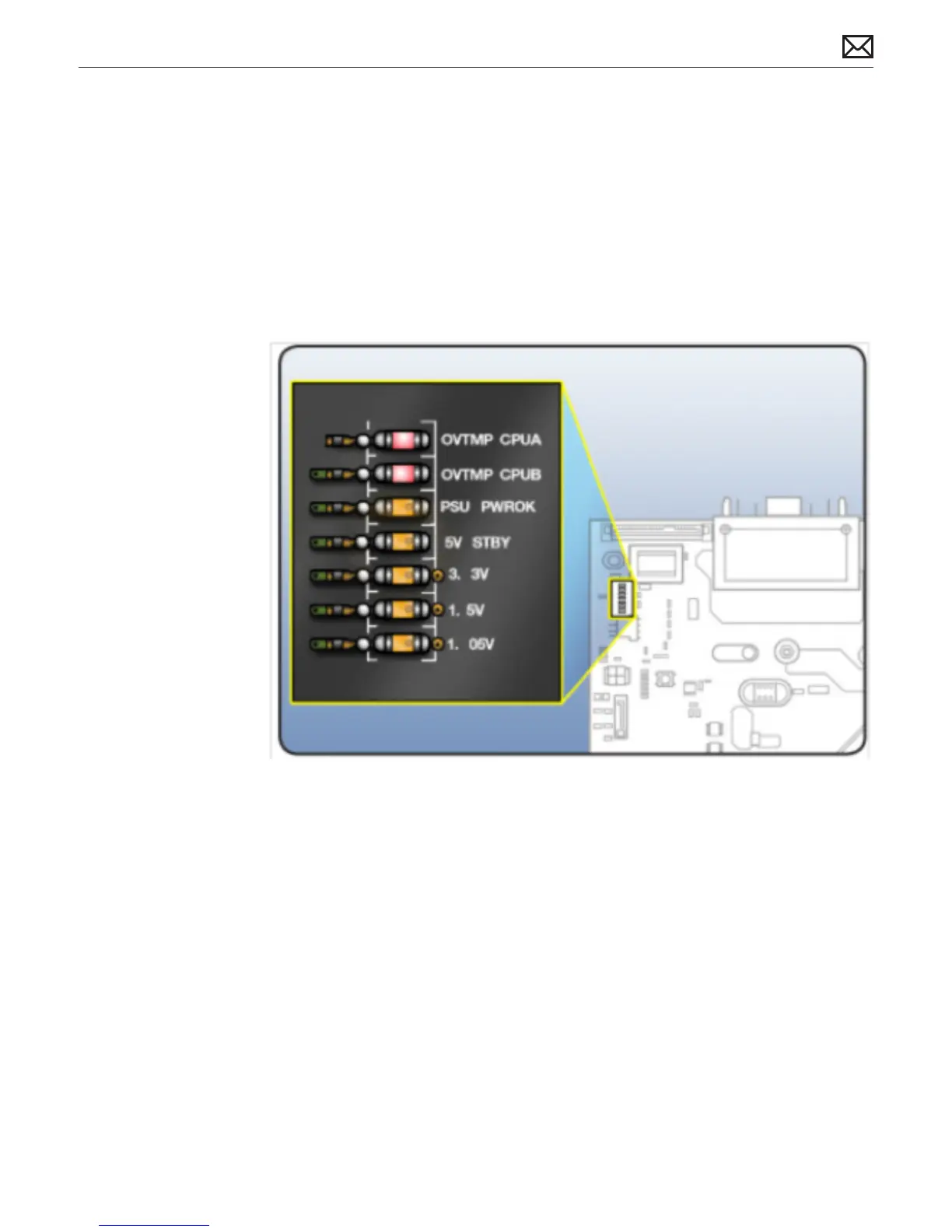
Note: When connecting the Mac Pro to AC power, verify that the LEDs for OVTMP CPUA and
OVTMP CPUB briey ash red (less than 0.5 sec). The LEDs are located under hard drive bay 1
on the backplane board. If they do not illuminate briey, there is an issue with either the power
supply or the backplane board. Generally speaking, power supplies can be aected by issues
more than other modules. If you suspect a power supply has failed,verify it in another Mac Pro
(Mid 2010), if available, before replacing any modules.
Note: The OVTMP CPUA and OVTMP CPUB LEDs on a properly functioning Mac Pro will also
momentarily ash red immediately after the Mac Pro is disconnected from AC power.
3. Press the DIAG button, and verify 5V STBY LED (amber) illuminates.
Expected behavior:
5V STBY LED illuminates, conrming power to the backplane board. If the LED does not
illumuniate, suspect power supply or backplane board failure.
4. Disconnect AC power cord. Reinstall processor cage with fans and processor board. Do not
reinstall processor(s), heatsinks, or memory.
Notes:
• Verify no bent pins on processor connector or mating connector of processor board and
backplane board.
• Verify no grime or foreign debris is causing contact issues on processor connectors, and
connectors on processor board and backplane board.
5. Connect AC power cord. Press the DIAG button to verify the 5V STBY LED illuminates. This is



 To Next Page