Using
the Finder 57
CHANGING AN ICON'S NAME
An icon must be selected in
order
to
change its name.
To
change the selected icon's name, position the pointer
to
the
location where the changes are
to
be made. Notice
that
the
pointer changes from
an
arrow the symbol,
X.
This symbol
indicates
that
text can be entered
at
the indicated position
on
the Desktop.
If
the mouse
button
is
pressed, a blinking vertical
bar
will
appear
underneath the
X.
This
bar
represents the insertion
point, which can be defined as the
point
where keyboard
entries will be
added
to
text. Next, move the mouse so as
to
remove the X pointer.
Text
can
now be added via the keyboard.
Existing text can be erased by positioning the blinking inser-
tion
point
after the character
to
be removed
and
pressing the
Backspace key.
The Edit menu
commands
can
also be used
to
change
an
icon's name. These will be discussed later in this chapter.
~D
system
Disk
3
items
235K
in
disk
164K available
Q
LJ
~
S.,stem
Folder
0
Font
Mo'tE'r
Empty
Folder
~
~
IQ
121
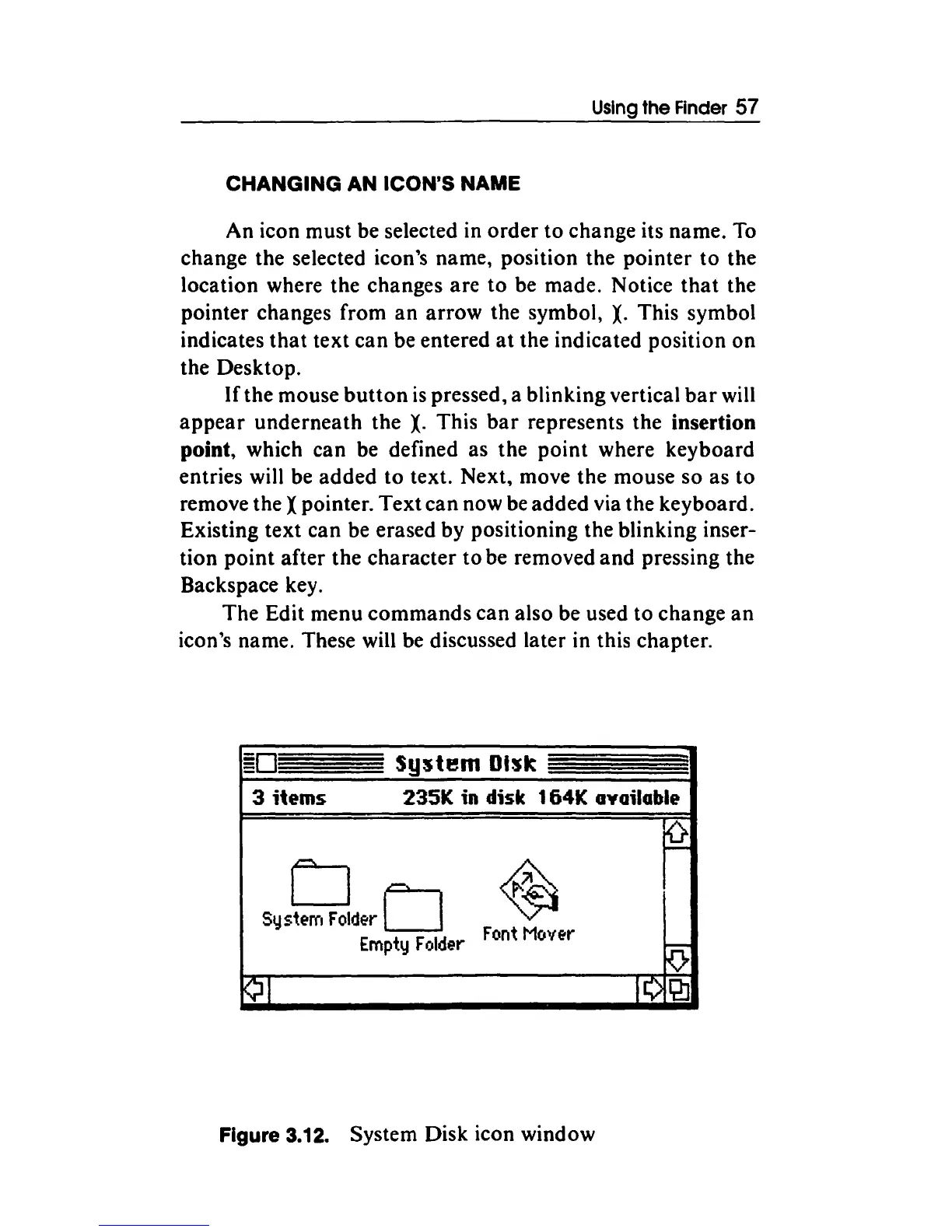
Figure 3.12. System Disk icon window



 To Next Page