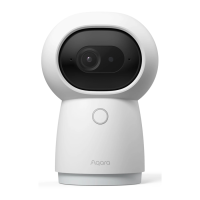
Please open the Aqara Home app, tap “Home” and then tap “+” in the top right
corner to enter the “Add Device (Accessory)” page, select “Camera E1”, and add it
according to instructions in the Aqara Home app. Aer a successful connection, the
status indicator of the device will turn blue and keep the light constant.
3. Add the product to the Aqara Home App
Open the Apple Home app, click “+” on the upper right corner, and then enter the
“Add Accessory” page. Scan or manually enter the HomeKit Setup Code at the
bottom of the camera to bind the camera to HomeKit.
Troubleshooting Adding the Camera to HomeKit:
* “Failed to add accessory”. Due to multiple adding failures, the error information of the iOS
cache cannot be removed. Please restart the iOS device and reset the camera;
* “Accessory already added”. Aer restarting the iOS device and resetting the camera, you
can manually enter the HomeKit setup code and add it again;
* “Accessory not found”. Please wait for 3 minutes aer resetting the camera. You can
manually enter the HomeKit setup code and add it again.
4. Connect to Apple HomeKit
* The Wi-Fi name or password contains an unsupported special character, such as, @, #, %,
-, $, etc., resulting in a failure to connect to the router. Please change it to a commonly
used character and try again.
* If the camera cannot recognize the QR code generated by the mobile phone. Please make
sure that the screen size of the mobile phone is not less than 4.7 inches, and make sure
that you don't use the backlight of the camera to shoot the QR code.
If the device addition fails, please confirm the following points:
03


 To Next Page