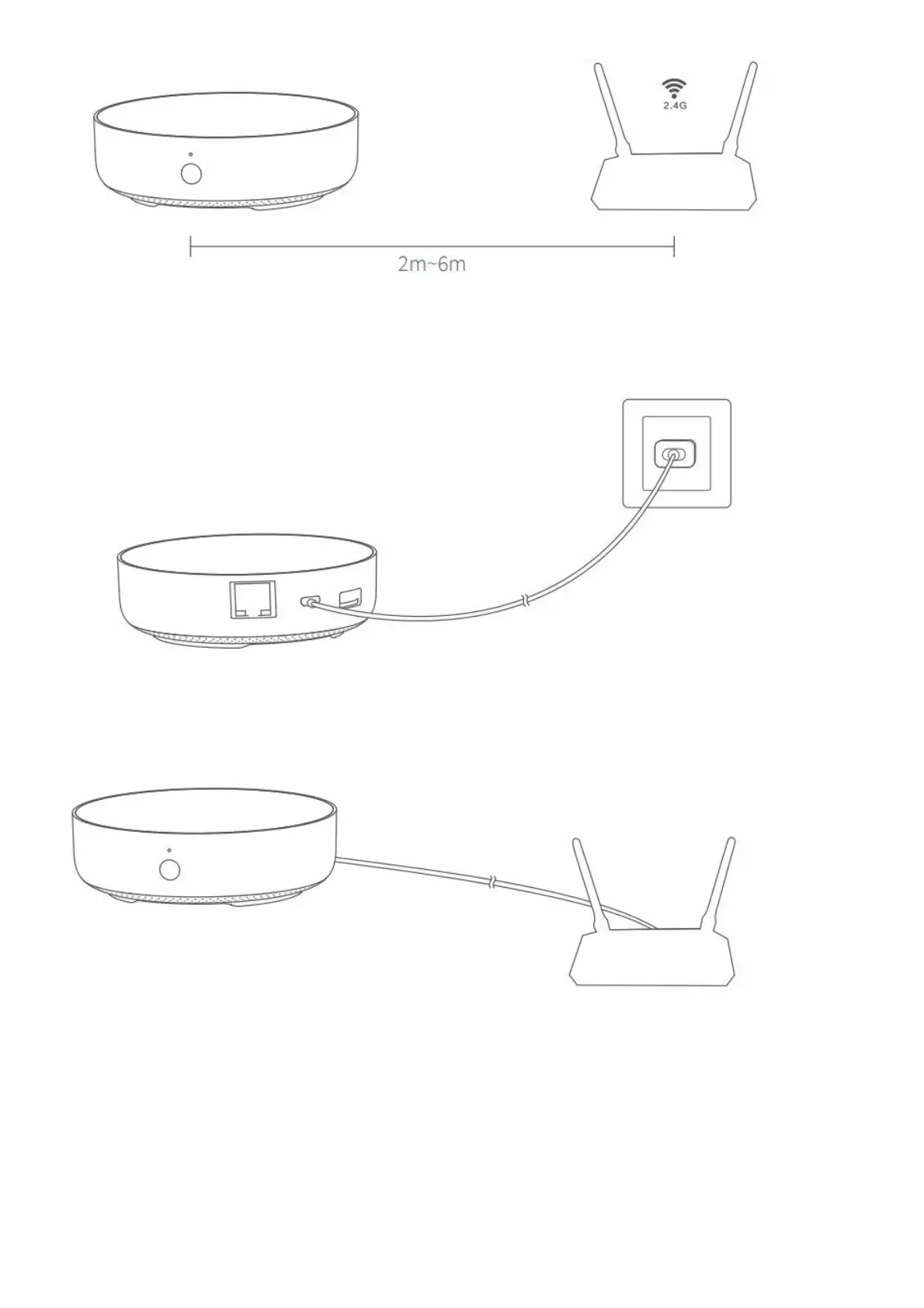
(2) Power
the hub on: please use the 5V-1A or 5V-2A adapter (purchase it separately) and the USB power cable to power the
hub on.
* If you need to
use wired network communication between the hub and the router, please use a network cable with RJ45 network
port to connect the LAN ports of the hub and your router, and wait for the orange and green lights on the side of the
network port to light up.
(3) Wait for
the yellow/red hub indicator light to change from always on to flashing.
(4) Make sure that the mobile phone is connected with the 2.4GHz Wi-Fi network.
* If you use a dual-band router, please make sure your phone is connected with 2.4GHz Wi-Fi or disable 5GHz Wi-Fi.
* Keep your phone close to the hub and make sure both of them are connected with the same Wi-Fi network.
(5) Please open the Aqara Home app, click “+” in the upper right corner, select “Hub M2” and follow the instructions
to complete adding the hub.
* For iOS users, if you want to realize Apple Home Kit control, please scan or manually enter the Home Kit Setup
Code (keep the code in a safe place in case you need to add it again) on the bottom of the hub or on the manual
according to the app instructions during the hub adding process, and bind the hub to Home Kit. After it is bound
successfully, you can view the added hub in Apple Home app.
(6) If you fail to add the hub, please press the button on the hub for more than 10 seconds until the yellow/red light



 To Next Page