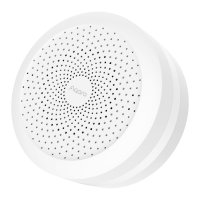
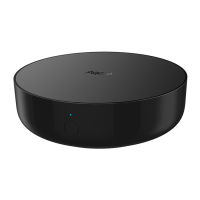
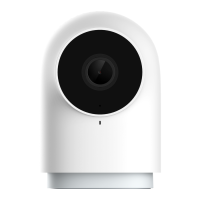
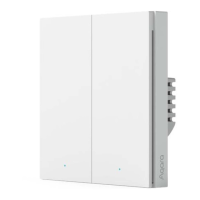
flashes quickly, and then add it again. If you need any help, please contact www.aqara.com/en/support.html. If the
device could not be added, please follow these steps:
* Please make sure the device is connected with the 2.4GHz Wi-Fi network.
* Wi-Fi name or password may contain special characters. Please replace them with ordinary characters and try
again.
* The device does not support the WAP/WAP2 Wi-Fi network.
* Please check whether the router turns on the Wi-Fi connection watcher function, which causes network connection
failures.
* Please check whether the router turns on the AP isolation function, which causes the phone to not be able to
search for the hub within the LAN.
* It is recommended not to connect it to a bridge network.
Trouble adding to Home Kit :
* “Failed to add accessory”. Due to multiple adding failures, the error information of iOS cache cannot be removed.
Please restart the iOS device and reset the hub.
* “Accessory already added”. After restarting the iOS device and reset the hub, you can manually enter the HomeKit
setup code and add it again.
* “Accessory not found”. Please wait for 3 minutes after resetting the hub. You can manually enter the HomeKit setup
code and add it again.
3. Device Operations
(1) Add an accessory: after the hub is successfully added, please refer to the accessory installation guide to add an
accessory.
(2) Control IR home appliances: please configure the brands and models of the IR home appliances you need to
control in the app according to the app guidelines, and then perform the corresponding app control and automation
control.
4. Restore to Factory Settings
Quick press the button on the hub ten times.
Indicator Light Description
Light Color Yellow/Red



 To Next Page