11
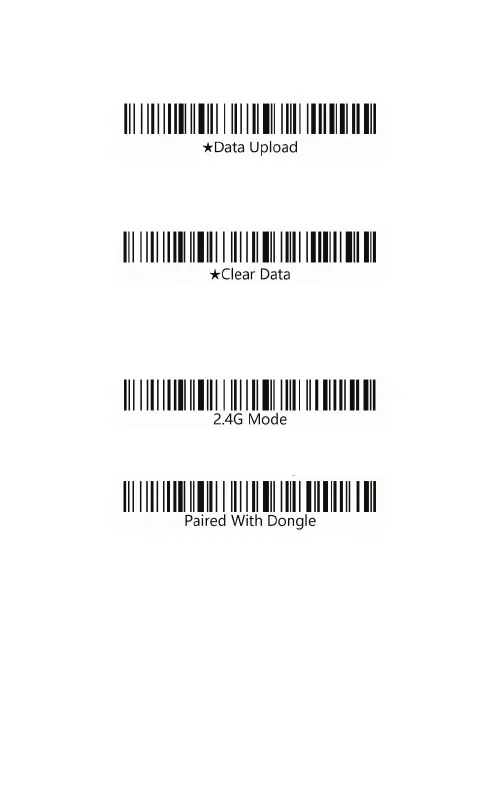
Upload the stored data by scanning the “Data Upload” bar-
code. After the data is uploaded, the barcode stored in the
barcode scanner is not automatically deleted.
By scanning the “clear data” barcode to clear the storage area
of the barcode data, bar code will not be able to upload after
the clear,please confirm whether the data has been uploaded.
Match with the computer (2.4GHz)
a: Start the scanner, scan “Enter Setup Mode” barcode.
b: Scan 2.4G mode barcode.
c: Scan the “Paired With Dongle” barcode, enter the pair sta-
te, the left blue light will flash.
d: Insert the receiver, hear a sound. It means pairing is suc-
cessful. The right blue light will always bright.
e: Scan “Exit Setup Mode”.
Match with Bluetooth terminal
Method 1:
a: Start the scanner, long press the button 8s, enter the Bluetooth
HID pairing mode. The left and right blue light will flash alternately.
b: Turn on Bluetooth in the device and search for the Barcode
scanner HID.
c: Click the Bluetooth device to enter the pairing state.


 To Next Page