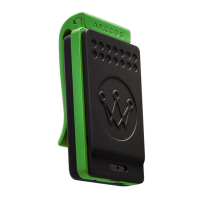
The Arccos Link Pro is a device designed to enhance the Arccos Caddie golf tracking experience by providing automatic shot detection and GPS coordination without requiring the user to carry their smartphone on the course. It is intended for use with Arccos Smart Sensors, Arccos Smart Grips, and OEM smart sets (Cobra, PING, TaylorMade, Srixon/Cleveland Golf, etc.).
Function Description:
The primary function of the Arccos Link Pro is to automatically record and sync golf shots during a round. It streams data seamlessly via Bluetooth to the Arccos Caddie app, allowing for convenient review of performance metrics at any time. This eliminates the need for the golfer to keep their phone in their pocket, offering a more streamlined and less distracting playing experience. The device also features a button to easily mark pin locations, which improves the accuracy of approach, short game, and putting statistics within the Arccos Caddie app.
Important Technical Specifications:
The device operates within a radio frequency band of 2402-2480MHz with a maximum RF power of -6dBm. It complies with FCC Part 15 regulations and ISED regulatory compliance, ensuring it meets standards for radio frequency interference. The Link Pro is not compatible with Arccos 1st generation Bluetooth sensors.
Usage Features:
- Power On/Off: To power on, slide the power switch until it displays green and the light turns on. It is recommended to turn on the Link Pro prior to the first tee to allow it time to acquire a GPS signal. To power off, toggle the power switch.
- Pairing: Pairing is done through the Arccos Caddie app. Users need to activate Bluetooth on their phone, open the app, and either connect when prompted or navigate to the "Start Round" screen, tap "Pair Arccos Link," and then select "Pair Existing Link Device." Pairing does not occur in the phone's Bluetooth settings.
- Starting a Round: From the 'Start Round' screen in the app, select the course and tap "Start Round." Once Link Pro successfully syncs GPS coordinates, the phone can be put away.
- Shot Detection: The Link Pro should be placed in the front lead pocket during play to ensure accurate shot detection. It automatically records and syncs shots to the Arccos Caddie app.
- Pin Location Marking: To mark the pin, stand still next to the hole and press the button on the Link Pro device. This enhances the accuracy of various game statistics.
- Post-Round Syncing: After a round, the user must end the round on the Arccos Caddie app and wait for the Link Pro to complete its syncing process.
- LED Indicators (Link Pro Device):
- Green Solid: GPS Signal acquired, Phone Connection established.
- Green Blinking: GPS Signal acquired, but Phone Connection is not established.
- Blue Solid: GPS Signal not acquired, Phone Connection established.
- Blue Blinking: GPS Signal not acquired, Phone Connection not established.
- Red Solid: Updating Firmware.
- Red Blinking: Battery at 20% or less.
- App Icon Glossary (In-Play Screen):
- Checkmark icon: Link Is Connected.
- Syncing icon (<10m): Syncing less than 10 minutes of data.
- Syncing icon (>10m): Syncing more than 10 minutes of data.
- Battery icon (red): Link Has Low Battery.
- Signal icon (red): Link Has No GPS.
- Cross icon (red): Link Is Disconnected.
- App Icon Glossary (Start Round Screen):
- Exclamation mark icon: Issues Detected with Link.
- Cross icon (red): Link Is Disconnected.
Maintenance Features:
- Charging: The Link Pro is charged by placing it into its Charging Case. The LEDs on the Charging Case will illuminate while charging and turn off when fully charged.
- Charging Case: The Charging Case itself is charged using the included USB-C cord. It takes approximately 4 hours to fully charge under normal conditions. For optimal charging, it should be plugged into a wall outlet with a reliable AC adapter, as charging via a computer USB port will not be sufficient.
- Storage: Ensure the Link Pro is turned off before placing it in the charging case for storage or charging. If the power switch is accidentally left on while in the charging case, the device will automatically shut off. To resume playing, the power switch will need to be toggled off and back on.
- Battery Life: A fully charged Charging Case can power the Link Pro for up to 12 rounds of golf. If the Link Pro LED turns red, it indicates a low battery.
For more information and a list of supported devices, users can visit support.arccosgolf.com. Customer support can be reached via phone at 1-844-692-7226, email at starter@arccosgolf.com, or by visiting www.arccosgolf.com or support.arccosgolf.com. The physical address for Arccos is 700 Canal St, Stamford, CT 06902.

 Need help?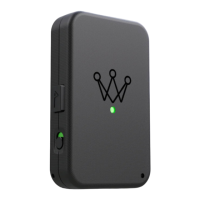

 To Next Page
 General