26 27
7
MUSIC - Using iTunes
™
with your Gmini
™
402
8
VIDEO - Playing Video Files
The easiest way to transfer music fi les between a Macintosh
®
computer and your Gmini
™
402 is to use the Macintosh Finder
™
to
drag and drop the fi les to and from your Macintosh
®
.
However, for Macintosh
®
users who do want to use the Gmini
™
402 with
iTunes
®
, ARCHOS
™
has developed a special i-Tunes
®
plug-in. You will fi nd
it in the folder /Data/i-Tunes Plug-in on the Gmini
™
402 hard disk or
from the ARCHOS
™
website. In this folder you will fi nd a .sit compressed
fi le. Uncompress it and open the folder for your operating system. You will a
fi nd a JPEG image illustrating where you need to copy the plug-in to. Once
this is done, iTunes
™
will recognize the Gmini
™
402 as a ‘Device’.
To make your user experience easy as possible, please keep in mind the
following.
1) Music purchased at Apple’s on-line music store are copy protected with
a proprietary encryption system. The ARCHOS
™
device will not be able to
play this purchased music. It will happily play MP3 format fi les without
problem.
2) When you create your Playlists with iTunes
®
(you can only create
Playlists from songs that have been copied to your Gmini
™
402), your
Macintosh
®
will save these Playlists to the root directory of your Gmini
™
402. It will not save them to the Gmini
™
402 Playlists directory. It would be
best to use the Gmini
™
402 itself to make Playlists (See section Creating
a Playlist in chapter Music – Playlists) and then save these Playlists in
your Playlists folder.
3) When you drag and drop MP3 fi les from your iTunes
®
library to your
Gmini
™
402, the i-Tunes
®
program will look at the ID3 tag information (See
section Music – Playing music fi les of this manual for an explanation of
ID3 tags) of the MP3 fi le, and create a folder on the root of your Gmini
™
402 using the name of the Artist as the folder name. Then it will take the
Album name ID3 tag, and create a subfolder with that album as its name.
Finally, it will take the MP3 song itself and place it into that album subfolder.
Thus, although it is a clean structure of artists and albums, i-Tunes
®
does
not follow the Gmini
™
402 convention of placing the music into the Music
folder fi rst.
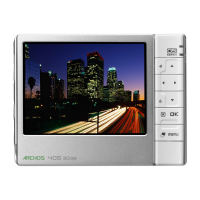
Like a music fi le, you simply highlight the video fi le and
then click on PLAY/GO
►
. The thumbnail images on the
right side will show you a frame from the highlighted video
fi le (center) as well as a frame from the fi le above and the
fi le below the highlighted one. By clicking on the Video icon
in the main menu, you will enter into a display ‘video only’
mode. Other fi le types that may be in this folder are only
listed if you enter the folder via the Browser.
To watch your videos on a television,
you must hold down the F2 function
button (the center function button)
for three seconds. The Gmini
™
402
screen will go black and the video
will be sent out to your connected
television. Switch your television to
auxiliary video input (often found just
below channel 1 – sometimes called
L1 or L2). If you don’t see a clear
color image, you may have to set your
Gmini
™
402 to your local television standard (NTSC or PAL) in the Setup
> Display settings menu.
• Use the PLAY/GO
►
button to pause/resume the video.
• Use the UP/DOWN buttons to control the volume.
• Hold down the RIGHT/LEFT buttons to fast forward or
fast reverse through the video.
• Click the right function button to Hide/Show the overlaid video time
information.
• Click the Options function button to set a bookmark, change the screen
presentation. Long press to switch between built-in video and external
video.


 To Next Page