2
2
1
3
4
5
6
8
7
9
11
10
ENGLISH
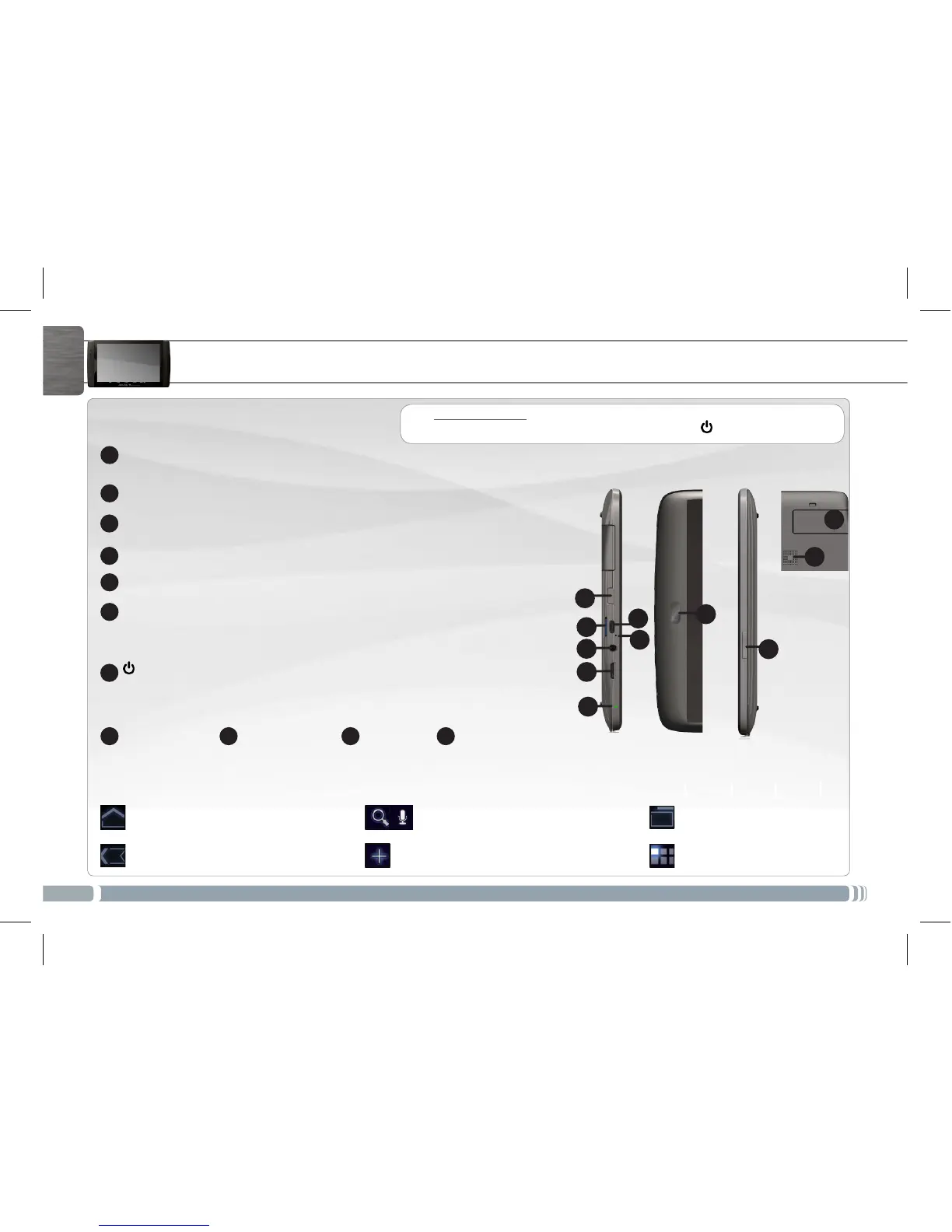
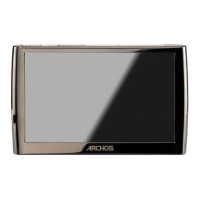
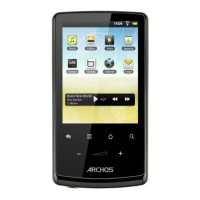
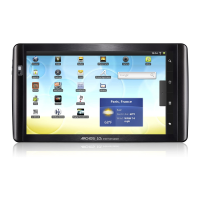
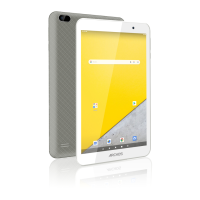
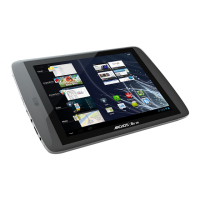
DESCRIPTION OF THE DEVICE
Charging indicator (when power cable connected)
- light on: battery charging / blinking: battery charged
Mini-HDMI video output**
Headphones
Built-in microphone
Micro-SD card slot*
Micro-USB port: to connect your ARCHOS to your computer, using the included
USB cable to transfer files. You can also connect a keyboard, a mouse or a mass
storage USB device using the optional USB host adapter.
Power Button: press and hold to switch on/off.
To put your device in standby (and allow a quick start up), press the Power button
once. When you press and hold on the Power button, a window appears with a
list of options. Tap on “Power Off” > “Power Off” to fully shut down your ARCHOS.
Camera Volume buttons Loudspeaker
3
G
stick slot
► * Depending on model ** With optional Mini-HDMI to HDMI cable.
See the full user manual to learn more about the video output.
Hardware Reset: In the event that your ARCHOS freezes operation, you
can force the device to shut down by holding the button for 10 seconds.
1
2
3
4
5
6
9
7
8
10 11
TheAppsbutton-tondall
your installed applications
The Customize button - to add shortcuts,
widgets
The Customize button - to add shortcuts,
widgets
The Customize button - to add
shortcuts, widgets
The Home button - to return to the main
screen
The Back button - to go back to your
previous screen
Main Touchscreen buttons
UserGuide_Archos80 G9_book.indd 2 17/06/2011 12:57:16


 To Next Page