English - 52 -
Connectivity Troubleshooting (Optional)
Wireless Network Not Available
Ensure that the rewalls of your network allows the TV
wireless connection. “Veezy 200” usb wi dongle(sold
separately) should be plugged properly (if available).
If the wireless network does not function properly,
try using the wired network in your home. Refer to
the Wired Connection section for more information
on the process.
If the Net TV does not function, check the modem
(router) rst. If the router does not have a problem,
check the internet connection of your modem.
Try searching for wireless networks again, using the
Network Settings menu screen.
Connection is Slow
See the instruction book of your wireless modem to get
information on the internal service area, connection
speed, signal quality and other settings. You need to
have a high speed connection for your modem.
Distruption during playback or slow
reactions
You could try the following in such a case:
Keep at least three meters distance from microwave
ovens, mobile telephones, bluetooth devices or any
other Wi-Fi compatible devices. Try changing the
active channel on the WLAN router.
DVD MODE
Handling Discs
• To keep the disc clean, only handle the disc by its
edge. Do not touch the surface.
• Do not stick paper or tape on the disc.
• If the disc is contaminated with any substance like
glue, remove before using it.
• Do not expose the disc to direct sunlight or heat
sources such as hot air ducts, or leave it in a car
parked in direct sunlight as the temperature can rise
quickly and damage the disc.
• After playing, store the disc in its case.
Cleaning Discs
• Before playing, clean the disc with a cleaning cloth.
Wipe the disc from the centre out.
• Do not use solvents such as benzine, thinner,
commercially available cleaners or anti-static spray
intended for vinyl LPs.
DVD - Features
• DVD / CD / CD-R / CD-RW / MP3 / JPEG / MPEG
playback.
• NTSC / PAL playback (according to disc content).
• LPCM audio via coaxial and optical digital audio
outputs (optional).
• Multi-Audio (up to 8) support (according to disc
content).
• Multi-Subtitle (up to 32) support (according to disc
content).
• Multi-Angle (up to 9) support (according to disc
content).
• 8 level parental control.
• Fast forward and rewind - 5 different speeds:
2x, 4x, 8x, 16x, 32x.
• Slow motion playback - 4 different speeds:
1/2x, 1/4x, 1/8x, 1/16x forward.
• Frame by frame forward playback.
• Search Mode.
• Repeat.
• Coaxial audio output (optional).
• Copied disks may be incompatible.
How to watch a DVD
NOTE: DVD mode cannot be accessed unless a DVD
is inserted or a DVD control button is pressed.
If you switch to another source by pressing
SOURCE, SWAP or P+/P- buttons on the remote
control, DVD playback will be paused automatically.
You should press PLAY and resume the playback
manually when you switch to DVD mode.
1. Switch on the TV.
2. Switch to DVD source using the “SOURCE” button
on the remote control.
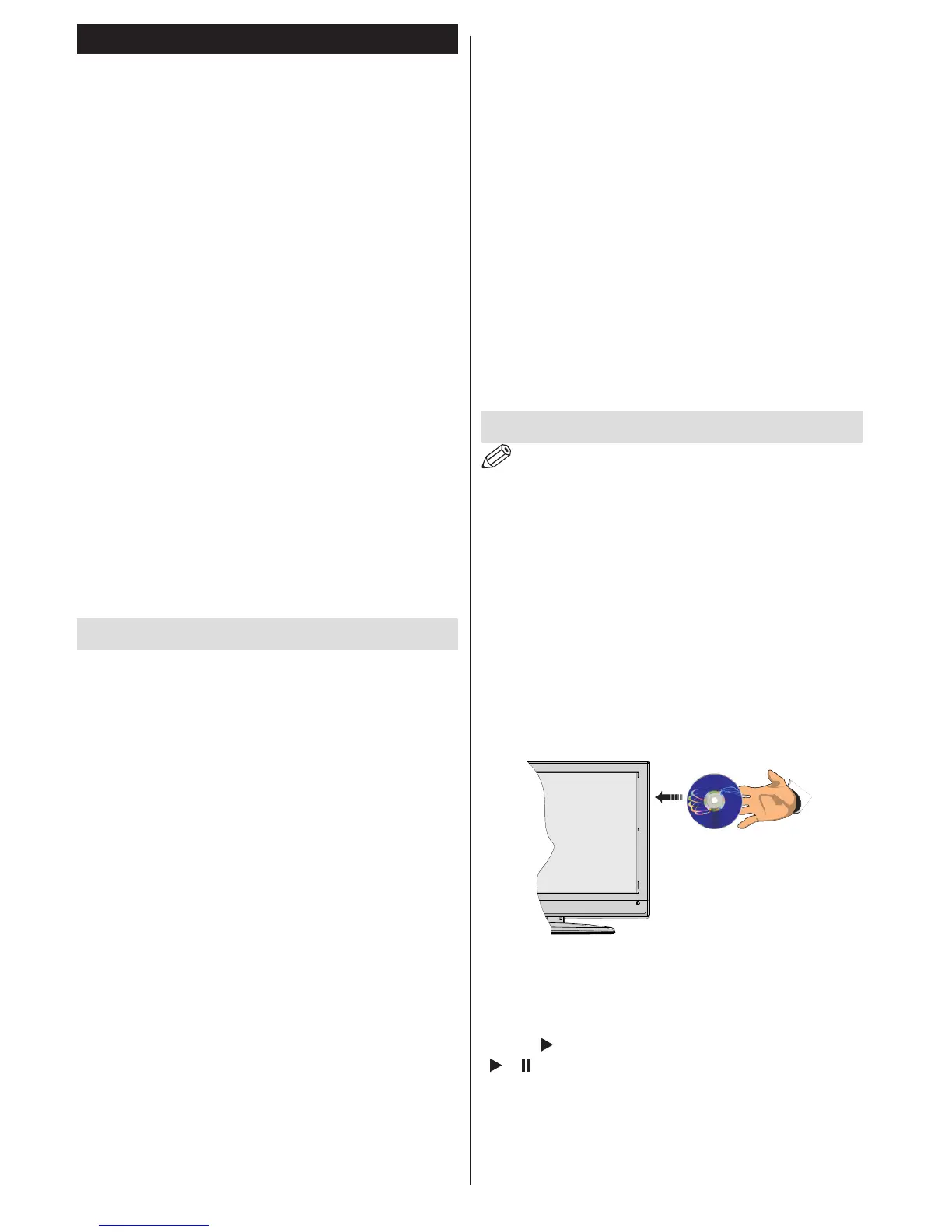
3. Insert a disc into the loader.
The disc MUST be facing you when looking at the
TV screen.
Most discs will be automatically loaded and play will
start automatically if the disc does not have any menus
recorded on it.
If play does not start automatically, press the play
button “
” on the remote control, or the play button
“
/ ” on the right side of the TV.
A menu may appear on the TV screen after a few
moments or the lm may start immediately after the
Film/TV Company introduction. This will depend on
the disc content and may differ on each disc.



 To Next Page