ARKSCAN 2054A LAN LABEL PRINTER © 2020 ARKSCAN, LLC
4
----------------------------------------------------------------------------------------------------------------------------------------------------------------
Email: support@arkscan.com Please visit www.arkscan.com for live chat support and product updates
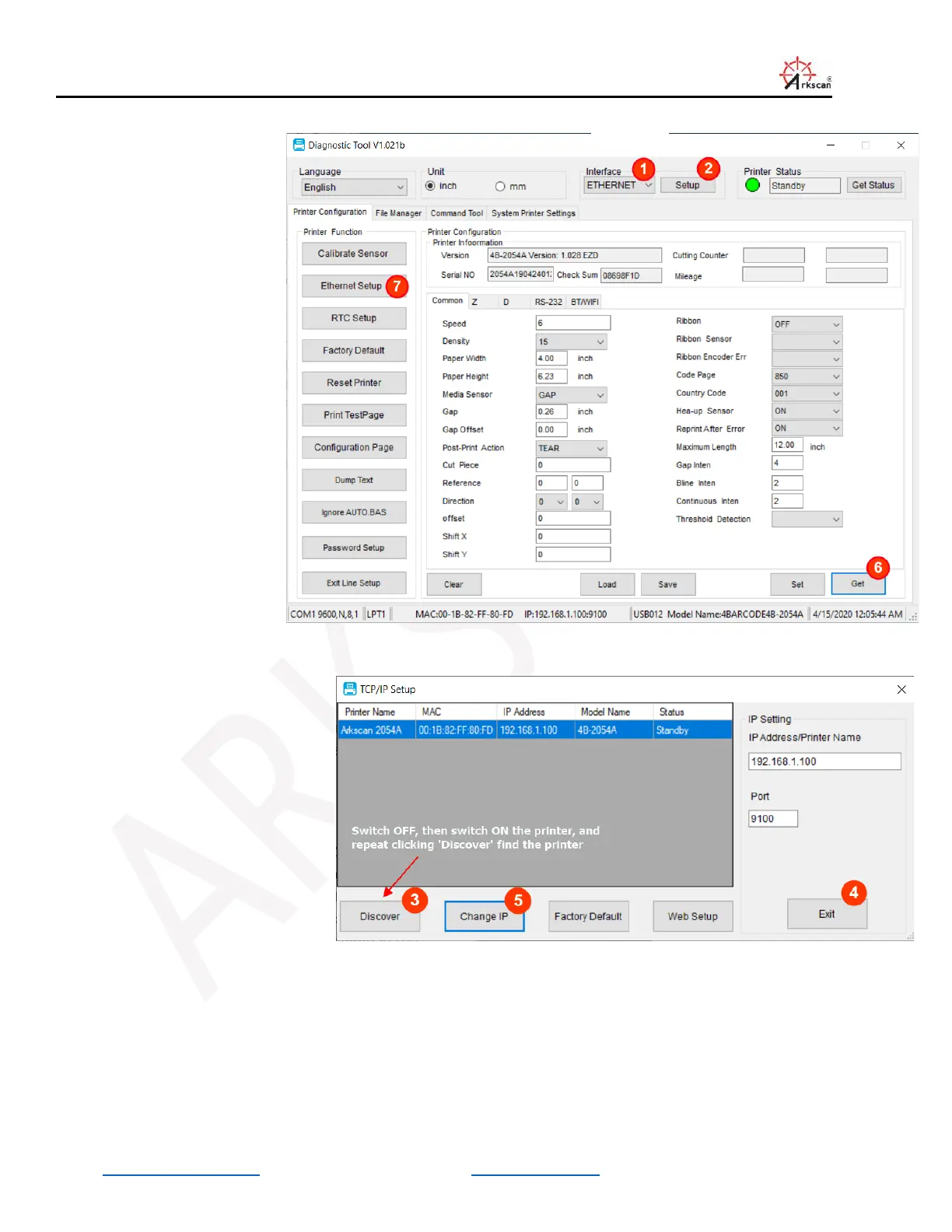
From the main windows of the
tool (Figure 2), choose the
‘ETHERNET’ from Interface
(step #1), then click ‘Setup’
(step #2), then click on the
‘Discover’ button on the pop
up window (Figure #3) to scan
your network and retrieve the
IP address of the printer.
If the IP address of the printer
doesn’t come up, please
power off the printer and then
power on again, and wait
about 10 second to click on
the ‘Discover’ button.
To test if the printer is
accessible from your
computer, click on ‘Exit’ to
confirm (Step #4) the printer’s,
and click ‘Get’ button on
Figure 2 (Step #6) to retrieve
the printer’s configuration
data.


 To Next Page