ARKSCAN 2054A LAN LABEL PRINTER © 2020 ARKSCAN, LLC
8
----------------------------------------------------------------------------------------------------------------------------------------------------------------
Email: support@arkscan.com Please visit www.arkscan.com for live chat support and product updates
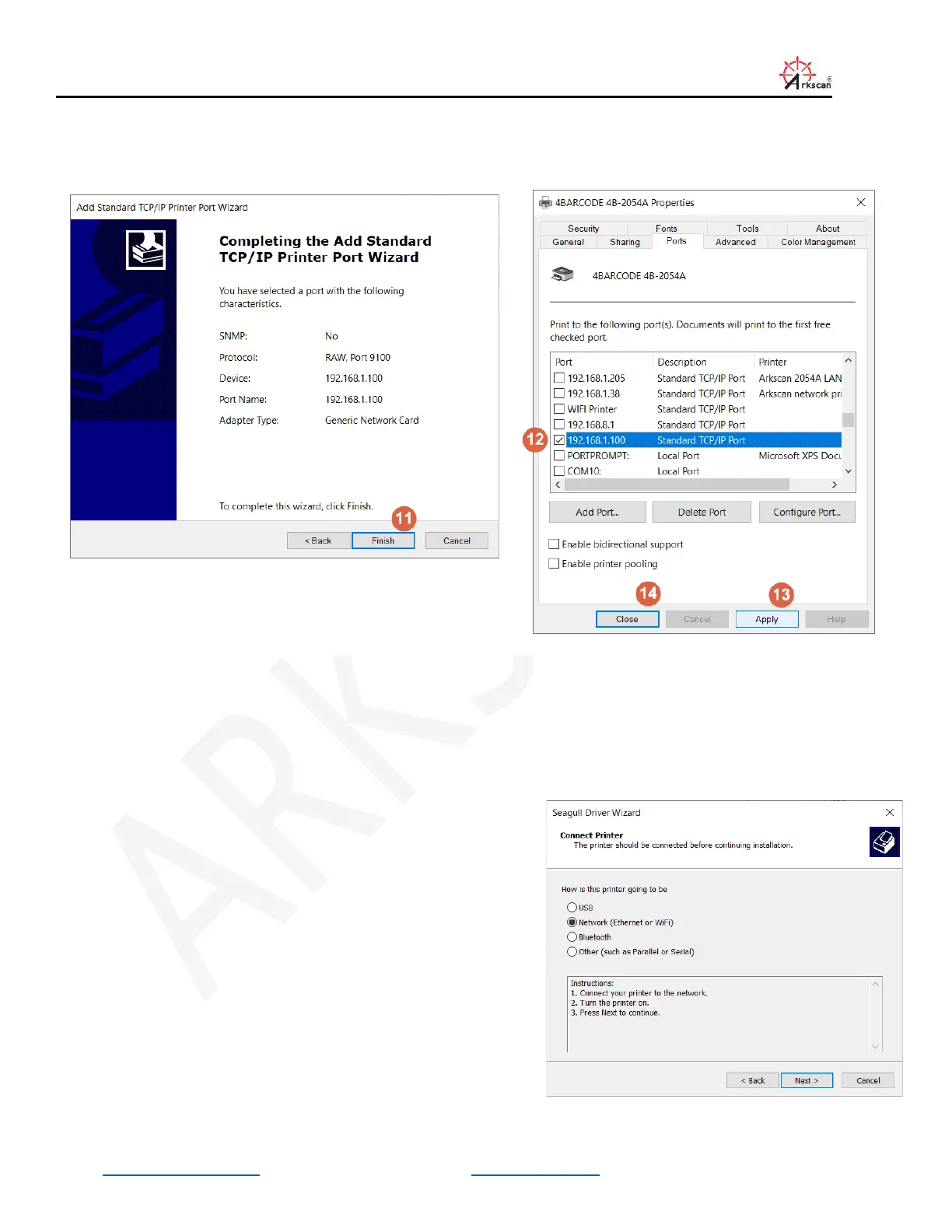
Click the checkbox of the IP port you just created, and then click ‘Apply’ to assign the IP port to the printer.
To test if the printer is working over our network connection, unplug the printer’s USB cable if it’s connected, and print a
label to the printer ‘4BARCODE 4B-2054A’.
5 Sharing the printer with your computers
One of the best features of the IP printer, it allows more than one
computer to print to the printer without switching printer’s USB
cable, you can share the printer within your network’s computers.
For the additional computer which it will share the same printer.
You don’t need to install the USB port first then switch to Ethernet
port later, you can just directly install the driver and create an IP
port for the printer since the printer is ready and the IP address of
the printer was already known. You choose ‘Network Ethernet or
WIFI’ option during the installation of the driver, and follow the of
flows to complete the driver installation.


 To Previous Page