ARKSCAN 2054A LAN LABEL PRINTER © 2020 ARKSCAN, LLC
6
----------------------------------------------------------------------------------------------------------------------------------------------------------------
Email: support@arkscan.com Please visit www.arkscan.com for live chat support and product updates
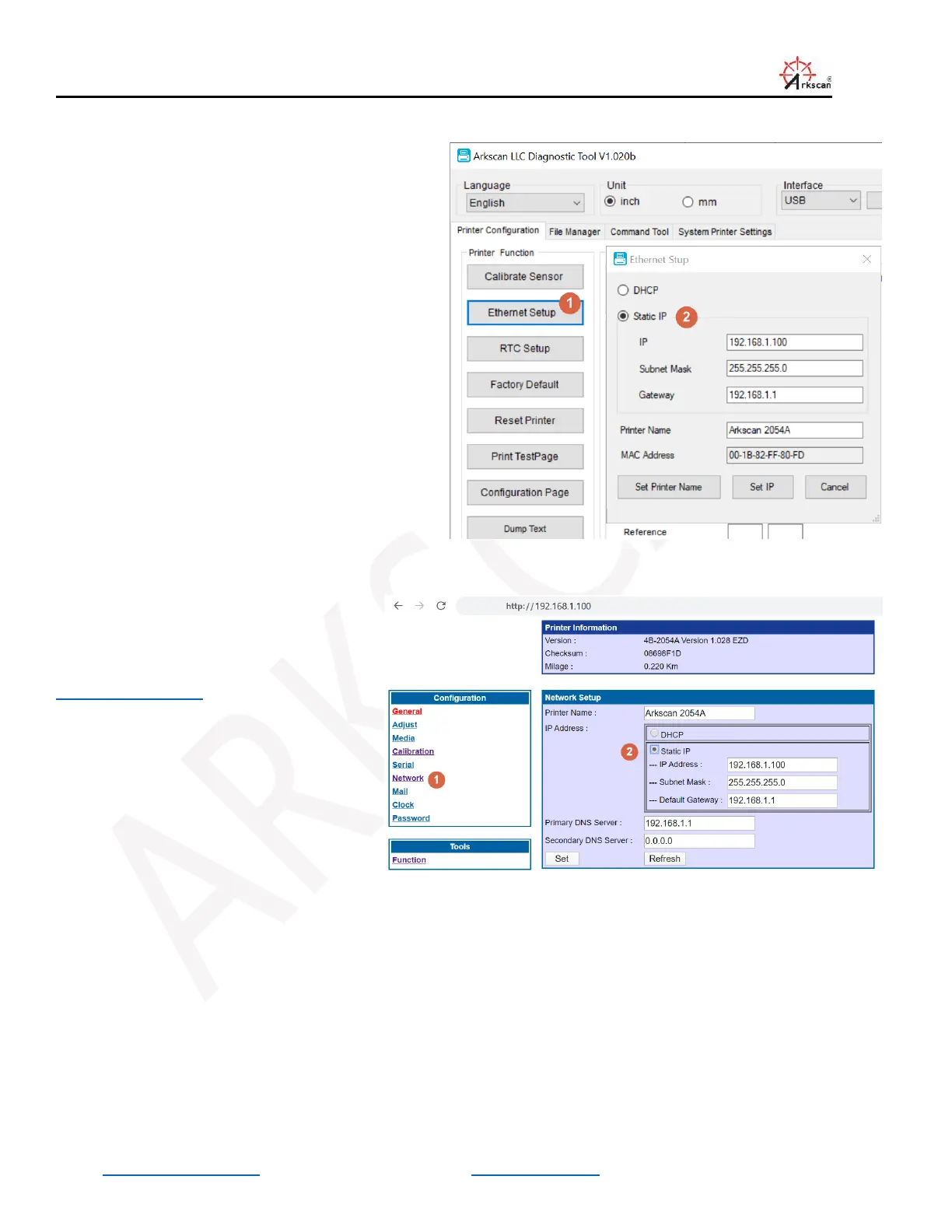
3.4.3 Change IP via USB connection
You can assign a static IP address to the printer, or
reset the printer to DHCP service via an USB cable.
Connect the printer to your comupter via an USB
cable, click ‘Ethernet Setup’ on the main windows of
the tool.
3.4.4 Change IP via web interface
Web interface to set the IP address is
another option as well, such as, access the
printer’s web interface by this link.
http://192.168.1.100
3.5 Can’t find printer’s IP address
The most common issue that the printer is not discoverable is, here are a list of the possible issue:
1. Your printer is in the main network, and your computer is connected to your guest network of your WIFI.
2. You printer is not in the same sub net as your computer.
3. Your network firewall blocks the port 9100
4. You printer was assigned a static IP address, and the IP address is not in the same sub net as your router’s or your
computer’s, please see “2.4 Manually assign an IP address / Static IP” above on how to set the printer’s to DHCP or static
IP address.


 To Next Page