40Change Your Settings
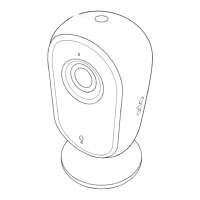
Arlo Essential Indoor Camera
User Manual
A Face ID compatible device (iPhone X, iPad Pro 2018, or newer)
• Android devices:
Android OS version 6.0 or higher
A compatible Android device with ngerprint authentication
Turn ngerprint authentication on and o for the Arlo app
1. Enable ngerprint authentication on your iPhone or Android device.
2. Open the Arlo app.
3. Tap Settings.
4. In the ACCOUNT section, select Prole > Login Settings.
5. Slide the toggle for ngerprint or Touch ID to the right (on) or le (o).
Turn face authentication on and o for the Arlo app
1. Enable Face ID authentication on your iPhone.
2. Open the Arlo app.
3. Tap Settings.
4. In the ACCOUNT section, select Prole > Login Settings.
5. Slide the toggle Face ID to the right (on) or le (o).
Customize your prole
You can enter your name, add a prole photo and home address, and opt-in or opt-out of Arlo
news and support updates.
Add a prole picture
1. Open the Arlo app.
2. Tap Settings.
3. In the ACCOUNT section, select Prole > Edit Prole.
4. Tap the prole picture at the top of the page.
5. Select Take Photo or Choose from Library.
Note: If you already have a prole picture, you can also select Remove Current Photo.


 To Next Page