50
7. Use SD Card Storage
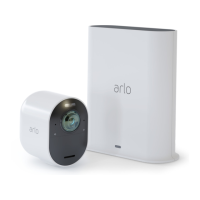
You can insert a microSD card into your Arlo SmartHub and store your Arlo recordings
both in the cloud and on the SD card. If the SmartHub is not connected to the
Internet, recordings continue to be saved on the microSD card. If you have an active
live stream connection between an Arlo Ultra camera and a SmartHub, then you can
record to a microSD card. Your Arlo app noties you if the SD card is low on storage
space or is full.
MicroSD card format
Your SmartHub accepts SDHC or SDXC microSD cards. We recommend using
microSD cards with a minimum of 16 GB capacity, Speed Class 10, UHS-!, V10. Arlo
supports up to Class 10 UHS-3 V90.
If your microSD card isn’t formatted or is formatted with an incompatible le system,
you can use your Arlo app to format the microSD card. See Format a microSD card on
page 52.
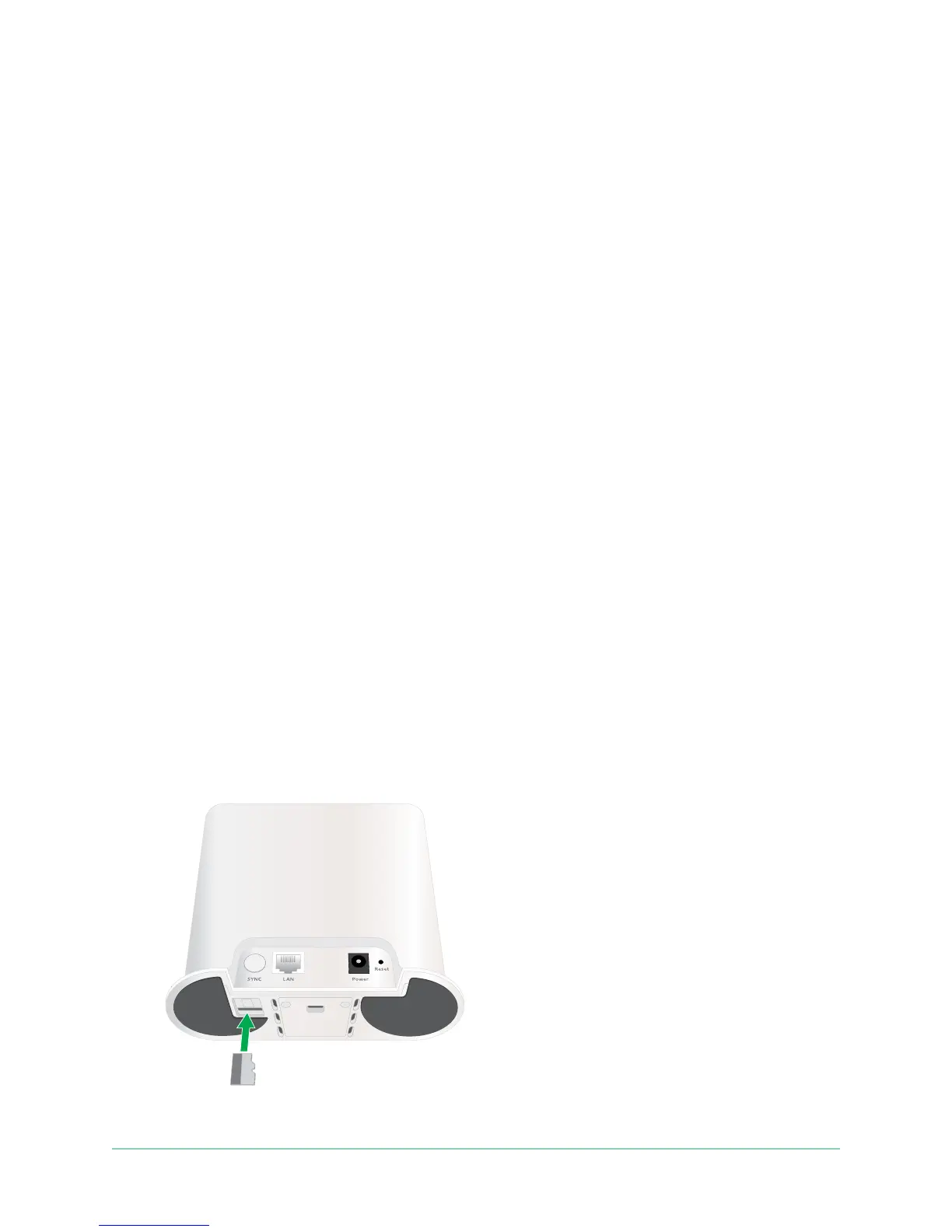
Insert a microSD card
1. Insert the microSD card into the slot on the bottom of the SmartHub.
2. Press the edge of the microSD card until it’s completely seated in the slot.


 To Next Page