X T R E M E F O R T H E A R C - 1 0
5.5
Assigning Jingles
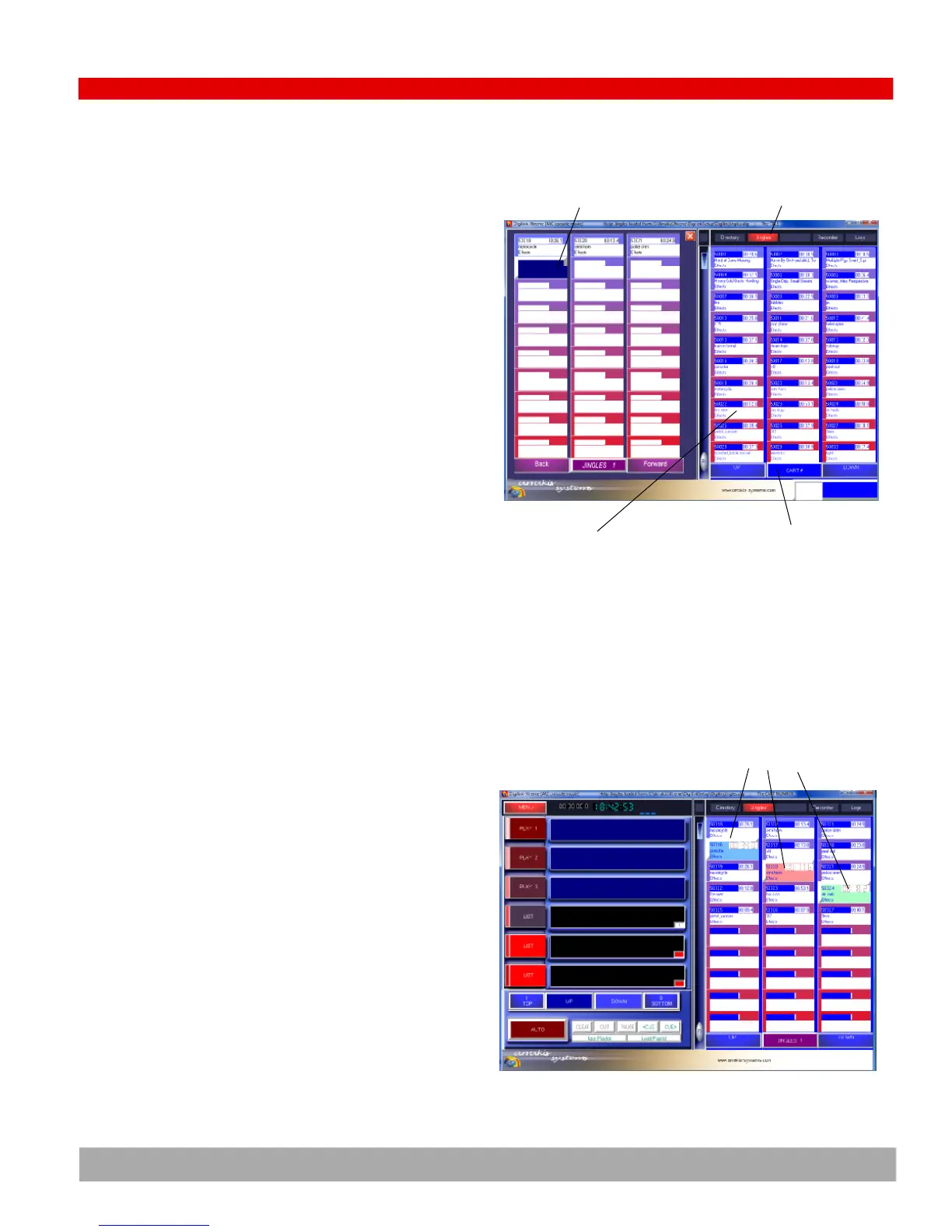
Xtreme has ten pages of thirty jingles per page. To select the Jingles
window, click on the JINGLES button at the top right of the screen. To
assign jingles to the jingle array, click on the JINGLES button at the
bottom right of the screen. The screen will move the 30 button jin-
gles window to the left of the screen and display the Directory wall on
the right. To assign an audio file to a jingle button, click on a jingle
button (which will turn blue) and then click on the desired audio file in
the directory on the right of the screen. The selected audio file will
then appear in the Jingle button. Repeat this process until you are
finished.
Important: once a jingle begins playing, the jingle page can not be
scrolled. Therefore, if it is desired to play more than one jingle at a
time then they must be assigned to the same page. This is important
to consider when assigning Jingles.
(1) Click on a jingle but-
ton to prepare to load a
new file
(2) Browse through the directory
and then click on the desired file
Play up to 3 jingles
at the same time
Playing Jingles
Jingles are audio files that might occasionally be played as beds,
sound effects, etc. during a live show. Xtreme features ten pages of
thirty buttons for use as jingles.
Up to three jingles can be played at the same time if the play list is
not playing. If the play list is playing, only a single jingle can be played
since two plays are assigned to the play list. Click a button to play a
jingle and click again to stop play.
Important: once a jingle begins playing, the jingle page can not be
scrolled. Therefore, if it is desired to play more than one jingle at a
time then they must be assigned to the same page.
Click on the JINGLES button open
the jingles assignment window as
displayed here
Click to select the
Jingles window


 To Next Page