R99
5
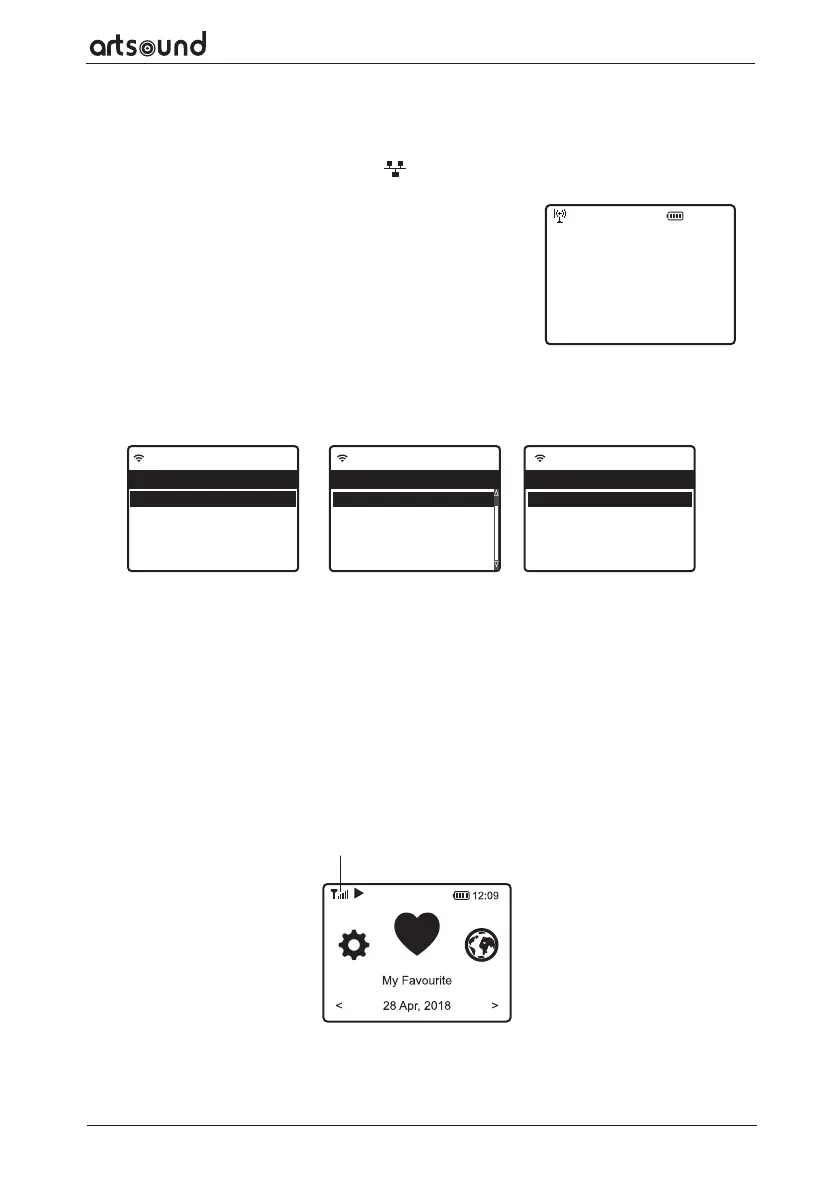
• Select Network and choose Add wireless network from the list, use the [TUNE/SELECT] knob to scroll and
press it to confirm, then choose “Scan & select”:
• It will start scanning the Wi-Fi networks available. Scroll to your network and press [Tune/Select] to confirm.
If your wifi network has a password protected, it will ask you to enter the passphrase/password. Please refer to
the above section 'How to input password for your wireless network' on P.4.
Note: The password is case sensitive. Please consult with the one who setup your network if you don't know
the password.
Alternatively, WPS connection is available if your router has a WPS button (Configuration > Network > Wireless
Network > Add wireless network > WPS button).
• When the Wi-Fi connection is successful, the Association Complete will be shown briefly. The wifi signal bar will
appear on the top left corner of the display
12:01am
Configure Network?
Yes No
←to previous →to next SelectOK whendone
11:23am
Wireless network 1/6
< Add Wireless network >
Remove Wireless network
AP:[DE_AX55]
Signal:-49 dBm
IP: [Dynamic] >
11:23am
Add Wireless network 1/2
< Scan & select >
WPS button
11:23am
Network 1/5
< Wireless network >
LAN network >
Network options >
Wireless channels >
Network connection test >
Wi-Fi signal bar
12:01am
Configure Network?
Yes No
←to previ ous →to next S electOK whendone
11:23am
Wireless network 1/6
< Add Wireless network >
Remove Wireless network
AP:[DE_AX55]
Signal:-49 dBm
IP: [Dynamic] >
11:23am
Add Wireless network 1/2
< Scan & select >
WPS button
11:23am
Network 1/5
< Wireless network >
LAN network >
Network options >
Wireless channels >
Network connection test >
Wi-Fi signal bar
12:01am
Configure Network?
Yes No
←to previ ous →to next S electOK whendone
11:23am
Wireless network 1/6
< Add Wireless network >
Remove Wireless network
AP:[DE_AX55]
Signal:-49 dBm
IP: [Dynamic] >
11:23am
Add Wireless network 1/2
< Scan & select >
WPS button
11:23am
Network 1/5
< Wireless network >
LAN network >
Network options >
Wireless channels >
Network connection test >
WIRED LAN ETHERNET
For Wired Ethernet connection to a router with DHCP enabled, the network configuration for Internet connection
is automatically done and the Radio can be used for Internet radio and UPnP sharing without user interaction.
When the network is connected, the Ethernet icon
will appear on the top left corner.
WIRELESS LAN WIFI
Connect the Wi-Fi antenna to the connector at the back side of the tuner.
If this is first time use, the Configure Network wizard will be displayed.
Choose Yes to start configuring network. Rotate the [TUNE/SELECT] knob
to highlight Yes and press [TUNE/SELECT] to confirm.



 To Next Page