ARTURIA – PROPHET V - MANUAL
114
8.3.3 Use in Digital Performer
To add an instrument, choose the menu<<Project -> Add Track -> Instrument Track -> Prophet
V”
Opening of Prophet V in the Digital Performer
Once you have added this instrument, it’s possible to assign a MIDI track to it. In the connection
menu of the MIDI track, select the instrument and the MIDI channel that you want to use.
Connection from a MIDI track to Prophet V
8.4 Pro Tools
8.4.1 Installation
On Mac OSX, the plug-in is directly installed in the folder reserved for the Pro Tools plug-ins, in
/Library/Application Support/Digidesign/Plug-Ins/
On Windows, at the time of the installation procedure, select the RTAS plug-in among the
proposed choices of plug-ins. Then, when the system asks, indicate the folder in which the other
RTAS plug-ins are located.
Usually, its access path is:
C:\Program Files\Common Files\Digidesign\DAE\Plug-Ins\
8.4.2 Utilization of the plug-in
Opening of the plug-in
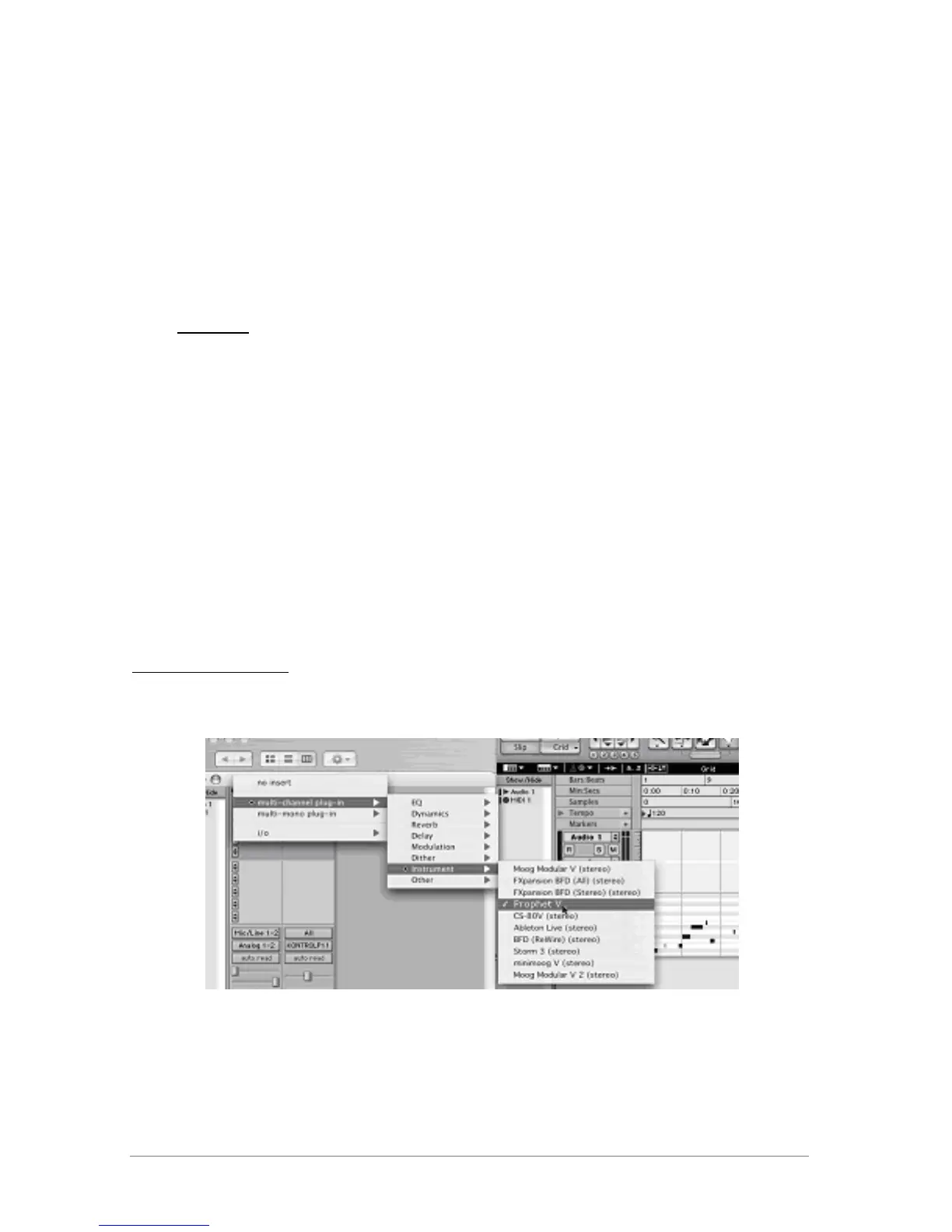
Access to the Prophet V plug-in is like all other plug-ins, via an audio track insert:
Opening the Prophet V in Pro Tool
Prophet V must be loaded on an audio stereo track. We can now make Prophet V sounds by
playing with the mouse on the virtual keyboard.



 To Next Page