EasyManua.ls Logo

Astro-Gadget EQStarPro - User Manual

Astro-Gadget EQStarPro
17 pages
Print Icon
To Next Page IconTo Next Page
Loading...
EQStarPro User Guide www.astro-gadget.com
1
EQStarPro User Guide
Question and Answer IconNeed help?

Do you have a question about the Astro-Gadget EQStarPro and is the answer not in the manual?

Summary

Overview of EQStarPro Control System

Hardware Installation Guide

Mounting Drive Motors

Step-by-step instructions for installing drive motors onto the telescope mount axes.

PC Software Setup and Installation

Install Virtual COM Port Driver

Install the necessary USB to UART bridge driver for PC communication.

Install ASCOM Platform

Install the ASCOM Platform, required for telescope control software compatibility.

Install EQMOD ASCOM Driver

Install the EQMOD driver for ASCOM compatibility with PC control.

Connect Control Unit via USB

Connect the EQStarPro control unit to the computer using the provided USB cable.

PC Control and Operation

Automatic GoTo Functionality

Configure and execute automatic GoTo commands using planetarium software.

Long Exposure Astrophotography

Utilize guiding features for accurate long exposure astrophotography sessions.

ST-4 Port Guiding Setup

Configure and use the ST-4 port for external autoguider integration.

Mobile Device Control

Install SynScan Pro Application

Install the SynScan Pro app on an Android device for mount control.

Polar Home Position Setup

Align the telescope and mount to the correct polar home position.

Enable WiFi and Power On

Turn on the EQStarPro and activate its WiFi mode for wireless connection.

Connect to EQStarPro WiFi Network

Connect your mobile device to the EQStarPro's WiFi network.

Initiate Viewing Session

Unpark the mount in SynScan Pro to start a celestial viewing session.

SynScan Pro WiFi Configuration

Configure WiFi settings such as SSID and password within the SynScan Pro app.

SkySafari Planetarium Integration

Integrate SkySafari 6.0+ with SynScan Pro for advanced planetarium control.

SkySafari Scope Configuration

Set up SkySafari's scope type and communication settings for EQStarPro.

SkySafari Goto Operation Guide

Perform GoTo operations in SkySafari by controlling the telescope mount.

iOS Device Control Methods

Control EQStarPro using iOS devices via SynScanLink and SkySafari Pro.

ZWO ASIAir Pro Integration

ASIAir Pro USB Connectivity

Connect EQStarPro to ZWO ASIAir Pro using a USB cable for control.

ASIAir Pro WiFi Connectivity

Establish wireless control of EQStarPro via the ZWO ASIAir Pro's WiFi.

Linux Controller Integration

KStars and EKOS for Linux

Utilize KStars planetarium and EKOS for astrophotography on Linux.

Linux Control Setup with KStars

Configure KStars and Indi-EQMOD for telescope control on a Linux system.

Stand-alone Joystick Control

ST-4 Port Joystick Connection

Connect a physical joystick to the ST-4 port for direct mount control.

Initial Stand-alone Operation

Understand the initial startup sequence and automatic tracking in stand-alone mode.

Adjusting Tracking Speeds

Learn how to change tracking speeds using the joystick's MODE and RA buttons.

Adjusting Pointing Speeds

Learn how to change slewing/pointing speeds using the joystick's MODE and DEC buttons.

Important Notes and Specifications

Power Connector Specification

Details on the required power plug dimensions for the EQStarPro unit.

WiFi Indicator LED Function

Clarifies that the front LED serves as a WiFi indicator, not a power indicator.

Overview

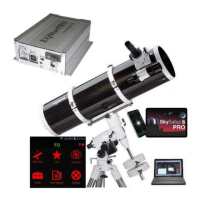
The EQStarPro is a versatile control system designed to automate the operation of equatorial mounts, offering both standalone functionality and control via computers or mobile devices. It is compatible with a wide range of astronomical software, making it suitable for both visual astronomy and astrophotography.

Function Description:

The EQStarPro system enables precise control of an equatorial mount, allowing users to automatically locate and track celestial objects. When used with a PC, it integrates with ASCOM-compliant planetarium programs such such as Stellarium, Cartes de Ciel, and StarCalc, as well as astrophotography and guiding software like MaximDL, Guidemaster, and PHDGuiding. This PC integration facilitates automatic GoTo functionality for sky objects and accurate tracking during long-exposure astrophotography. For PC control, the EQMOD ASCOM application is required.

For mobile device control, the EQStarPro allows automatic object finding through planetarium applications. It emulates a Celestron SynScan system, compatible with German equatorial mounts. Supported mobile applications include SkySafari, Orion StarSeek, and DSOPlanner. Communication with a PC is established via a USB cable, while mobile devices connect wirelessly via a WiFi interface.

The system supports various platforms, drivers, and applications, providing flexibility for different user needs. Astrophotographers often use a laptop or PC for precise targeting and guiding during long exposures, leveraging Windows-based software. Visual astronomers, however, may find it more convenient to control the mount with a compact mobile device like a smartphone or tablet.

The EQStarPro kit also includes a universal joystick for manual control, allowing autonomous mount operation without a computer, smartphone, or tablet.

Important Technical Specifications:

  • Mount Type: Equatorial
  • Power Requirements: 12V, 3A, with a 5.5mm outer / 2.1mm inner positive center pin power plug.
  • Compatible Stepper Motor Type: Bipolar (not included)
  • Stepper Motor Windings Current: Adjustable, up to 2.5 A (max.)
  • Gear Ratio (RA and DEC): Adjustable from 1:100 to 1:5000
  • ST4 Port: For hand controller or guiding input.
  • PC Port: COM port over USB interface.
  • WiFi: WiFi enable switch and WiFi On LED indicator.
  • Power Switch: On/off control.
  • Motor Control: RJ45 connectors for RA and DEC stepper motors.
  • GoTo Speed: Supports up to x2000 GoTo speed.
  • Acceleration/Deceleration: Smooth acceleration and deceleration of the stepper motor.

Usage Features:

  1. Hardware Installation: Drive motors are installed on the mount axes. Proper belt tension is crucial to prevent slippage and mechanical wear. The mount control unit connects to each motor via supplied cables.
  2. PC Software Installation:
    • Virtual COM-Port Driver: Install the Silicon Labs CP210x USB UART driver (x64 or x86 version) from the supplied CD or online. This creates a virtual COM port (e.g., COM3) in Windows Device Manager.
    • ASCOM Platform: Install ASCOM Platform 6.x from the supplied CD or www.ascom-standards.org.
    • EQMOD ASCOM Driver: Install the EQMOD Ascom driver from the CD or https://sourceforge.net/projects/eq-mod/.
    • Connection: Connect the control unit to the computer via USB and to a 12V power supply.
    • Settings Mode: To access EQStarPro settings, connect the joystick remote to the ST4 port. While pressing the 'Mode' button, power on the EQStarPro. It will beep twice to confirm settings mode.
    • EQStarPro Settings Program: Use the 'EQStarPRO settings' program (requires .NET 4.0 framework and VS2013 x86 redistributable) to view and adjust parameters like RA/DEC gear ratios, GoTo speed, motor current, and acceleration.
  3. PC Control (Automatic Find/GoTo):
    • Configure the planetarium program (e.g., Stellarium) to use the ASCOM telescope EQMOD and the virtual COM port.
    • Position the mount in the 'Polar Home' position (RA and DEC axes pointing towards the pole star, counterweight aligned with the north-pointing leg, telescope towards Polaris).
    • Select an object in the planetarium program to slew the telescope. The ASCOM control panel allows manual adjustments for centering.
  4. Long Exposure Astrophotography:
    • EQStarPro supports two automatic guiding methods: ST-4 port guiding or pulse guiding via the ASCOM interface.
    • ST-4 Guiding: Connect the joystick remote to the ST-4 port and hold the 'mode' button for 5 seconds (long beep confirms activation). Adjust guiding speeds (x0.5, x0.75, x1.0) using RA+ and DEC+ buttons while in this mode. Disconnect the joystick and connect the autonomous guider. Deactivate by holding the 'mode' button again for 5 seconds.
    • Pulse Guiding: Configured via the EQMOD application panel, it does not require additional cables beyond the USB connection.
    • Guiding programs like PHD2, MaximDL, and Guidemaster can use guide stars from auxiliary guide scopes, off-axis guiders, or primary images.
  5. Mobile Cell Phone or Tablet Control:
    • SynScan Pro: Install SynScan Pro from the EQStarPro CD or Google App Store (Android 10 and lower, newer versions from SynScan Pro website).
    • Polar Home Position: Set the telescope and mount in the polar home position.
    • WiFi Connection: Turn on WiFi on the EQStarPro (switch on front panel, WiFi LED lit). Connect the mobile device to the 'EQStarPro' WiFi network.
    • SynScan Pro Operation: Start SynScan Pro, set observer location, and perform alignment.
    • SkySafari Integration: SkySafari 6.0+ can control GoTo operations through SynScan Pro. In SkySafari, select a 'Wifi' connection with IP 127.0.0.1 and port 11882.
    • iOS Devices: For iOS, install "SynScanLink" from the Apple App Store. SkySafari Pro will then recognize "SkyWatcher SynScanLink" as a telescope type.
  6. ZWO ASIAir Pro Control:
    • USB Control: Connect the EQStarPro's PC port to a USB port on the ASIAir Pro using the supplied USB cable. In ASIAir Pro telescope settings, choose 'EQMOD with SkySafari' with a 9600 baud serial connection.
    • WiFi Control: Turn on WiFi on the EQStarPro (3 beeps and WiFi LED lit). Connect the ASIAir to your home network or ASIAir Pro network. Launch ASIAir app, turn on station mode, and connect to the EQStarPro network. Set ASIAir Pro telescope settings to 'EQMOD for SkySafari' with IP 192.168.4.1 and port 11880.
  7. Linux Controller Control (KStars/EKOS):
    • Linux open-source applications like KStars (planetarium program) paired with the Indi EQMOD plug-in can control EQStarPro via its WiFi interface.
    • Install KStars, EKOS, and Indi-EQMOD from the KStars package manager (ppa:mutlaqja/ppa).
    • When connected via USB, EQStarPro appears as /dev/ttyusb0. KStars' device manager can add 'indi_eqmod_telescope' pointing to this device.
    • KStars offers a telescope control panel for slewing, synching, parking/unparking, and stopping the mount.
  8. Stand-alone Mount Control with Joystick:
    • Connect the push-button joystick to the ST4 port.
    • Upon power-on, the EQStarPro will beep (1 short, 3 short, 1 long) and start tracking at stellar speed.
    • Tracking Speed Adjustment: Hold the MODE button and use RA+ or RA- to cycle through tracking speeds (stopped, star, lunar, solar). Confirmed by short beeps (1 to 4 beeps).
    • Positioning Speed Adjustment: Hold the MODE button and use DEC+ or DEC- to cycle through positioning speeds (x20, x65, x200, x500). Confirmed by long beeps (1 to 4 beeps).

Maintenance Features:

  • Firmware Upgrade: The EQStarPro settings program allows for firmware upgrades.
  • Motor Current Adjustment: Motor current can be adjusted via the settings program, affecting load capacity and stepper motor noise.
  • Gear Ratio Configuration: RA and DEC gear ratios are critical and can be set in the settings program to match the specific mount (e.g., 576 for LXD75/Vixen GP mounts).
  • Power Cable Compatibility: Ensure the power plug has a 5.5mm outer diameter and a 2.1mm inner pin diameter for reliable contact. The manual notes that some original mount cables (e.g., Meade LXD75) may have a 2.5mm inner diameter, requiring a compatible cable.
  • WiFi Indicator: The LED on the front panel indicates WiFi status, not power. It should be lit when WiFi is enabled.

Astro-Gadget EQStarPro Specifications

General IconGeneral
BrandAstro-Gadget
ModelEQStarPro
CategoryTelescope
LanguageEnglish