EasyManua.ls Logo

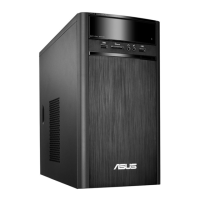
Asus A31AD - User Manual

Asus A31AD
62 pages
Print Icon
To Next Page IconTo Next Page
Loading...
ASUS Desktop PC
A31AD/F31AD/K31AD
M12AD and M52AD
User Guide
M12AD
M52AD
A31AD/F31AD/K31AD

Questions and Answers

  • K
    Karen ParkerAug 21, 2025
    What to do if my Asus A31AD computer won't turn on?
    • E
      Erika BarreraAug 21, 2025
      If your Asus Desktop isn't powering on, first ensure it's properly connected to a functioning wall outlet. Also, check that the Power Supply Unit is switched on.
  • C
    campbelldianeSep 3, 2025
    How to connect to a wireless network using the ASUS WLAN Card on my Desktop?
    • R
      Robert AllenSep 3, 2025
      To connect to a wireless network using the ASUS WLAN Card, ensure that you enter the correct network security key for the wireless network you want to connect to. Connect the external antennas (optional) to the antenna connectors on the ASUS WLAN Card and place the antennas on top of your computer chassis for the best wireless performance.
  • J
    Jeanne GraySep 1, 2025
    Why does the Asus Desktop system often hang or freeze?
    • M
      Michelle MunozSep 1, 2025
      If the Asus Desktop system often hangs or freezes, move your computer to an area with better air flow. Reinstall the OS and reinstall compatible softwares.
  • J
    John PearsonAug 31, 2025
    What to do if my Asus A31AD Desktop has no display output after turning it on?
    • C
      Craig MorganAug 31, 2025
      If your Asus Desktop has no display output, connect the signal cable to the correct display port (onboard VGA or discrete VGA port). Try connecting to another monitor.
  • B
    Beth McneilAug 29, 2025
    Why is my Asus A31AD showing no power?
    • C
      Christine ReynoldsAug 29, 2025
      If your Asus Desktop shows no power, ensure the power cord is properly connected. Press the power key on the front panel to ensure that your computer is turned on. If that doesn't work, set your computer’s power voltage switch to your area’s power requirements.
  • S
    sherryschultzAug 27, 2025
    What to do if my Asus A31AD computer hangs?
    • D
      David MckenzieAug 28, 2025
      If your Asus Desktop computer hangs, simultaneously press the + + keys on the keyboard, then click Task Manager. Alternatively, press and hold the Power button until the computer shuts down, then press the Power button to turn it on again.
  • S
    Scott WilsonAug 27, 2025
    How to fix Internet connection issues on my Asus A31AD?
    • C
      Catherine VegaAug 27, 2025
      If you cannot access the Internet on your Asus Desktop, first ensure the LAN cable is connected to your computer. Check that the LAN LED is on; if not, try another LAN cable. Verify that your computer is properly connected to a router or hub. Close the anti-virus software. Reinstall the LAN driver.
  • M
    Ms. Amanda Diaz MDAug 25, 2025
    What to do if there is no display on my Asus Desktop monitor?
    • O
      owenthomasAug 25, 2025
      If you have no display on your monitor, first check that the monitor is powered on and properly connected to the video output port on your Asus Desktop. If your computer has a discrete graphics card, make sure the monitor is connected to a video output port on that card. Inspect the monitor video connector for bent pins; if found, replace the cable. Finally, ensure the monitor is properly plugged into a power source.
  • K
    Kevin BakerAug 22, 2025
    Why is my Asus Desktop system speed too slow?
    • T
      Theresa GrimesAug 23, 2025
      If your Asus Desktop system speed is too slow, close some of the programs that are running. Use an anti-virus software to scan for viruses and repair your computer.

Asus A31AD Specifications

General IconGeneral
ChipsetIntel H81
RAMUp to 16GB DDR3
Form FactorTower
ProcessorIntel Core i3/i5/i7
GraphicsIntegrated Intel HD Graphics
StorageUp to 3TB HDD
Optical DriveDVD Super Multi
AudioRealtek ALC887
Networking10/100/1000 Mbps
Operating SystemWindows 8.1
Power Supply300W
USB PortsUSB 2.0, USB 3.0

Related product manuals