50
4 Using the Notebook PC
<000>
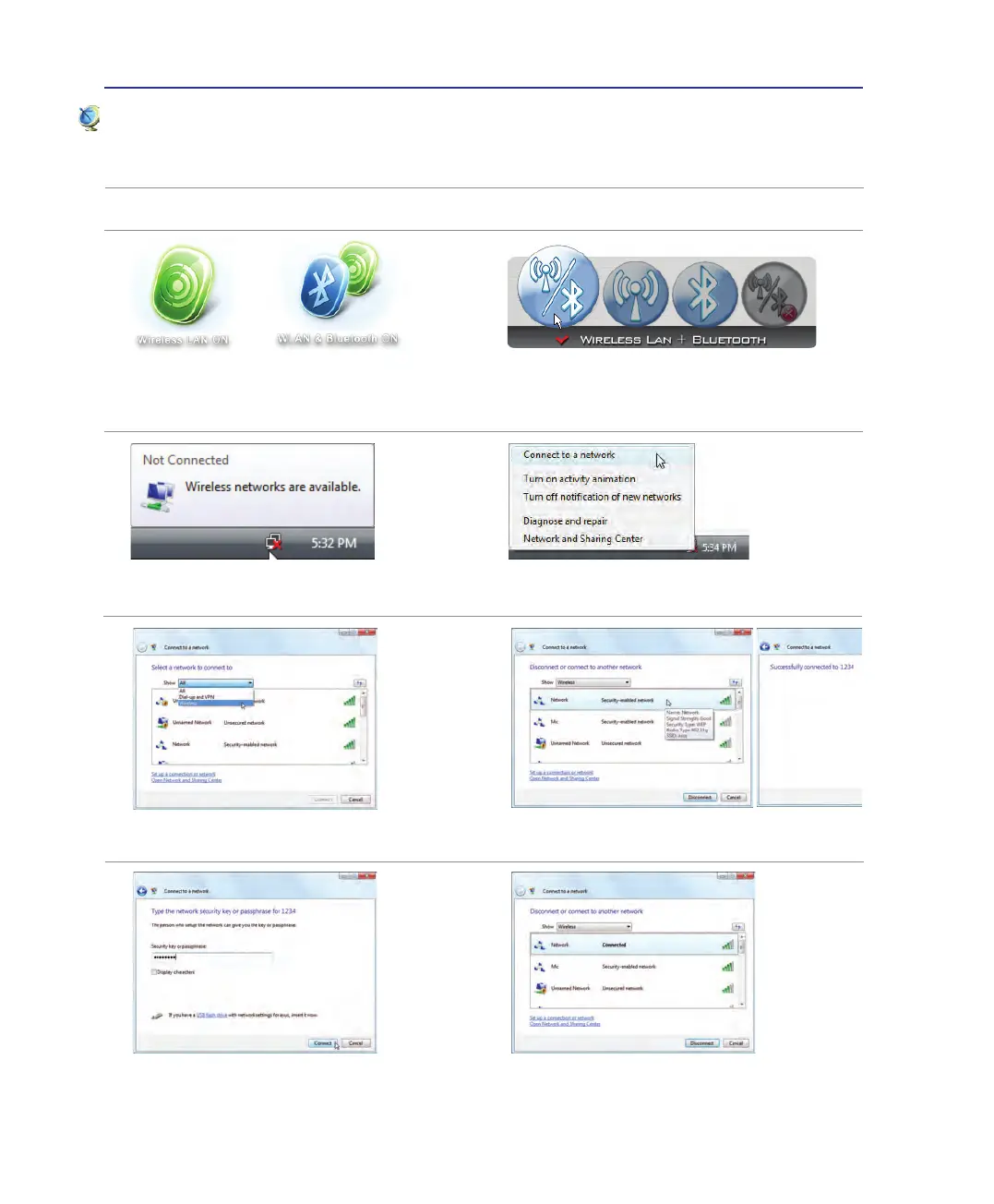
2� Press [FN F2] repeatedly until Wireless LAN
ON or WLAN & Bluetooth ON is shown�
Windows Wireless Network Connection
Connecting to a network
4� Right click on the network icon and select
Connect to a network�
3� You should see the “Not Connected” network
icon�
5� Select “Show Wireless” if you have many
networks in your area�
6� Select the wireless network you want to con-
nect to�
7� When connecting, you may have to enter a
password�
8� After connection has been established, “Con-
nected” will be shown�
2b� Or double click the Wireless Console icon on
the taskbar and select either the Wireless LAN
+ Bluetooth or just the Bluetooth�
1� Switch ON the Wireless Switch if necessary for your model (see switches in Section 3)�



 To Next Page