A Appendix
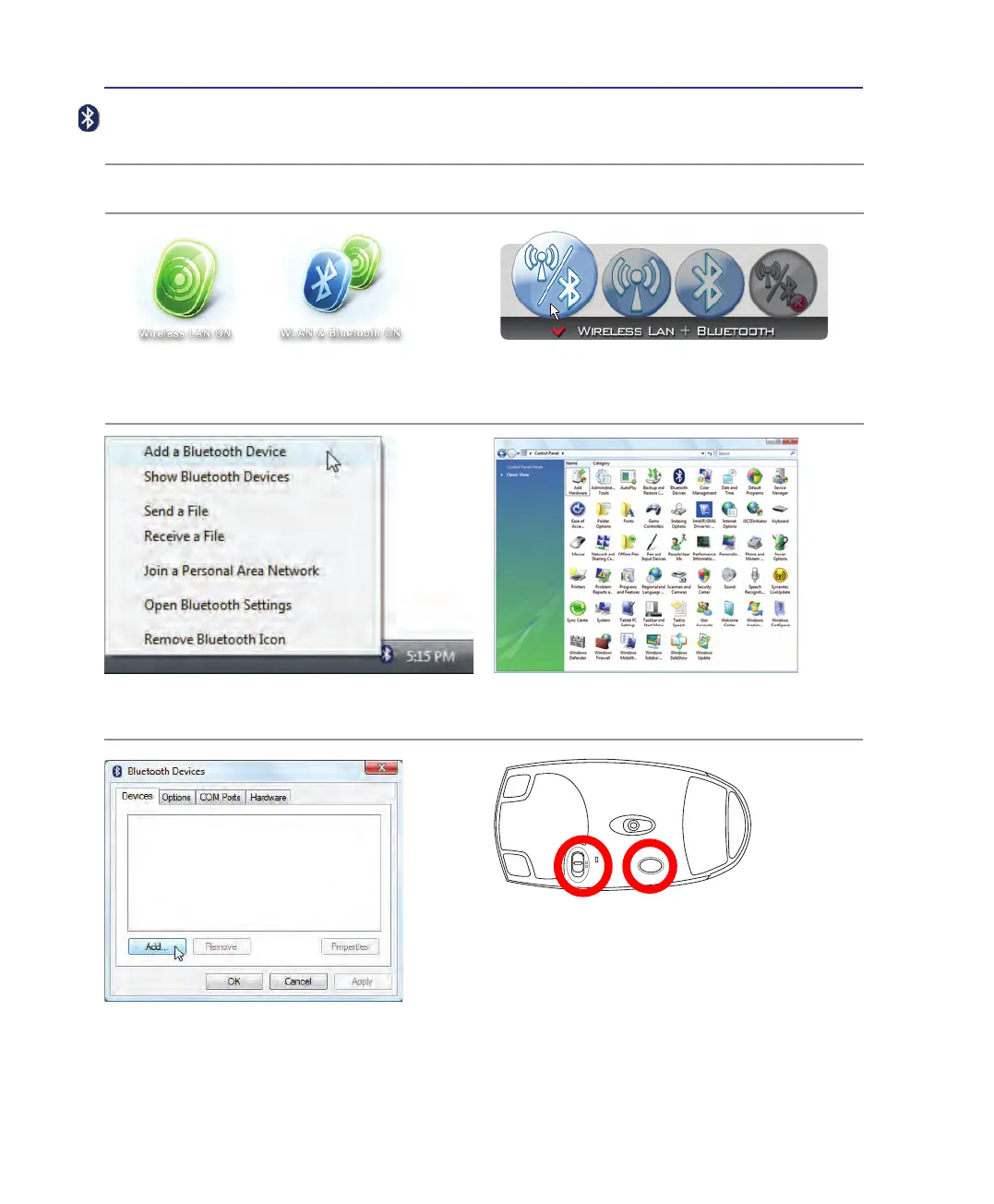
4� Prepare the Bluetooth mouse�
• Install two “AA” batteries�
• Turn ON the power switch on the bottom of the
mouse� The bottom sensor should glow red�
• Push the “RESET” button on the bottom of the
Bluetooth mouse�
Bluetooth Mouse Setup (optional)
This process can be used to add most Bluetooth devices in Windows operating system.
3� Select Add a Bluetooth Device on
the taskbar menu�
3c� If launched from the Control Panel,
click Add from this screen�
3b� Or Launch Bluetooth Devices from the
Windows Control Panel�
2b� Or double click the Wireless Console icon on
the taskbar and select either the Wireless LAN +
Bluetooth or just the Bluetooth�
2� Press [FN F2] repeatedly until Wireless LAN ON
or WLAN & Bluetooth ON is shown�
1� Switch ON the Wireless function if necessary for your model (see switches in Section 3)�



 To Next Page