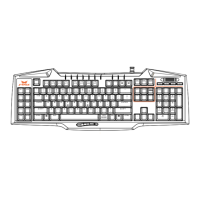
Mode Switch
PROFILE DESCRIPTION
GamingProle
(default)
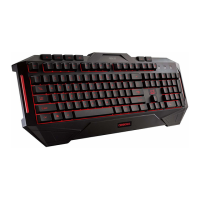
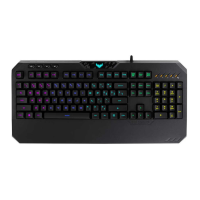
With343-colorbacklight
TheMacro,SwapandRapidrefunctionsareenabled.
NormalProle Withmintcolorbacklight
TheMacro,SwapandRapidrefunctionsaredisabled.
To use the Rapid Fire mode:
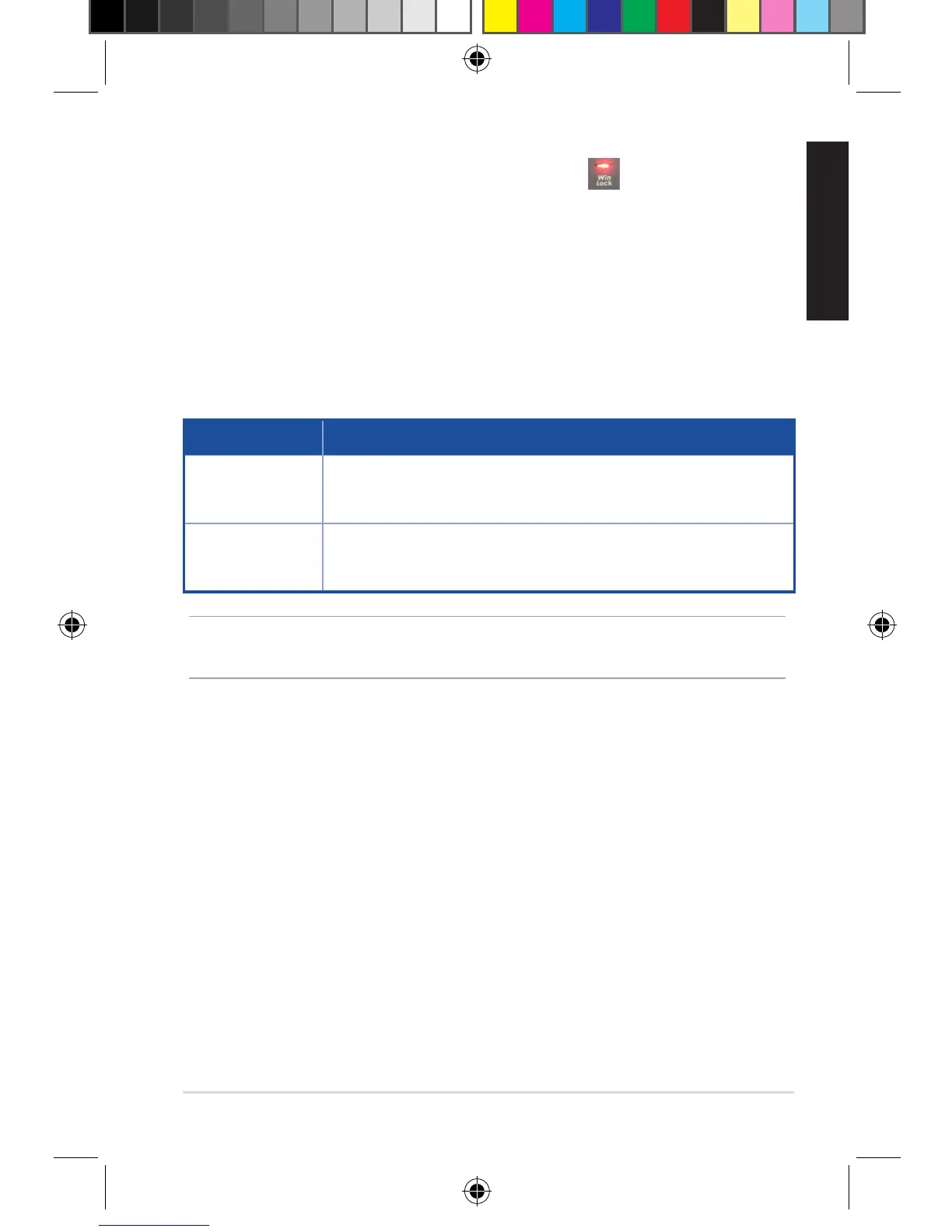
1. Press[FN]+[End]andwaitfortheWinLockkey tolightupandturn
red,indicatingthattheRapidFiremodeisenabled.
2. Pressakeyorkeysthatyouwanttohaverepeatingkeystroke,andthe
WinLockLEDashesred.
3. Press[FN]+[ESC]oncetoend.
4. Press[FN]+[Q]toenable/disabletheRapidFiremode.
NOTE:Toswitchproles,press[FN]+[CapsLock].Thebacklightashes
twicetoindicatetheprolemodeswitch.
Backlit setting
Multi-color
Youcanon-the-ysetthebacklightingcolorofthekeyboardto343color
combinations.
Thereareseveraloptionsforsettingthebacklightcolor:
• Press[FN]+[1]~[7]forpre-setcolors.
• Press[FN]+[8]~[9],andusethe[R],[G],or[B]keystosetupyour
preferredcolor.
E11609_Cerberus_Gaming_Keyboard_UM_V3.indd 7 2016-04-12 17:45:21


 To Next Page