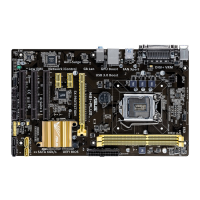
ASUS H87-PRO
3-19
Chapter 3
CPU System Agent Voltage Offset Mode Sign [+]
[+] To offset the voltage by a positive value.
[–] To offset the voltage by a negative value.
CPU System Agent Voltage Offset [Auto]
Allows you to congure the amount of voltage fed to the system agent of the processor
including its PCIe controller and power control unit. Increase the amount of voltage
when increasing DRAM frequency. Use the <+> or <-> keys to adjust the value. The
values range from 0.001V to 0.999V with a 0.001V interval.
CPU Cache Voltage [Auto]
Allows you to congure the amount of voltage fed to the uncore of the processor including its
cache. Increase the voltage when increasing Ring frequency. Conguration options: [Auto]
[Manual Mode] [Offset Mode] [Adaptive Mode]
The following item appears only when you set the CPU Cache Voltage to [Manual Mode].
CPU Cache Voltage Override [Auto]
Allows you to set the CPU Cache Voltage override. Use the <+> or <-> keys to adjust
the value, The values range from 0.001V to 1.920V with a 0.001V interval.
The following items appear only when you set the CPU Cache Voltage to [Offset Mode] or
[Adaptive Mode].
Offset Mode Sign [+]
[+] To offset the voltage by a positive value.
[–] To offset the voltage by a negative value.
CPU Cache Voltage Offset
Allows you to set the CPU cache voltage offset. Use the <+> or <-> keys to adjust the
value. The values range from 0.001V to 0.999V with a 0.001V interval.
The following item appears only when you set the CPU Cache Voltage to [Adaptive Mode].
Additional Turbo Mode CPU Cache Voltage [Auto]
Allows you to add voltage for Turbo Mode CPU Graphics. Use the <+> or <-> keys to
adjust the value. The values range from 0.001V to 1.920V with a 0.001V interval.


 To Next Page