EasyManua.ls Logo

Asus M12AD - User Manual

Asus M12AD
60 pages
Print Icon
To Next Page IconTo Next Page
Loading...
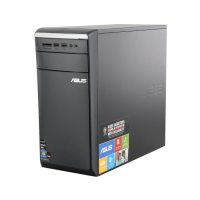
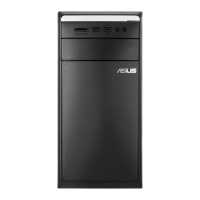
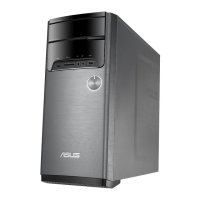
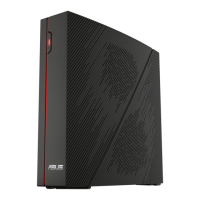
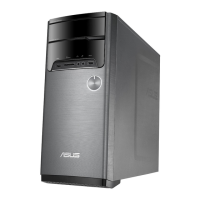
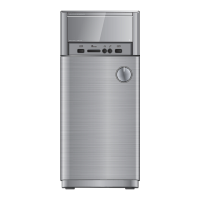
ASUS Desktop PC
M12AD / ED2AD and M52AD
User Guide
M12AD / ED2AD
M52AD

Table of Contents

Questions and Answers

  • W
    William JacksonSep 9, 2025
    Why is my Asus Desktop too noisy right after turning it on?
    • E
      Edward WalkerSep 9, 2025
      If your Asus Desktop is too noisy right after turning on, it is normal. The fan runs on its full speed when the computer is powering on. Restore the BIOS to its default settings. Update the BIOS to the latest version.
  • C
    Caroline WilliamsAug 22, 2025
    Why is my Asus M12AD system speed too slow?
    • T
      tshawAug 23, 2025
      If your Asus Desktop system speed is too slow, close some of the programs that are running. Use an anti-virus software to scan for viruses and repair your computer.
  • S
    Samuel LopezAug 25, 2025
    What to do if there is no display on my Asus M12AD monitor?
    • C
      charlesrodriguezAug 25, 2025
      If you have no display on your monitor, first check that the monitor is powered on and properly connected to the video output port on your Asus Desktop. If your computer has a discrete graphics card, make sure the monitor is connected to a video output port on that card. Inspect the monitor video connector for bent pins; if found, replace the cable. Finally, ensure the monitor is properly plugged into a power source.
  • R
    ryanfrenchAug 26, 2025
    How to fix Internet connection issues on my Asus Desktop?
    • L
      Laurie StewartAug 27, 2025
      If you cannot access the Internet on your Asus Desktop, first ensure the LAN cable is connected to your computer. Check that the LAN LED is on; if not, try another LAN cable. Verify that your computer is properly connected to a router or hub. Close the anti-virus software. Reinstall the LAN driver.
  • T
    tromanAug 27, 2025
    What to do if my Asus M12AD computer hangs?
    • G
      Glenn MejiaAug 27, 2025
      If your Asus Desktop computer hangs, simultaneously press the + + keys on the keyboard, then click Task Manager. Alternatively, press and hold the Power button until the computer shuts down, then press the Power button to turn it on again.
  • A
    Ashley RiveraAug 29, 2025
    Why is my Asus M12AD Desktop showing no power?
    • J
      Jason BaileyAug 29, 2025
      If your Asus Desktop shows no power, ensure the power cord is properly connected. Press the power key on the front panel to ensure that your computer is turned on. If that doesn't work, set your computer’s power voltage switch to your area’s power requirements.
  • S
    Samuel LeonSep 18, 2025
    What to do if my Asus Desktop DVD drive cannot read a disc?
    • D
      David WilliamsSep 18, 2025
      If your Asus Desktop DVD drive cannot read a disc, check if the disc is placed with the label side facing up. Check if the disc is centered in the tray, especially for the discs with non-standard size or shape. Check if the disc is scratched or damaged.
  • C
    Craig FullerSep 18, 2025
    What to do if there is no audio on my Asus Desktop?
    • S
      Stacy HornSep 18, 2025
      Refer to your computer’s User Guide for the correct port. Try using another speaker or headphone. Try both the front and back audio ports. Reinstall the audio driver.
  • D
    Danny WarrenSep 7, 2025
    What to do if my Asus M12AD Desktop doesn't detect my USB storage device?
    • A
      Alexis FordSep 7, 2025
      If your Asus Desktop doesn't detect your USB storage device, wait a while after the first connection for Windows to automatically install a driver. Then, go to My Computer to check if the USB storage device is detected. Connect your USB storage device to another computer to test if the USB storage device is broken or malfunctions.
  • P
    Patrick KempSep 4, 2025
    Why do my speakers have no sound on my Asus M12AD?
    • M
      Michael NashSep 4, 2025
      If your speakers are producing no sound, ensure they are connected to the Line out port (lime) on the front or rear panel. Check if the speaker is connected to a power source and turned on, and adjust the speaker's volume. Also, ensure that your computer's system sounds are not muted. Connect your speakers to another computer to test if they are working properly.

Summary

Chapter 1 Getting Started

Welcome and Overview

Introduction to the ASUS Desktop PC and its features.

Getting to Know Your Computer

Identifies and describes the front panel components of the M12AD/ED2AD and M52AD models.

Setting Up Your PC

Guides on connecting external devices like monitors, keyboards, and mice.

Turning Your Computer On

Instructions on how to turn on the computer after setup.

Chapter 2 Connecting Devices to Your Computer

Connecting USB Storage Devices

How to connect USB flash drives, external hard drives, and other storage devices.

Connecting Audio Peripherals

Instructions for connecting microphones, headphones, and speakers.

Connecting Multiple Displays

Setting up and connecting multiple external monitors to your PC.

Connecting to an HDTV

How to connect your PC to a High Definition Television (HDTV) via HDMI.

Chapter 3 Using Your Computer

Proper Posture for Usage

Guidelines for comfortable and safe computer usage to prevent strain.

Using the Memory Card Reader

Step-by-step guide on inserting and accessing memory cards.

Operating the Optical Drive

Instructions for inserting and removing discs from the CD/DVD drive.

Chapter 4 Connecting to the Internet

Wired Internet Connection

How to establish a wired internet connection using DSL/cable modem or LAN.

Wireless Internet Connection

Steps to connect your PC to the internet wirelessly via an access point.

Chapter 5 Troubleshooting

Troubleshooting: Power and Startup

Solutions for computer not powering on or front LED issues.

Troubleshooting: System Hangs

Steps to resolve a frozen or unresponsive computer system.

Troubleshooting: Monitor and Display

Resolves issues with monitor display and multiple monitor setups.

Troubleshooting: Internet Connectivity

Steps to fix problems with accessing the internet via LAN.

Asus M12AD Specifications

General IconGeneral
ProcessorIntel Core i7-4790
Storage1TB HDD
GraphicsNVIDIA GeForce GTX 750
Operating SystemWindows 8.1
ChipsetIntel H81
Optical DriveDVD Super Multi
RAM8GB
MemoryDDR3
Network802.11ac Wi-Fi
USB Ports6 x USB 2.0, 2 x USB 3.0

Related product manuals