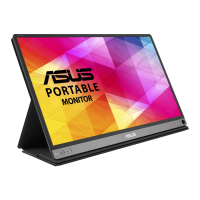
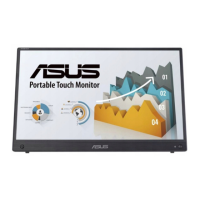
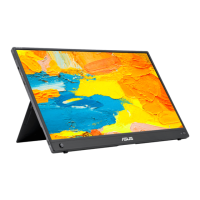
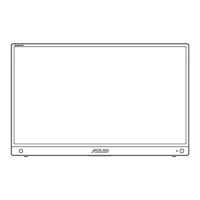
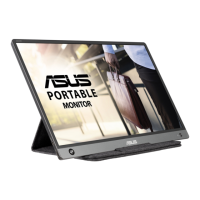
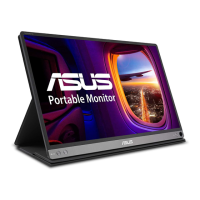
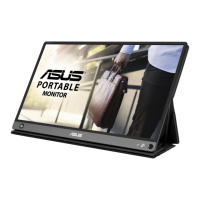
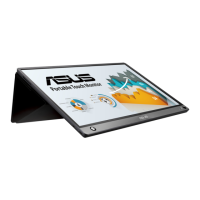
The ASUS Portable USB Monitor, encompassing models MB16AC, MB16ACR, MB16ACM, and MB16ACE, is a versatile external display designed for enhanced portability and ease of use. This monitor offers a hybrid signal solution, allowing for flexible connectivity and a streamlined user experience.
Function Description
The primary function of the ASUS Portable USB Monitor is to extend or mirror a computer's display, providing additional screen real estate for improved productivity and a more expansive viewing experience. It operates as a secondary display, connecting to a host system via a USB Type-C cable, which also supplies power, eliminating the need for a separate power adapter. This "Hybrid Signal Solution" means it can receive both video and power over a single USB connection, simplifying setup and reducing cable clutter. The monitor is particularly useful for professionals, students, and anyone who requires an additional screen for multitasking, presentations, or on-the-go work. Its lightweight and slim design make it an ideal companion for laptops and other portable devices.
Usage Features
The ASUS Portable USB Monitor is designed with several features to enhance its usability and adaptability in various scenarios:
- Connectivity: The monitor primarily uses a USB Type-C port for both power and video signal. It also includes a USB Type-C to A adapter, allowing compatibility with systems that only have USB 3.0 ports. For systems without a Type-C interface, users must install the official driver from the ASUS website to enable USB 3.0 connectivity. This broad compatibility ensures that the monitor can be used with a wide range of devices.
- Standing Positions: The monitor comes with a smart cover that doubles as a stand, offering multiple standing positions. This allows users to adjust the viewing angle to suit their preferences, whether for work, presentations, or entertainment. Additionally, for models MB16AC, MB16ACR, and MB16ACM, a pen can be inserted into a dedicated hole at the corner of the monitor to serve as a simple stand, providing an alternative standing solution without the smart cover. It is recommended to reserve at least 10cm/4 inches of the pen at the back of the monitor for stability.
- On-Screen Display (OSD) Menu: The OSD menu provides comprehensive control over the monitor's settings. Users can navigate the menu using dedicated buttons on the monitor.
- Splendid Modes: This feature offers eight pre-configured display modes optimized for different content types. These include Standard Mode (for document editing), sRGB Mode (for photos and graphics), Scenery Mode (for scenery photos), Theater Mode (for movies), Game Mode (for gaming), Night View Mode (for dark-scene content), Reading Mode (for book reading), and Darkroom Mode (for weak ambient light environments). These modes adjust parameters like saturation, skin tone, sharpness, brightness, and contrast to provide the best visual experience for the selected content. Note that some functions are not user-configurable in certain Splendid modes.
- Blue Light Filter: This function allows users to adjust the energy level of blue light emitted from the LED backlight, with levels ranging from 0 to 4. Higher levels reduce more blue light, which can help alleviate eye strain. Level 4 is an optimized setting compliant with TUV Low Blue Light Certification, where the brightness function is not user-configurable. In levels 1-3, brightness is user-configurable.
- Color Settings: Users can fine-tune image colors by adjusting brightness, contrast, saturation, color temperature (Cool, Normal, Warm, User Mode), and skin tone (Reddish, Natural, Yellowish). In User Mode, individual R, G, and B color values can be adjusted.
- Image Settings: This section allows adjustments to sharpness, Trace Free (for response time), Aspect Control (Full, 4:3, 1:1), VividPixel (for lifelike visuals), and ASCR (dynamic contrast ratio). The 4:3 aspect ratio is only available when the input source is in 4:3 format.
- System Setup: This menu provides access to various system configurations, including Splendid Demo Mode, Auto Rotation, GamePlus, QuickFit, ECO Mode, OSD Setup (timeout, DDC/CI, transparency), Language selection, Key Lock, Information display, Power Indicator control, Power Key Lock, and All Reset to factory defaults.
- QuickFit Function: This feature provides two patterns: Grid and Photo size.
- Grid Pattern: Facilitates designers and users in organizing content and layout on a page for a consistent look. Alignment grid 1 can automatically rotate if auto-rotation is enabled (requires DisplayWidget software on Windows OS).
- Photo Size: Allows photographers and other users to accurately view and edit photos in their real size on the screen, with options like 4x6 and 3x5.
- GamePlus Function: Designed for gamers, this toolkit includes features like Crosshair (for improved aiming in FPS games), Timer, and Display Alignment.
- Auto Rotation: The monitor supports automatic image rotation, which is enabled by installing the DisplayWidget software on a Windows OS.
- Shortcut Keys: Users can assign frequently used functions like Blue Light Filter, Splendid, Brightness, Contrast, Auto Rotation, Color Temp., QuickFit, and GamePlus to shortcut keys for quick access.
- MyFavorite: This feature allows users to load and save all their preferred monitor settings, making it easy to switch between personalized configurations.
Maintenance Features
Proper care and maintenance ensure the longevity and optimal performance of the ASUS Portable USB Monitor:
- Cleaning: To clean the monitor, first turn it off and unplug the cable. Use a lint-free, non-abrasive cloth to wipe the surface. Stubborn stains can be removed with a cloth dampened with a mild cleaner. Avoid cleaners containing alcohol or acetone, and use only cleaners intended for LCDs. Never spray cleaner directly onto the screen to prevent electric shock.
- Environmental Considerations: The monitor should be kept away from dust, humidity, and extreme temperatures. It should not be placed in areas where it might get wet and should always be on a stable surface.
- Physical Handling: Never attempt to open the monitor cabinet. Ensure all cables are correctly connected and undamaged before use. If any damage is detected, contact the dealer immediately. Avoid pushing objects or spilling liquids into the monitor's slots.
- Power Source: The monitor is powered by a USB port that complies with LPS (Limited Power Source) and SELV (Safety Extra-Low Voltage) circuits, as per IEC60950-1:2005.
- Troubleshooting: The user guide provides a comprehensive troubleshooting section with common problems and their possible solutions, such as issues with the power LED, screen image quality, or color defects. For example, if the power LED is not on, users should check the power button and cable connections. If the screen image is too light or dark, adjusting brightness settings is recommended. For more complex technical problems, users are advised to contact a qualified service technician or retailer rather than attempting repairs themselves.
- Magnet Caution: The product and its smart cover contain magnets. Users are advised not to stack the monitor with a computer when the computer is in use (power on or standby mode), as this could potentially damage the computer's hard drive or trigger its auto-protection mechanism, causing the display to switch off. When placing the monitor and computer together in a bag, ensure the computer is powered off to prevent hard drive damage.
- Driver Updates: For optimal performance and to enable features like auto-rotation, users should regularly check the ASUS website for the latest drivers and DisplayWidget software.
- Eye Strain Alleviation: The manual provides tips to alleviate eye strain, such as taking short breaks, focusing on distant objects, and performing eye exercises. This highlights a user-centric design approach, promoting healthy usage habits.
The ASUS Portable USB Monitor is designed to be a reliable and user-friendly device that extends digital workspaces with minimal fuss, offering a blend of practical features and thoughtful design for a wide range of users.

 Need help?
 General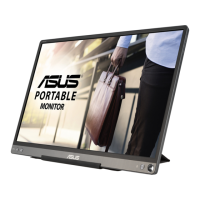

 To Next Page