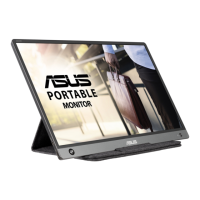
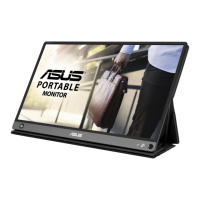
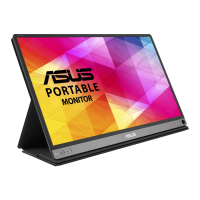
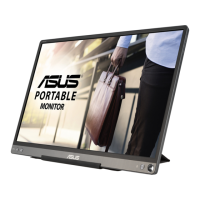
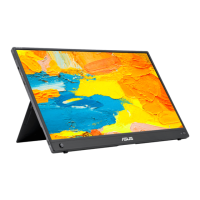
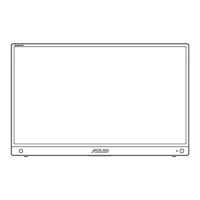
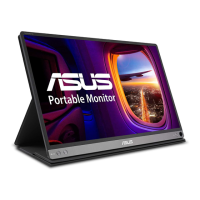
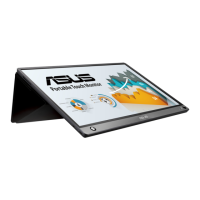
The ASUS MB16AHT is a portable USB touch monitor designed to enhance productivity and viewing experiences. It offers a range of features for both functionality and user comfort, making it a versatile companion for daily use.
Function Description
The MB16AHT functions as an external display that connects to a system via USB Type-C or Mini-HDMI. It supports touch input, allowing for interactive use with compatible operating systems. The monitor is designed for portability, making it easy to carry and set up in various environments. It integrates ASUS's SPLENDID™ Video Intelligence Technology, which optimizes image quality for different content types, and includes ASUS EYE CARE Monitors features like Blue Light Filter and Flicker-free technologies to reduce eye strain during extended use. The monitor also features an On-Screen Display (OSD) menu for comprehensive configuration and a DisplayWidget Lite software for convenient desktop control.
Usage Features
The MB16AHT offers several features to enhance its usability:
- Connectivity: It supports both USB Type-C and Mini-HDMI inputs, providing flexibility for connecting to various devices such as laptops, smartphones, and other systems. The USB Type-C port also handles power delivery, simplifying cable management. For touch functionality, a USB cable connection between the monitor and the input device is essential to transmit touch signals.
- Touch Screen: The monitor boasts 10-point touch panel technology, enabling multi-finger gestures and interactive control. This feature is particularly useful with Windows 10 OS or above, allowing for intuitive navigation and interaction with applications. The touch function can also be disabled via the OSD menu if not needed.
- OSD Menu: A comprehensive OSD menu, accessible via a 5-way key, allows users to adjust various display settings. This includes:
- Splendid Modes: Eight preset modes (Standard, sRGB, Scenery, Theater, Game, Night View, Reading, Darkroom) optimize the display for different viewing scenarios, from document editing to gaming and movie watching. These modes adjust parameters like saturation, skin tone, sharpness, and ASCR (ASUS Smart Contrast Ratio). Note that some functions may not be user-configurable in certain Splendid modes.
- Blue Light Filter: This feature allows users to adjust the level of blue light emitted from the LED backlight, with settings ranging from Min to Max. Higher levels reduce blue light scattering, helping to alleviate eye strain. The maximum level is optimized and complies with TUV low blue light certification. When activated, the monitor automatically imports default settings from Standard Mode, though brightness remains user-configurable (except at maximum level).
- Color Settings: Users can fine-tune brightness, contrast, saturation, color temperature (Cool, Normal, Warm, User Mode), and skin tone (Reddish, Natural, Yellowish). The "User Mode" for color temperature allows for individual adjustment of Red, Green, and Blue components.
- Image Settings: This section provides controls for sharpness, Trace Free (response time acceleration), Aspect Control (Full, 4:3), VividPixel (enhances visual clarity), and ASCR (dynamic contrast ratio). The 4:3 aspect ratio is only available when the input source is in 4:3 format.
- Input Select: Allows users to manually switch between HDMI, Type-C 1, and Type-C 2 input signals.
- System Setup: This menu includes various system configurations such as Splendid Demo Mode, Auto Rotation, Touch Screen enable/disable, Volume control, GamePlus, QuickFit, ECO Mode, and OSD Setup.
- GamePlus: A toolkit for gamers, offering features like Crosshair (for practice mode), Timer, and FPS Counter. These tools can be activated and positioned on the screen using the 5-way key.
- QuickFit: Provides two patterns: Grid (for content organization and layout) and Photo size (for accurate viewing and editing of photos in real size). Alignment grid 1 automatically rotates if auto-rotation is enabled.
- ECO Mode: Activates a power-saving mode.
- OSD Setup: Configures OSD Timeout, DDC/CI, and Transparency.
- Language: Supports multiple OSD languages including English, French, German, Spanish, Italian, Dutch, Russian, Polish, Czech, Croatian, Hungarian, Romanian, Portuguese, Turkish, Simplified Chinese, Traditional Chinese, Japanese, Korean, Persian, Thai, Indonesian, and Ukrainian.
- Key Lock/Power Key Lock: Disables all key functions or the power key, respectively, to prevent accidental changes.
- Information: Displays monitor information.
- Power Indicator: Toggles the power LED indicator on/off.
- All Reset: Resets all settings to factory defaults.
- Shortcut: Allows users to assign frequently used functions (Blue Light Filter, Splendid, Brightness, Contrast, Auto Rotation, Input Select) to a shortcut key.
- MyFavorite: Enables saving and loading of preferred monitor settings.
- Auto Rotation: This feature automatically rotates the image, but it is specifically noted to only work under Windows OS with the DisplayWidget Lite software installed.
- DisplayWidget Lite Software: This downloadable utility from the ASUS website provides a convenient way to control monitor settings directly from the computer desktop. It is recommended to connect the MB16AHT to the input device and turn on DisplayWidget Lite for optimal use. Creating a desktop shortcut for the software is suggested for easier access.
Maintenance Features
Proper care and maintenance ensure the longevity and optimal performance of the MB16AHT:
- Cleaning: The monitor should be turned off and unplugged before cleaning. The surface should be cleaned with a lint-free, non-abrasive cloth. For stubborn stains, a cloth dampened with a mild cleaner can be used. Avoid cleaners containing alcohol or acetone, and never spray cleaner directly onto the screen to prevent electrical shock or internal damage.
- Environmental Considerations: The monitor should be kept away from dust, humidity, and extreme temperatures. It should not be placed in areas where it might get wet and should always be on a stable surface.
- Power Adapter and Cable Usage: Only the bundled power adapter and USB cable should be used for charging to prevent potential damage. The adapter may become warm during use, so it should not be covered and kept away from the body. If the device becomes unusually hot, the USB cable should be disconnected, and the device, adapter, and cable should be sent to an ASUS qualified service personnel.
- Troubleshooting: The manual provides a troubleshooting section for common issues:
- Power LED not ON: Check if the monitor is in ON mode and if the USB Type-C cable is properly connected.
- Power LED amber, no screen image: Verify monitor and computer are ON, USB Type-C cable is connected correctly, inspect signal cable for bent pins, and test with another monitor if possible.
- Screen image too light/dark: Adjust brightness settings.
- Screen image bounces/wave pattern: Ensure USB Type-C cable is properly connected and move electrical devices causing interference.
- Color defects: Inspect the USB Type-C cable for bent pins.
- Power LED blinking/ASUS logo repeating (insufficient power): A detailed procedure is provided to enter "safe mode," adjust brightness to determine the maximum stable value for the connected USB-C source, and then set the brightness to that value. This involves pressing the left button, connecting the USB Type-C cable, releasing the button after the ASUS logo, setting a white background, accessing the OSD menu in safe mode, adjusting brightness, and then turning off safe mode.
- Low speaker volume: Check if the monitor is connected to the adapter.
- Product Warranty: The warranty is void if the product is repaired, modified, altered without ASUS authorization, or if the serial number is defaced or missing.
- WEEE Symbol Statement: Indicates that the product should not be disposed of with household waste but through designated collection points for recycling electrical and electronic equipment, promoting resource conservation and environmental protection.
- Takeback Services: ASUS offers recycling and takeback programs for products, batteries, and packaging materials, with detailed information available on their website.

 Need help?
 General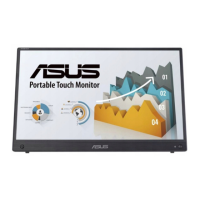

 To Next Page