ASUS P5AD2-E PremiumASUS P5AD2-E Premium
ASUS P5AD2-E PremiumASUS P5AD2-E Premium
ASUS P5AD2-E Premium
5-215-21
5-215-21
5-21
5.5.25.5.2
5.5.25.5.2
5.5.2
Silicon Image RAID configurationsSilicon Image RAID configurations
Silicon Image RAID configurationsSilicon Image RAID configurations
Silicon Image RAID configurations
The Silicon Image RAID controller supports RAID 0, RAID 1, RAID 10, and RAID
5 configurations. Use the Silicon Image RAID utility to configure a disk array.
Setting the RAID item in BIOSSetting the RAID item in BIOS
Setting the RAID item in BIOSSetting the RAID item in BIOS
Setting the RAID item in BIOS
You must set the RAID item in the BIOS Setup before you can create a RAID
set(s). To do this:
1. Enter the BIOS Setup during POST.
2. Go to the
Advanced Advanced
Advanced Advanced
Advanced menu, select
Onboard DevicesOnboard Devices
Onboard DevicesOnboard Devices
Onboard Devices
ConfigurationConfiguration
ConfigurationConfiguration
Configuration, then press <Enter>.
3. Select the
Silicon Image Controller Silicon Image Controller
Silicon Image Controller Silicon Image Controller
Silicon Image Controller item, then press <Enter> to
display the configuration options.
4. Select
[RAID Mode] [RAID Mode]
[RAID Mode] [RAID Mode]
[RAID Mode] from the options, then press <Enter>.
5. Save your changes, then exit the BIOS Setup.
Entering the Silicon Image BIOS RAID Configuration UtilityEntering the Silicon Image BIOS RAID Configuration Utility
Entering the Silicon Image BIOS RAID Configuration UtilityEntering the Silicon Image BIOS RAID Configuration Utility
Entering the Silicon Image BIOS RAID Configuration Utility
To enter the Silicon Image BIOS RAID configuration utility:
1. Restart the computer.
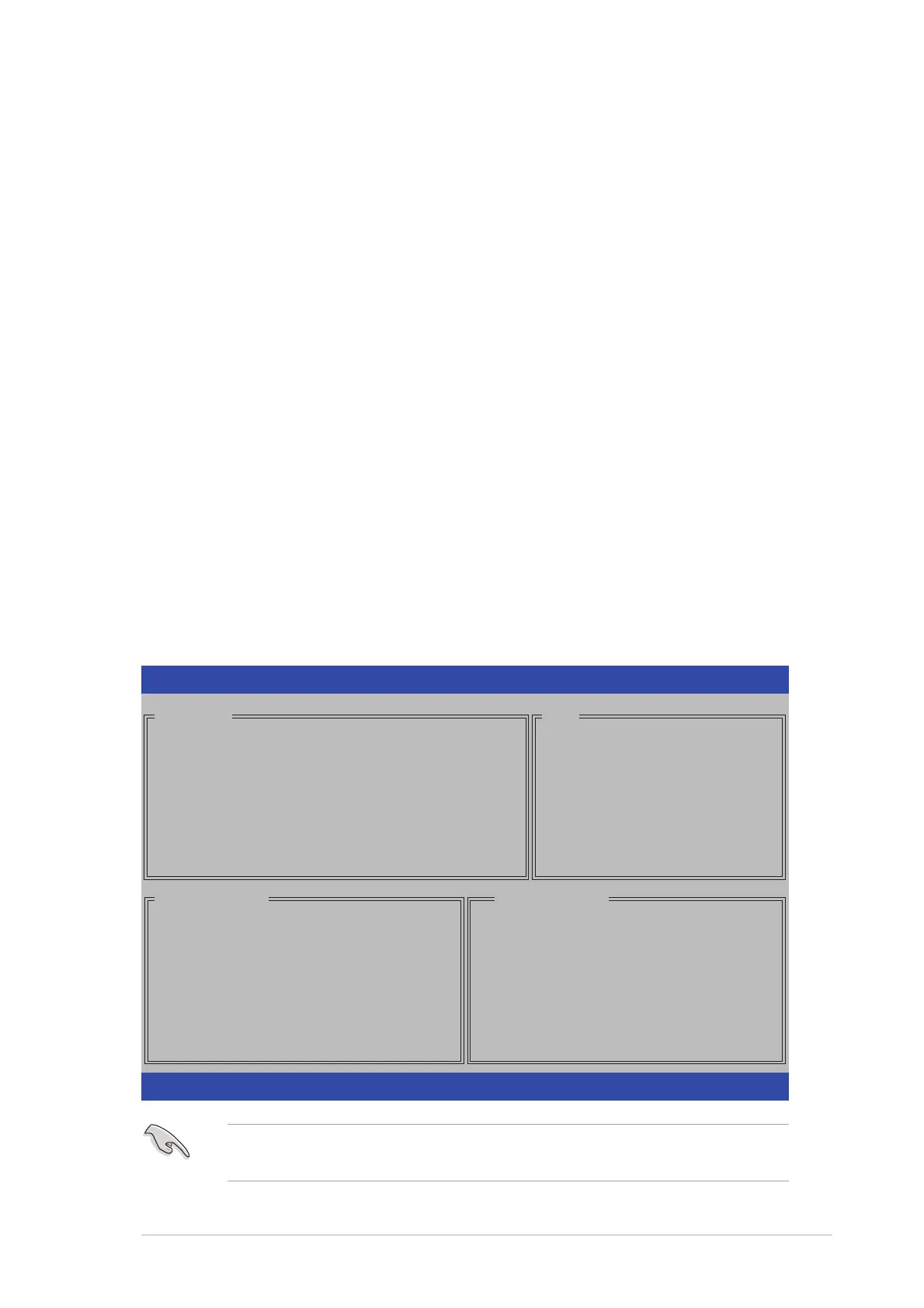
2. During POST, press <Ctrl+S> or <F4>. The Silicon Image BIOS RAID
Configuration Utility screen appears.
Create RAID set
Delete RAID set
Rebuild Raid1 set
Resolve Conflicts
Low Level Format
Logical Drive Info
RAID Configuration Utility - Silicon Image Inc. Copyright (C) 2004
↑↓↑↓
↑↓↑↓
↑↓:Select Menu ESC:Previous Menu Enter:Select Ctrl-E:Exit
MAIN MENU
PHYSICAL DRIVE
0 XXXXXXXXXXX XXXXXXMB
1 XXXXXXXXXXX XXXXXXMB
2 XXXXXXXXXXX XXXXXXMB
3 XXXXXXXXXXX XXXXXXMB
STXXXXXXXXX XXXXXXMB
STXXXXXXXXX XXXXXXMB
STXXXXXXXXX XXXXXXMB
STXXXXXXXXX XXXXXXMB
LOGICAL DRIVE
HELP
Press “Enter” to create
RAID set
The RAID BIOS setup screens shown in this section are for reference
only, and may not exactly match the items on your screen.



 To Next Page