5-245-24
5-245-24
5-24
Chapter 5: Software supportChapter 5: Software support
Chapter 5: Software supportChapter 5: Software support
Chapter 5: Software support
b. When the selection bar
moves to the
PhysicalPhysical
PhysicalPhysical
Physical
Drive Drive
Drive Drive
Drive section, use the up
or down arrow keys to
select the first drive of the
RAID set, then press
<Enter>.
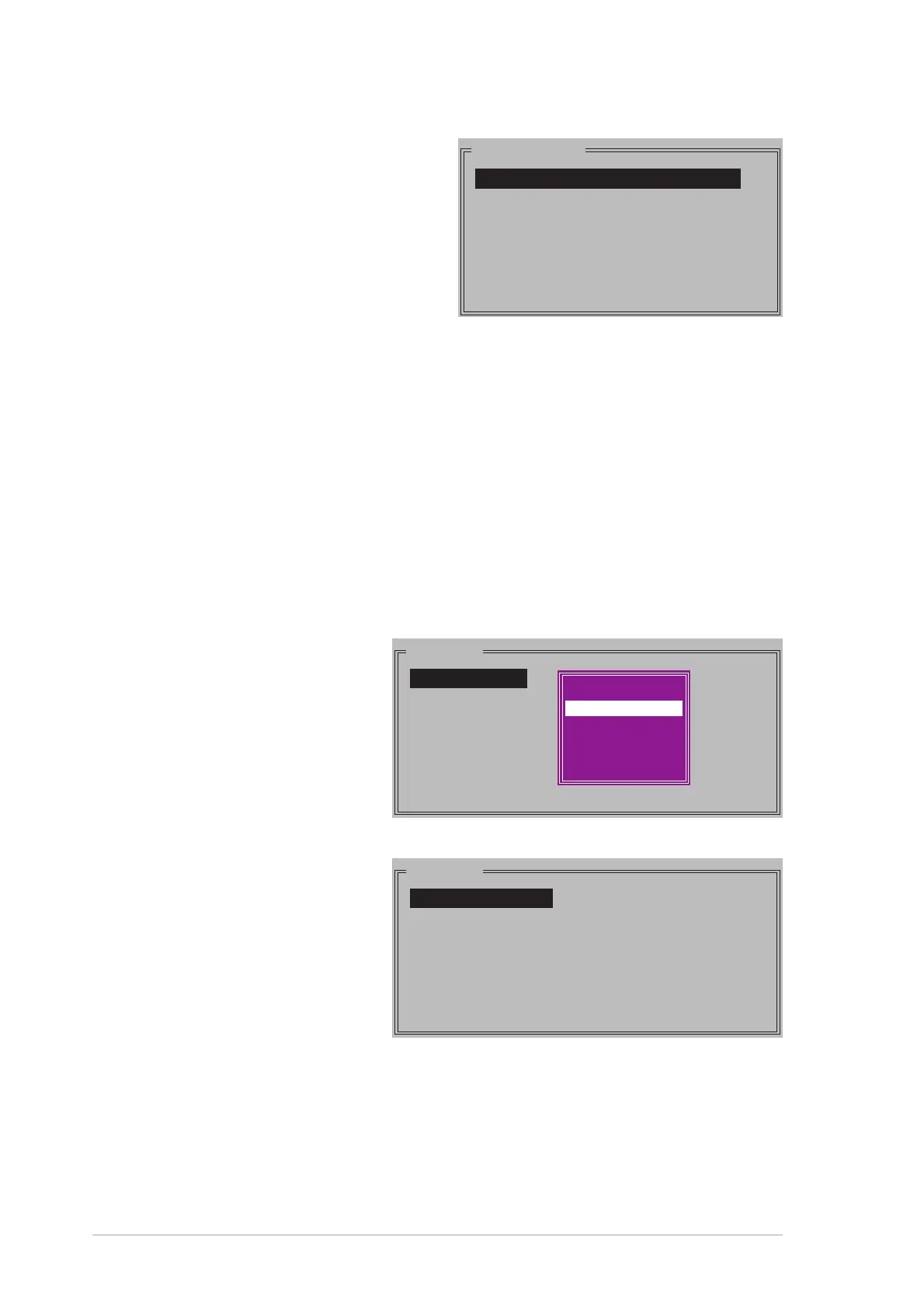
PHYSICAL DRIVE
0 XXXXXXXXXXX XXXXXXMB
1 XXXXXXXXXXX XXXXXXMB
2 XXXXXXXXXXX XXXXXXMB
3 XXXXXXXXXXX XXXXXXMB
c. Repeat step b to set the second, third, and fourth drive. The
number of available drives depends on the installed and enabled
physical drives in the system.
d. After selecting the drives, the utility allows you to input the RAID
size. Use the up or down arrow keys to set the RAID size, then
press <Enter>.
e. Press <Y> to create the RAID set, or <N> to return to the utility
main menu.
Creating as RAID 1 set (Mirrored)Creating as RAID 1 set (Mirrored)
Creating as RAID 1 set (Mirrored)Creating as RAID 1 set (Mirrored)
Creating as RAID 1 set (Mirrored)
To create a RAID 1 set:
1. From the Silicon Image
configuration utility
main menu, select
Create RAID setCreate RAID set
Create RAID setCreate RAID set
Create RAID set
then press <Enter> to
display an option menu.
2. Select
RAID 1RAID 1
RAID 1RAID 1
RAID 1, then press <Enter>.
3. Select your desired
method of configuration,
then press <Enter>.
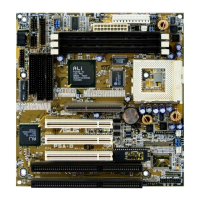
MAIN MENU
Auto configuration
Manual configuration
MAIN MENU
Create RAID set
Delete RAID set
Rebuild Raid1 set
Resolve Conflicts
Low Level Format
Logical Drive Info
RAID0
RAID1
RAID5
RAID10
SPARE DRIVE
JBOD



 To Next Page