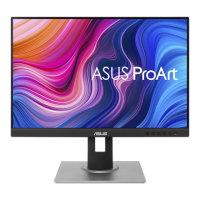
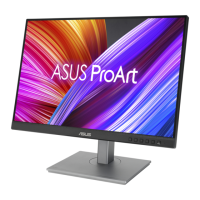
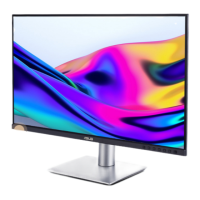
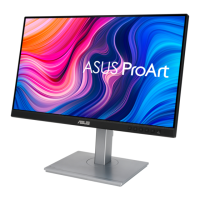
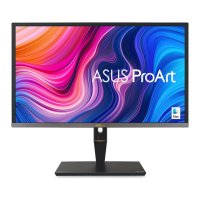
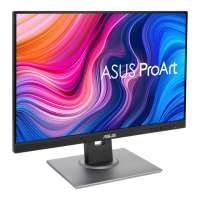
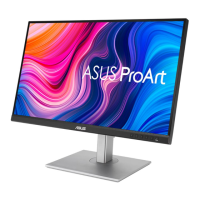
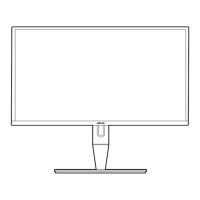
The ASUS PA248 Series LCD Monitor is a widescreen display designed to provide a crisp, broad, and bright visual experience, enhanced by a variety of features. This user guide outlines its setup, operation, and maintenance, ensuring users can maximize its capabilities.
Function Description
The monitor's primary function is to display visual content from connected devices. It supports multiple input sources, including VGA, DVI, HDMI, and DisplayPort, making it versatile for various computing and multimedia setups. The display is designed for optimal viewing, offering adjustments for tilt, swivel, and height to ensure user comfort.
A key feature of the ASUS PA248 Series is the QuickFit function, which assists designers and users with content organization and layout. This function provides three types of patterns: grid patterns, paper sizes, and photo sizes. Grid patterns facilitate precise alignment, while paper and photo sizes allow users to view documents and images in their real-world dimensions directly on the screen. The QuickFit patterns can be activated via a dedicated button and adjusted for position on the screen.
The monitor also includes an On-Screen Display (OSD) menu for comprehensive control over its settings. This menu is accessed via a MENU button and navigated using directional buttons. The OSD allows users to customize various aspects of the display, including image quality, color settings, and system preferences.
Usage Features
The ASUS PA248 Series LCD Monitor offers several features to enhance its usability:
- Input Flexibility: With VGA, DVI, HDMI, and DisplayPort inputs, the monitor can connect to a wide range of devices, from older PCs to modern graphics cards and game consoles. The input source can be easily selected through the OSD menu or a dedicated input select button.
- USB 3.0 Hub: The monitor includes a USB 3.0 upstream port and multiple USB 3.0 downstream ports. This integrated hub allows users to connect USB devices such as keyboards, mice, and flash drives directly to the monitor, simplifying cable management and providing convenient access to peripherals.
- Earphone Jack: An earphone jack is provided for audio output when an HDMI or DisplayPort signal is fed, offering a convenient way to connect headphones or external speakers without needing to access the computer's audio ports.
- Ergonomic Adjustments: The monitor stand is highly adjustable, allowing for tilt (+20° to -5°), swivel (60° left or right), and height adjustment (up to +/- 10 cm). These ergonomic features help users find the most comfortable viewing position, reducing strain during prolonged use. The monitor can also be pivoted clockwise for a vertical display orientation.
- SPLENDID™ Video Enhancement: The OSD menu includes a "Splendid" function with six preset modes (Standard, sRGB, Scenery, Theater, User Mode 1, User Mode 2) designed to optimize the display for different types of content. These modes adjust color, contrast, and other image parameters to provide the best viewing experience for tasks like document editing, photo display, or movie watching.
- Color Control: The "Color" menu in the OSD provides detailed control over brightness, contrast, saturation, hue, color temperature (with presets like 9300K, 6500K, 5500K, and 5000K), and gamma (2.2 or 1.8). Advanced settings include 6-axis hue and saturation adjustments, allowing for fine-tuning of individual color components (R, G, B, C, M, Y).
- Image Adjustments: The "Image" menu offers settings for sharpness, Trace Free (response time), Aspect Control (aspect ratio options like full, 4:3, 1:1, or OverScan for HDMI), ASCR (ASUS Smart Contrast Ratio), position (H-Position and V-Position), focus (phase and clock), and an AUTO Adjust function for automatic image optimization (VGA mode only).
- PIP/PBP Setting: The Picture-in-Picture (PIP) and Picture-by-Picture (PBP) functions allow the monitor to display content from two different video sources simultaneously. Users can select the main and sub-window sources, adjust the PIP size (Small, Middle, Large), and position the sub-window (Right-Top, Left-Top, Right-Bottom, Left-Bottom).
- System Setup: This OSD menu provides general system settings, including Splendid Demo Mode (for comparing Splendid modes), volume control, OSD Setup (position, timeout, DDC/CI, background transparency, rotation), Information (monitor details), Language selection (10 languages), Power Indicator on/off, QuickFit Color (7 preset colors), and an All Reset option to restore default settings.
- Shortcut Keys: Two customizable shortcut buttons (Shortcut 1 and Shortcut 2) are available on the monitor's front panel. Users can assign frequently used functions like brightness, contrast, or QuickFit to these buttons for quick access.
Maintenance Features
Proper care and maintenance are essential for the longevity and optimal performance of the ASUS PA248 Series LCD Monitor:
- Cleaning: The monitor should be cleaned with a lint-free, non-abrasive cloth after being turned off and unplugged. Stubborn stains can be removed with a cloth dampened with a mild cleaner. It is crucial to avoid cleaners containing alcohol or acetone and never spray cleaner directly onto the screen to prevent damage or electric shock.
- Safe Handling: When lifting or repositioning the monitor, users should grasp the edges of the display and avoid lifting it by the stand or cord. Disconnecting cables and the power cord before moving the monitor is recommended.
- Ventilation: The monitor cabinet has slots and openings for ventilation. These should not be blocked, and the product should not be placed near radiators or heat sources unless proper ventilation is ensured.
- Power Management: The monitor should be operated only from the specified power source. Using the appropriate power plug and avoiding overloaded power strips and extension cords are important to prevent fire or electric shock. Unplugging the unit during lightning storms or extended periods of non-use can protect it from power surges.
- Environmental Considerations: The monitor should be kept away from dust, humidity, and extreme temperatures. It should not be placed in areas where it may get wet and should always be on a stable surface.
- Troubleshooting Guidance: The user guide provides a troubleshooting section (FAQ) to help users diagnose and resolve common issues such as the power LED not turning on, no screen image, image quality problems (too light/dark, not centered, color defects, blurry), or sound issues. This section offers practical solutions like checking cable connections, adjusting OSD settings, or moving electrical devices causing interference.
- Professional Service: In case of technical problems that cannot be resolved through troubleshooting, users are advised to contact a qualified service technician or their retailer rather than attempting repairs themselves, especially if the power supply is broken or the screen malfunctions.
- Disposal Information: The manual includes a symbol indicating that the product should not be disposed of with municipal waste, encouraging users to check local regulations for the proper disposal of electronic products.


 To Next Page

 General