Connect to the wireless network
Therearetwowaysforyourwirelessclients(notebook,tabletPC,smartphone
andsoon)toconnecttoRT-AC3100’swirelessnetwork.
Connect to the wireless network manually
Toconnecttothewirelessnetworkmanually:
1. EnabletheWi-Fifunctiononyourwirelessclienttoscanforavailablewireless
networks.
2. SelecttheSSIDornetworknamethatyouassignedtoyourRT-AC3100’s
network.
3. Enter the password and click Connect.
Connect to the wireless network through WPS
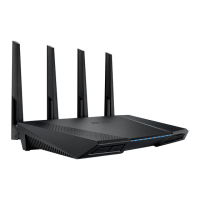
RT-AC3100hasaWPS(Wi-FiProtectedSetup)buttonforyoutoconnectyour
wirelessclienttoRT-AC3100snetworkwithoutenteringpassword.
ToconnecttothewirelessnetworkthroughWPS:
1. PresstheWPSbuttonatthebackofRT-AC3100.RefertothesectionA quick
look for the location of the WPS button).
2. PresstheWPSbuttonofyourwirelessclientwithintwominutesorfollowthe
WPSinstructionsthatcamewiththewirelessclient.Whenconnectingvia
WPS,theWPSLEDonyourrouterblinksfast.
3. Waituntilyourrouter’sWPSLEDturnsintoasolidlightindicatingasuccess-
fullyconnectionbetweenyourrouterandyourwirelessclient.
E10547_RT-AC3100_QSG.indd 10 6/17/2015 12:55:33 PM


 To Next Page
 Loading...