61
The client cannot establish a wireless connection with the
router.
• OutofRange:
• Movetherouterclosertothewirelessclient.
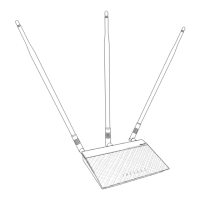
• Trytoadjustantennasoftheroutertothebestdirectionas
described in section 1.4 Positioning your router.
• DHCPserverhasbeendisabled:
1. Launch the web GUI. Go to General > Network Map>
Clients and search for the device that you want to connect
to the router.
2. If you cannot find the device in the Network Map, go to
Advanced Settings > LAN > DHCP Server, Basic Config
list, select Yes on the Enable the DHCP Server.
• SSIDhasbeenhidden.IfyourdevicecanndSSIDsfromother
routers but cannot find your router’s SSID, go to Advanced
Settings > Wireless > General, select No on Hide SSID, and
select Auto on Control Channel.
• IfyouareusingawirelessLANadapter,checkifthewireless
channel in use conforms to the channels available in your
country/area. If not, adjust the channel, channel bandwidth,
and wireless mode.
• Ifyoustillcannotconnecttotherouterwirelessly,youcanreset
your router to factory default settings. In the router GUI,click
Administration > Restore/Save/Upload Setting and click
Restore.
Internet is not accessible.
• CheckifyourroutercanconnecttoyourISP’sWANIPaddress.
To do this, launch the web GUI and go to General> Network
Map, and check the Internet Status.
• IfyourroutercannotconnecttoyourISP’sWANIPaddress,
try restarting your network as described in the section
Restart your network in following sequence under Basic
Troubleshooting.


 To Next Page