
 Need help?
Do you have a question about the Asus XG16AHPE and is the answer not in the manual?
Details compliance with Federal Communications Commission Rules.
Outlines compliance with Canadian Department of Communications regulations.
Essential safety guidelines for setup, usage, and handling of the monitor.
Illustrates various ways to connect the monitor to a computer or mobile device.
Guides users on accessing and navigating the On-Screen Display menu.
Provides detailed technical data including resolution, dimensions, and power requirements.
Offers solutions for typical issues like power problems, screen display, and automatic shutdown.
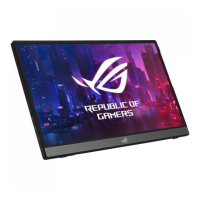
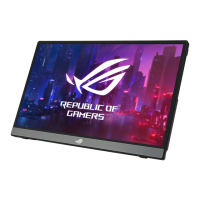
The ASUS ROG STRIX XG16AHPE/XG16AHPE-W is a portable gaming monitor designed to enhance your daily viewing experience with great portability and style. This user guide provides comprehensive information on setting up, using, and maintaining your monitor.
This portable gaming monitor offers a high-definition display for an immersive gaming experience on the go. It supports various input sources, including Micro-HDMI and USB Type-C, making it compatible with notebooks, PCs, and mobile phones that support USB Type-C DP Alt Mode. The monitor is powered by a USB port and includes a built-in battery for portable use. It features an On-Screen Display (OSD) menu for easy configuration of various settings, including gaming features, image adjustments, color settings, power management, auto-rotation, input selection, and system setup.
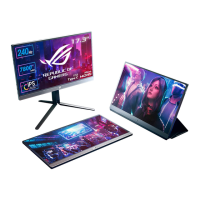
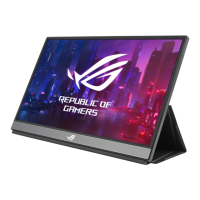
The monitor is designed for flexible use with an embedded kickstand that allows for both landscape and portrait standing positions, offering a 70-degree range of adjustment.
The monitor can be powered and charged via its USB Type-C ports. It supports up to 9V@2A 18W power supply with the included QC3.0 adapter or up to 12V@2A with certified PD3.0 power adapters. It is recommended to charge the monitor for 4 hours before its initial use and to only use the bundled power adapter and USB cable to prevent potential damage. The power LED indicator shows the monitor's status: blue for ON/Standby, dark for OFF, red for Charging Mode, and green for Finished Charging.
The OSD menu is accessed via the MENU button.
The monitor contains magnets, which could potentially damage computer hard drives or other magnet-sensitive objects. Avoid stacking the monitor with a computer when the computer is in use (powered on or in standby mode) to prevent hard drive issues or display shutdowns. When transporting the monitor with a computer in a bag, ensure the computer is powered off to avoid hard drive damage.
Turn off and unplug the monitor before cleaning. Use a lint-free, non-abrasive cloth to clean the monitor surface. For stubborn stains, a cloth dampened with a mild cleaner can be used. Avoid cleaners containing alcohol or acetone, and never spray cleaner directly on the screen to prevent electric shock.
The battery capacity may vary with environmental temperature, humidity, and monitor usage. The battery can present a risk of fire or chemical burn if removed or disassembled. Never attempt to short-circuit, disassemble, or reassemble the monitor battery. Discontinue use if leakage is found. Ensure used batteries are disposed of correctly and keep the battery and small components away from children. Do not burn or incinerate the battery, and avoid exposing it to excessive heat from sources like sunshine or fire.
The manual includes a troubleshooting section (FAQ) to address common issues such as the power LED not turning on, no screen image, incorrect brightness, image distortion, color defects, and automatic monitor shutdown. Solutions typically involve checking cable connections, power sources, OSD settings, and ensuring proper computer functionality.
To minimize eye strain, users are advised to take short, frequent breaks (at least 5 minutes after an hour of continuous use). Periodically rest eyes by focusing on distant objects and perform eye exercises (looking up/down, slowly rolling eyes, moving eyes diagonally). The monitor's blue light filter can reduce harmful blue light by up to 70% to help prevent Computer Vision Syndrome (CVS).
Always read the documentation before setup. Do not expose the monitor to rain or moisture. Never attempt to open the cabinet. Ensure all cables are correctly connected and undamaged. Avoid dust, humidity, and temperature extremes, and place the monitor on a stable surface. Do not push objects or spill liquid into the slots. If technical problems arise, contact a qualified service technician or retailer. The monitor's USB power complies with LPS and SELV circuits. Do not dispose of the product in fire or use it near heating equipment. Keep the monitor away from sharp objects and do not place objects on top of it. If using batteries, ensure correct polarity and proper disposal.
 General
| Color | black |
|---|---|
| Screen Type | lcd |
| Touch Screen | no |
| Webcam | no |
| OS Compatibility | windows |
| Screen Size | 15.6 inches |
| Panel Type | ips |
| Aspect Ratio | 16:9 |
| Resolution | 1920 x 1080 |
| Native Resolution | 1920 x 1080 |
| Refresh Rate | 144hz |
| Response Time | 3 milliseconds |
| Brightness | 300 candela per square meter |
| Contrast Ratio | 800:1 |
| Synchronization | g-sync (nvidia adaptive sync) |
| HDR | no |
| Built-In Speakers | yes |
| HDMI Ports | 1 |
| Voice Assistant | no |
| Power Consumption | 10 watts |
| Width with Stand | 14 1/5 inches |
| Depth without Stand | 0.5 inches |
| Height without Stand | 8.87 inches |
| Net Weight without Stand | 1.98 pounds |


 To Next Page