112
Chapter 7: Staying connected
Tethering
When Wi-Fi service is not available, you can use your Zen device as a modem or turn it into a Wi-Fi
hotspot to get Internet access on your laptop, tablet, and other mobile devices.
IMPORTANT! Most mobile service providers may require a data plan for you to be able to use the
tethering function. Contact your mobile service provider about availing of this data plan.
NOTES:
• Internet access via tethering may be slower than the standard Wi-Fi or mobile connection.
• Only a limited number of mobile devices can tether to your Zen device for Internet access.
• Turn off the tethering feature when you're not using it to help save battery power.
Wi-Fi Hotspot
Turn your Zen device into a Wi-Fi Hotspot to share Internet connection with other devices.
1. Do any of the following to launch the Settings screen:
• Launch Quick settings then tap
.
• Tap
> Settings.
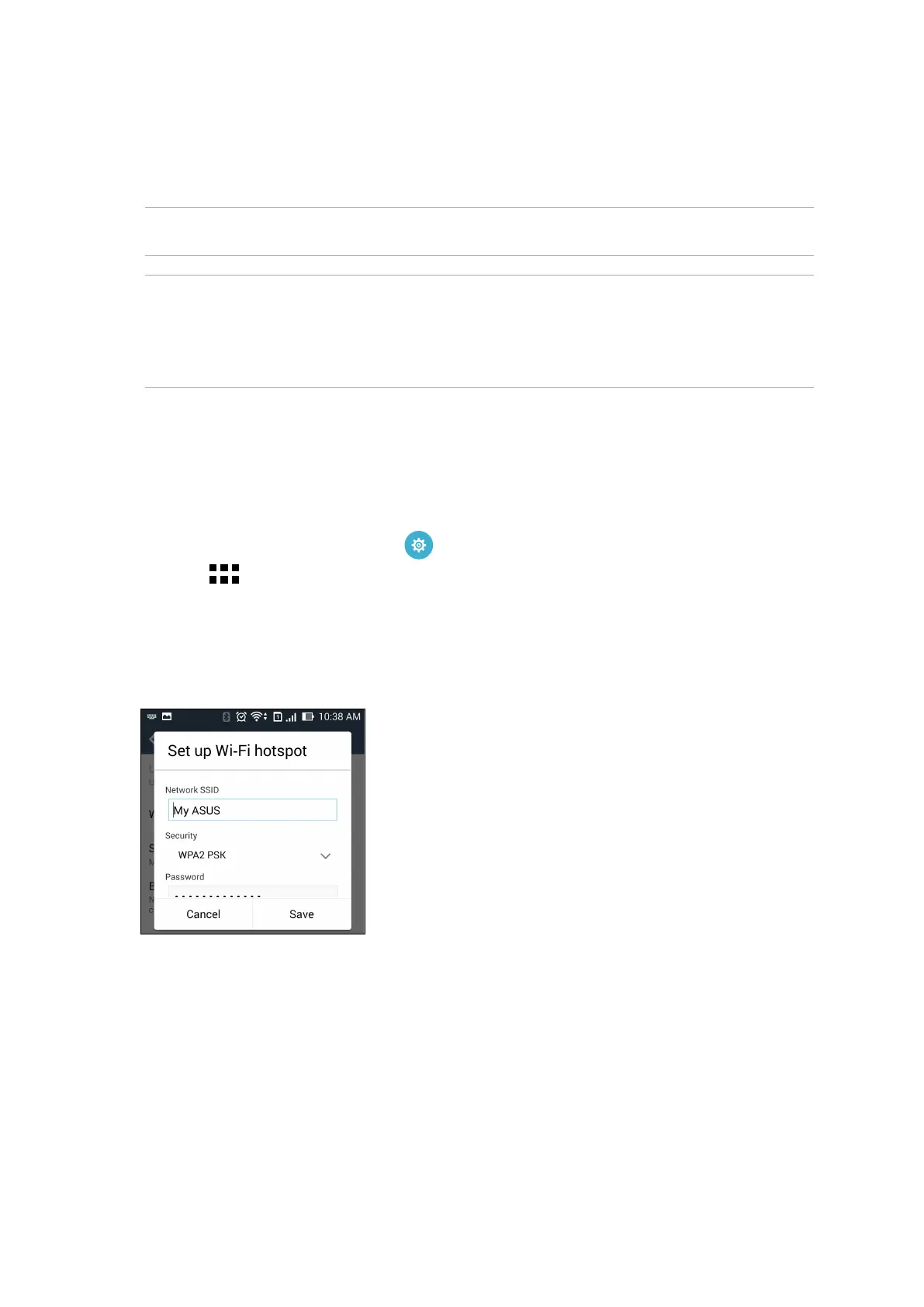
2. Tap More... > Tethering > Set up Wi-Fi hotspot.
3. Assign a unique SSID or network name and a strong 8-character password for your Wi-Fi hotspot.
When done, tap Save.


 To Next Page