142
Chapter 11: Maintain your Zen
Face Unlock
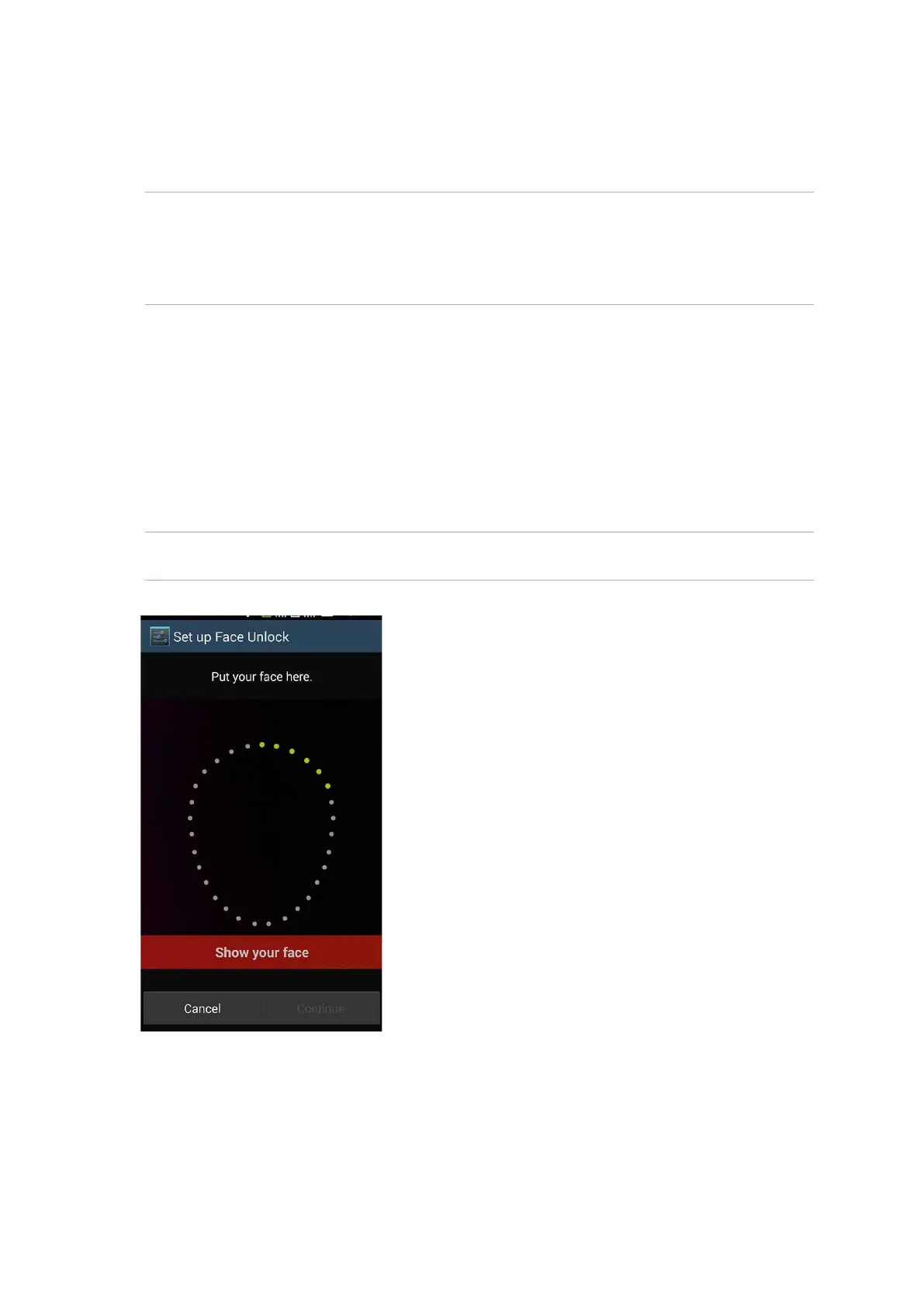
Show your face on the black window of the lock screen to unlock your Zen device. \
IMPORTANT!
• Face Unlock is less secure than a pattern, PIN, or password.
• SomeonewholookslikeyoucouldunlockyourZendevice.
• ThedatausedtoidentifyyourfaceiskeptinyourZendevice.
To set up Face Unlock:
1. From the Choose screen lock screen, tap Face Unlock.
2. Read the terms in using Face Unlock feature on your screen, then tap Set it up.
3. Read the instructions in setting up Face Unlock on your screen, then tap Continue.
4. Hold your Zen device at eye level and align your face on the outline of your screen to capture it.
NOTE: The green-dotted outline indicates that the Zen device has detected your face and in the
process of capturing the image.


 To Next Page