EN EN
09 10
APP
1
Download ATECPOOL Brightbot 6000 APP
ATECPOOL Brightbot 6000 App:
(applicable to iOS 9.0/Android 4.4 and
above versions) Scan the QR to download
or visit iOS App Store/ Google Play/Official
Website of Atecpool for downloading.
2
Wi-Fi Connection
3
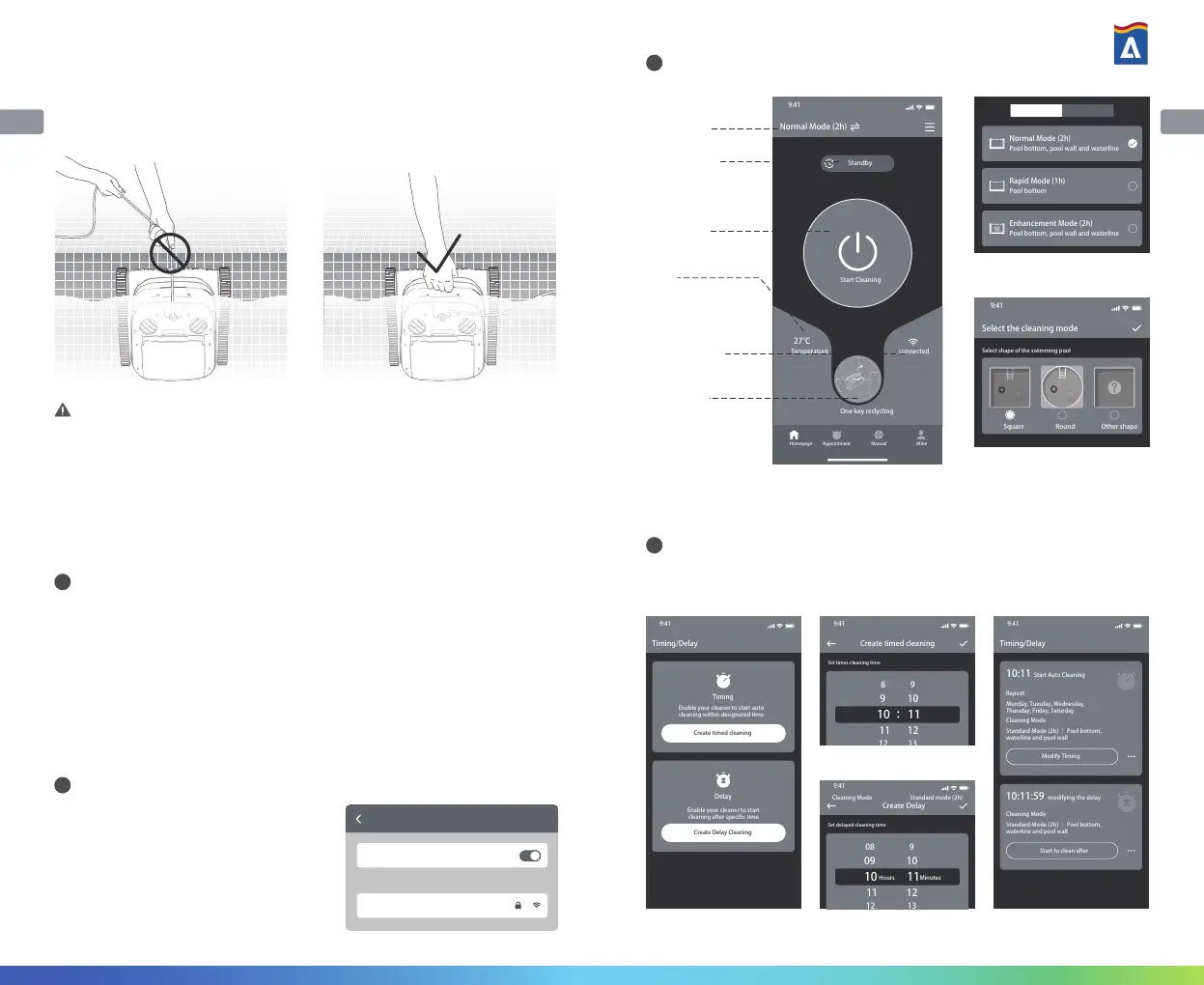
Homepage
4
Appointment
Connect the cleaner and the control box
property according to the “Instruction for Use,
and energize the control box.
Then enter Wi-Fi Connection interface in
Mobile Phone/Tablet Setting, and wait for
10-15s, to connect to Atecpool_XXXX, Wi-Fi
password: 12345678.
Method 2:
1. Stop the cleaner.
2. Pull the buoyancy cable slightly to enable the cleaner in water to move to
water side slowly.
3. Hold the handle of the cleaner to pull it out of the water surface, and hang it
above the water surface for 10-20s to empty the water inside it.
Note: It is forbidden from pulling the buoyancy cable directly on water surface, so as
to avoid fracture and damage.
Wi-Fi
ATECPOOL Brightbot 6000
Setting
Wi-Fi
Select network
Mode
Switching
Cleaner status
Start
Cleaning
Water
temperature
Connection
status of the
control box
One-button
recycling (available
when the cleaner is
in water)
When the cleaner is in standby state and is placed in water of the swimming
pool, Create Appoint Cleaning can be performed to complete unattended
operation.
Pool bottom, pool wall and waterline
Pool bottom, pool wall and waterline
Normal Mode Custom Mode
Select shape of the swimming pool
Switch to required mode
Custom Mode
Enable your cleaner to start
cleaning after specific time
Enable your cleaner to start auto
cleaning within designated time
Standard Mode (2h) | Pool bottom,
waterline and pool wall
Monday, Tuesday, Wednesday,
Thursday, Friday, Saturday
Create Appoint Cleaning Plan
Enter Create Timing interface
Enter Create Delay interface Complete appointed
cleaning plan
Set delayed cleaning time
Standard Mode (2h) | Pool bottom,
waterline and pool wall



 To Next Page