To set up a chroma key on upstream keyer 1 on an ATEM Advanced Panel:
1 Press the ‘key 1’ button to enable keyer 1 on the preview output. This automatically selects
the keyers menu on the system control LCD, but you can also press the ‘keyers’ button to
enter the menu directly.
2 Select the ‘chroma’ key type using the corresponding ‘key type’ control knob.
3 Select your fill source by turning the corresponding LCD control knob. Typically, this source
would be from a camera facing a presenter in front of a green screen, or a graphic loaded in
a media player. You can also select a fill source by pressing the corresponding button in the
source select bus.
4 Use the ‘right’ arrow buttons to access the chroma adjustments screen.
5 Click the ‘sample chroma’ button.
Choose a representative area of your green screen that covers as much of the luminance
range of the screen as possible. The default size of the box cursor is well suited to most green
screens that are relatively evenly lit, however if there is a lot of variance in your green screen,
you can adjust the size of the box by clicking on the slider to the right of the sample window
and dragging it up or down. On ATEM advanced panel, use the joystick to move the position of
the box and the z axis to increase or decrease the size.
TIP When sampling uneven green screens, we recommend sampling the darkest
areafirst before increasing the size of the sample box. This can give you a more
accurate key.
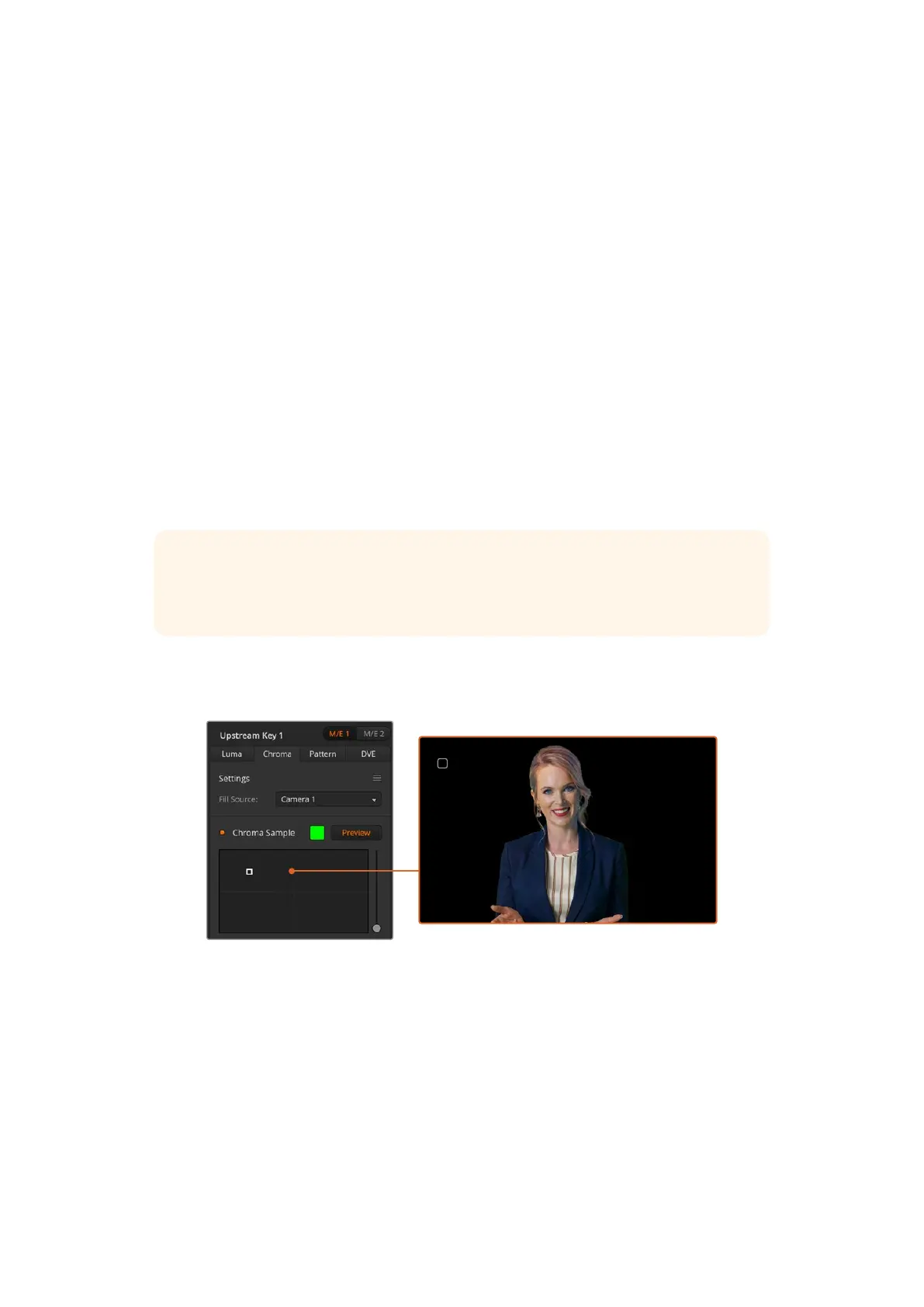
You can preview your key at any time by clicking the ‘preview’ button above the chroma
sample panel or by pressing the ‘preview chroma’ button above the LCD screen on the
advanced panel.
Use the preview button to check what your key will look like in the M/E 1 PVW output
Fine Tuning your Key using Key Adjustments
Once you have achieved a good chroma sample that removes most of your green screen
while generally retaining foreground elements, it is time to fine tune your key with the
‘key adjustments’ controls. If you are using an ATEM advanced panel, press the right arrow
to navigate to the ‘chroma adjustments’ menu.
Foreground
Use the ‘foreground’ slider or control knob to adjust how opaque the foreground maskis. This
determines the strength of the foreground against the background. Byincreasing the slider,
108Keying using ATEM Switchers


 To Next Page
 Loading...
