LCD Menu Settings
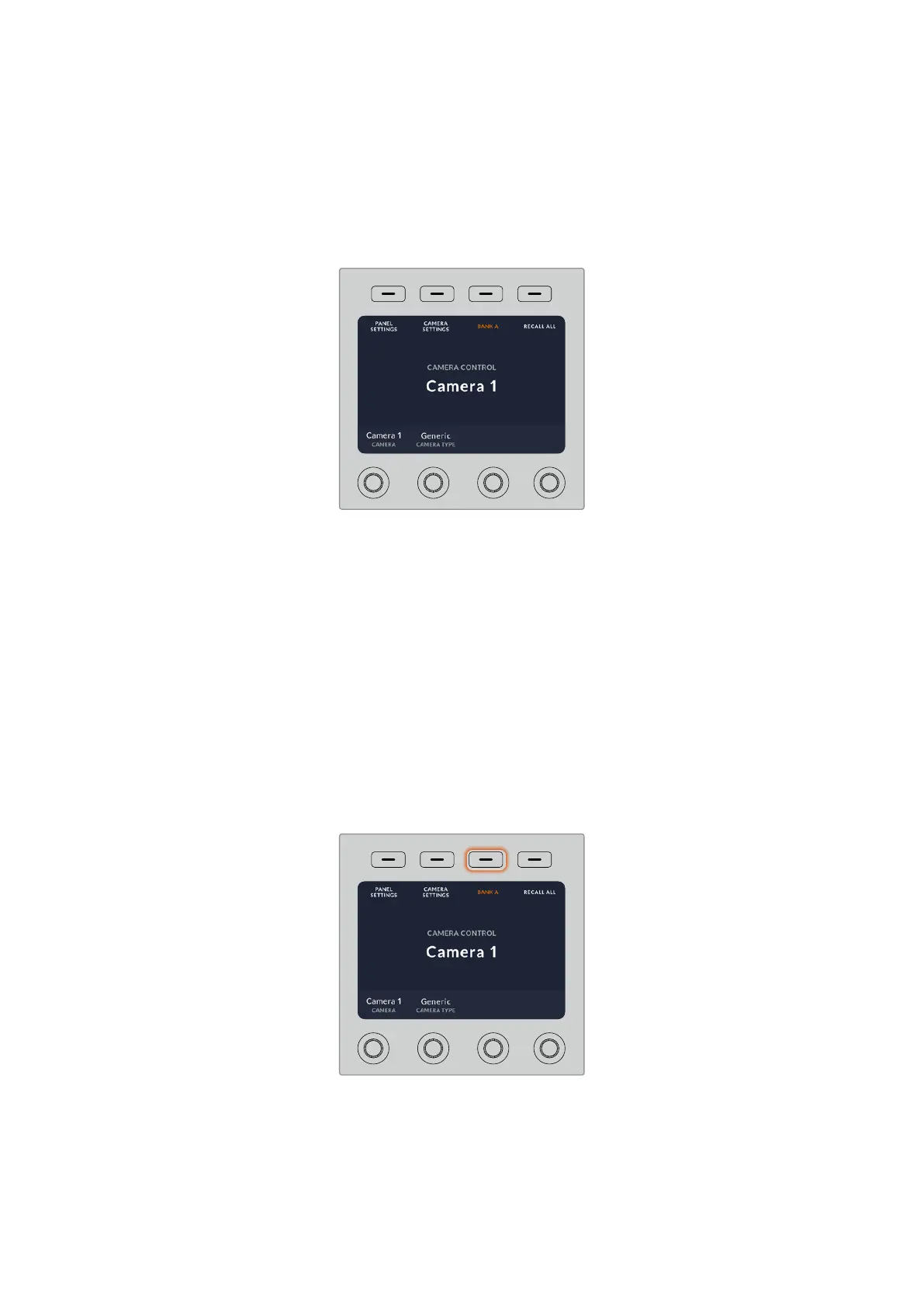
Pressing the ‘home’ soft button returns you to main home screen. From the home screen, you
can access all your camera control panel’s settings including the network settings, auxiliary
for camera control, master black enable and disable settings and the brightness settings for
adjusting the lights on the various panel controls. You can also identify the software version
installed on your camera control panel and the ATEM switcher your panel is connected to.
The home screen displays features you mayneed
access to at all times, for example selecting the
desired camera bank and recalling scene files for
all cameras
Camera Banks A and B
When the LCD is set to the home screen, you will see the camera bank setting at the top of the
display. This setting displays which bank of cameras you are controlling.
For example, imagine you are controlling 8 cameras and you want to have a dedicated CCU
assigned to each camera. You can assign cameras 1 to 4 for each CCU on bank A, then assign
cameras 5 to 8 to each CCU on bank B.
Now when switching your live production, you can press the ‘bank’ soft button to swap
between banks A and B, which lets you instantly access camera control for cameras that have
been assigned to dedicated CCUs. This is a faster and more organized way of controlling
cameras compared to swapping between multiple cameras on each CCU during production.
Press the bank soft button to cycle between camera
banks A and B, or hold the button down to disable
or enable camera banks
130Using ATEM Camera Control Panel



 To Next Page