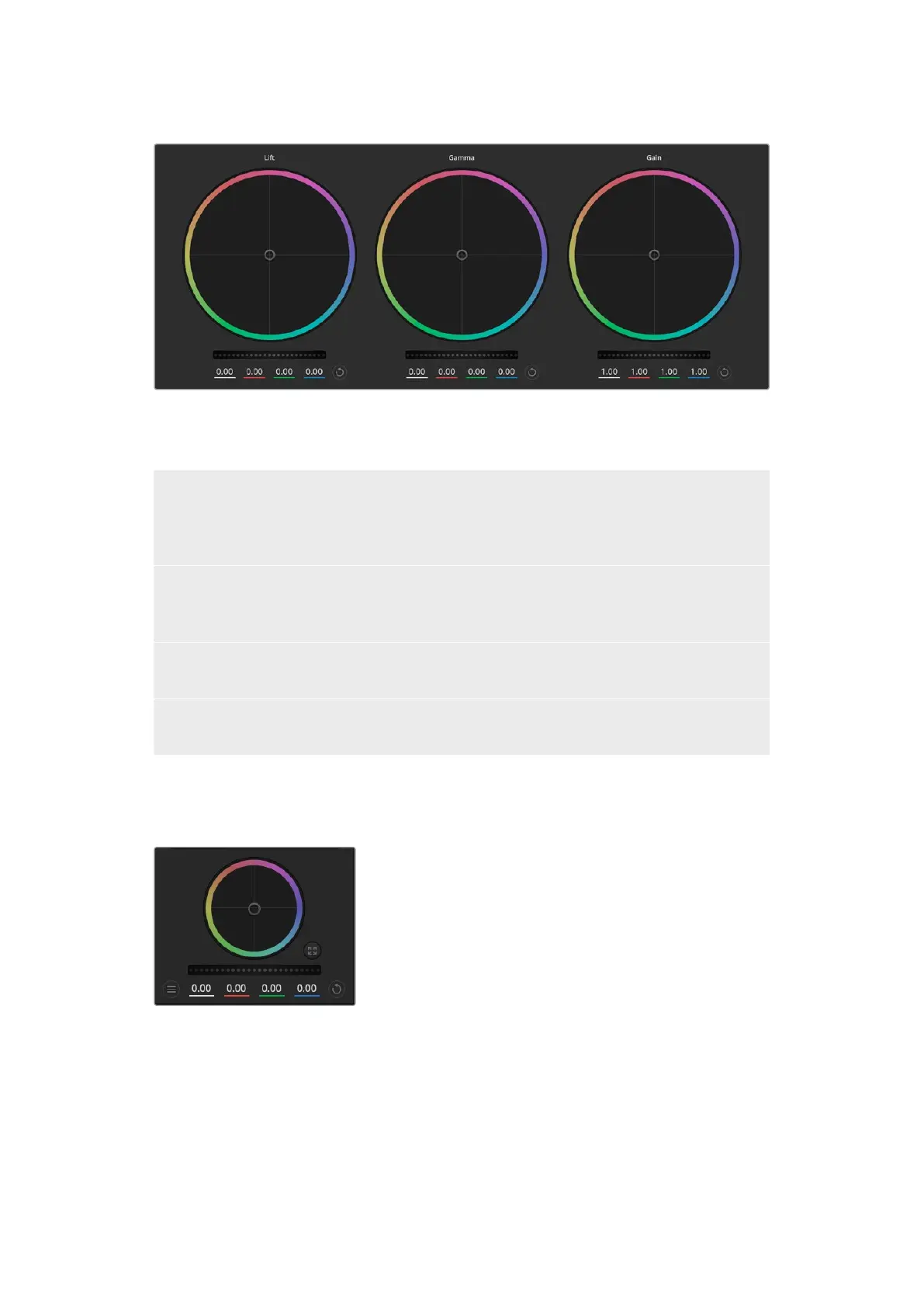
Lift, gamma and gain color wheels in the color corrector panel.
Color Wheels
Click and drag anywhere within the color ring
Note that you don’t need to drag the color balance indicator itself. As the color balance
indicator moves, the RGB parameters underneath change to reflect the adjustments being made to
each channel.
Shift-Click and drag withinthe color ring
Jumps the color balance indicator to the absolute position of the pointer, letting you make faster and
more extreme adjustments.
Double-click within the color ring
Resets the color adjustment without resetting the master wheel adjustment for that control.
Click the reset control at the upper-right of a color ring
Resets both the color balance control and its corresponding masterwheel.
Master Wheels
Use the master wheels below the color wheels to adjust each YRGB channels’ lift, gamma and
gain controls.
Dragging to the left darkens the selected parameter of the
image, dragging to the right lightens that parameter. As you
make an adjustment, the YRGB parameters underneath
change to reflect the adjustment you’re making. To make
a Y-only adjustment, hold down the ALT or Command key
and drag left or right. Because the color corrector uses
YRGB processing, you can get quite creative and create
unique affects by adjusting the Y channel only. Y channel
adjustments work best when the Lum Mix setting is set to
the right side to use YRGB processing vs the left side to use regular RGB processing. Normally,
most DaVinci Resolve colorists use the YRGB color corrector as you get a lot more control of
color balance without affecting overall gain, so you spend less time getting the look you want.
Contrast Setting
The Contrast setting gives you control over the distance between the darkest and lightest
values of an image. The effect is similar to making opposing adjustments using the lift and gain
master wheels. The default setting is 50%.
55Using Camera Control


 To Next Page
 Loading...
